How to Set Up Chatbot on Streamable
Control Remote OBS from chat with commands for scenes, sources, stream start and end, and bitrate.
What the chatbot does
Chatbot turns messages in Twitch, Kick, or YouTube chat into Streamable actions, and it’s free on Twitch and Kick.
Use it to switch scenes, show or hide sources, start or end your stream, and check current ingest bitrate.
Streamable replies with confirmations in Twitch, Kick, and YouTube chat. You can also show chat on stream with the free chat overlay.
How do I set up a chatbot for Twitch and Kick on Streamable?
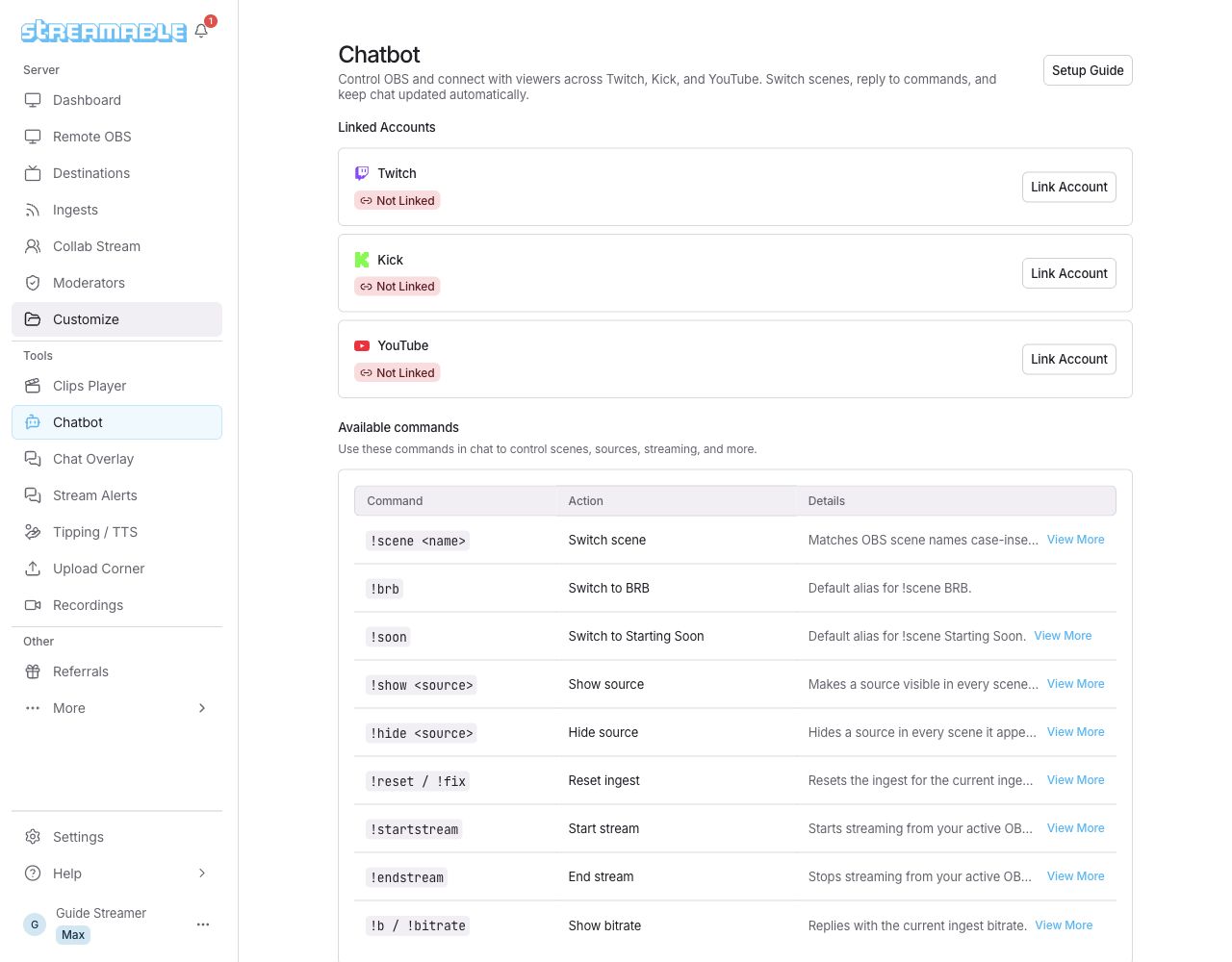
Open Chatbot in Streamable, link your Twitch or Kick account, then turn on the switch for that platform. After that, you can type commands such as !scene or !bitrate in your own chat to control Remote OBS.
1. Open Chatbot from the sidebar. You need to be signed in; signed-out visitors are sent to the login page first.
2. Under Chatbot Features, find your platform. A badge shows its state: Not Linked, Needs Permissions or Permission Granted. Select Link Account if it is not linked, or Update Permissions if it needs permissions.
3. Once the badge reads Permission Granted, turn on that platform's switch. Then try !bitrate in your chat. Streamable replies with your current ingest bitrate.
On Twitch, moderators can't use these commands until you turn that on (it is off by default). After the Twitch switch is on, an Allow Twitch Mods to Use Commands option appears. Kick doesn't have this option. The guide below also covers YouTube.
Step 1:Open Chatbot
Sign in to Streamable and open Chatbot from the sidebar.
Step 2:Connect your chat platforms
Under Chatbot Features, choose the account to configure. Link the account or update its permissions before you enable commands.
Turn on the platform switch after permissions show as granted.
Step 3:Choose who can run commands
By default, only your connected broadcaster account can run OBS control commands.
On Twitch, you can also let channel moderators run commands. Streamable keeps the moderator list refreshed automatically.
Step 4:Use the built-in commands
Commands work with names as they appear in OBS. Quotes are supported for names with spaces, like !scene "Starting Soon".
- !scene <name> switches scenes. !brb and !soon are built-in shortcuts.
- !show <source> and !hide <source> show or hide a source everywhere it appears.
- !startstream and !endstream start or stop the active OBS stream.
- !b or !bitrate replies with the current ingest bitrate. !reset or !fix resets the ingest in the current scene.
Step 5:Add your own shortcuts
Use Command Aliases to create short commands for common OBS actions.
Aliases support !scene <name>, !startstream, !endstream, !reset, and !fix.
Step 6:Choose chat announcements
Streamable can post automatic updates for scene changes, stream start and end, signal loss and recovery, and Upload Corner activity.
Silence Chat Messages for Stream Updates stops automatic stream updates. Chat Alerts, Reply Commands, and Chat Reminder have separate settings.
Reply Commands sends saved replies to viewer commands. Choose Everyone or Mods. Chat Reminder sends your message at the interval you set.
Optional: Deep-Dive FAQ
Open only if you still need extra troubleshooting context.
Why does my chatbot say Needs Permissions?
It means the account is linked, but Streamable does not yet have every permission the chatbot needs. Select Update Permissions on that platform, approve the request, and return to Chatbot. When the badge reads Permission Granted, turn the platform's switch on.
Can my moderators use the Streamable chatbot commands?
Yes, on Twitch. Once the Twitch chatbot switch is on, an Allow Twitch Mods to Use Commands option appears under Chatbot Features. Turn it on. Mods can't use the commands until you do (it is off by default). Kick doesn't have this option.