How to Add OBS as an Ingest for Live Streaming
Follow these steps to connect OBS to your ingest and start streaming.
Step 1:Start Server and Open the Ingests Page
Start your server, then open the Ingests page at https://streamable.run/ingests.
Step 2:Copy Your Server URL
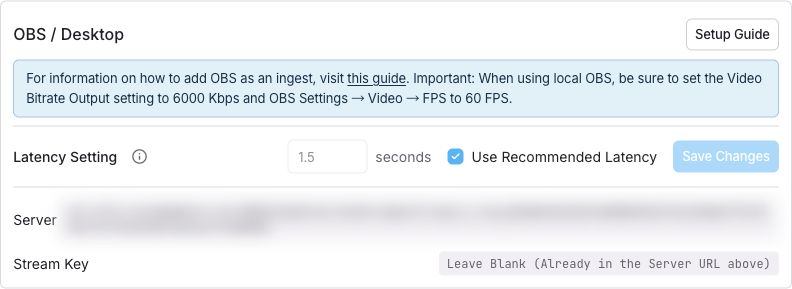
On the Ingests page, select your ingest, open the OBS (Desktop) section, and copy the "Server" value.
Step 3:Configure OBS Stream Settings
- In OBS → Settings → Stream → Service: Custom, paste the Server value into Server and leave Stream Key blank
- In OBS → Settings → Stream → Service: Custom, make sure Enable Multitrack Video is Disabled
- In OBS → Settings → Output → Video Bitrate → Set to 6000 Kbps
- Set FPS to the value shown in your Streamable ingest instructions. This matches your cloud video settings.
6000 Kbps is the recommended starting bitrate. The frame rate must match your Streamable video settings.
Step 4:Click Start Streaming on OBS
On the Dashboard, select your input in Ingest manager. Select its scene, then confirm the video in Stream preview.
Step 5:Happy Streaming!
On the Dashboard, click Start Stream. Select the destinations in the dialog, then confirm the start.
Using OBS's built-in Streamable service
If your version of OBS lists Streamable under Service, you don't have to paste a server address yourself. This is RTMP, which suits a desktop setup on wired or home internet. For IRL streaming from a phone or over cellular, use SRT with the steps above, or the guides for Moblin and IRL Pro. If you don't see Streamable in your version, use the steps above.
1. Start your server first. On the Dashboard, start your server. Until your server is running, OBS may show that you are live while nothing goes out.
2. Open OBS → Settings → Stream.
3. Set Service to Streamable. It isn't one of the common services, so choose Show All… in the dropdown first.
4. Set Server. Choose Global (Default). If you stream from near Japan or East Asia, choose Asia.
5. Get your Stream Key. Click Get Stream Key. It opens your Ingests page at https://streamable.run/ingests. Copy the Stream Key from your RTMP (DJI, GoPro, Miscellaneous) ingest and paste it into Stream Key in OBS.
6. Start streaming. Click Apply, then OK, then Start Streaming.
Recommended settings. OBS shows these for Streamable: H.264 and a keyframe interval of 2 seconds. OBS suggests up to 8000 Kbps, but output to Twitch, Kick and YouTube is capped by your plan (6,000 Kbps, or 9,000 on Max), so treat 8000 as a ceiling, not a target. Lower it if your connection needs it.
Treat your stream key like a password. Don't paste it into a screenshot or share it in chat.
Audio sounds robotic or like a helicopter after connecting OBS? Check your FPS
If you stream from OBS on your computer to Streamable (streamable.run) and the audio sounds robotic, choppy or full of static, the first thing to check is the frame rate. Our support team likely traces this to OBS outputting 30 FPS instead of 60. Open Settings, then Video, set Common FPS Values to 60, and test again.
Do it in this order: (1) Stop your stream, because OBS locks Video settings while you are live. (2) In OBS, open Settings, then Video. (3) Set Common FPS Values to 60 and click OK. (4) Start the stream again and listen to a short test through your destination's player, not only the OBS meters.
This is a likely cause, not the only one. If 60 FPS does not clear it, write down your ingest type (SRT or RTMP), your OBS FPS setting and your destination, record a short clip of the problem, and open a support ticket with those details. If your audio is clean but arrives late, that is a different problem: see fixing audio delay on IRL streams.
Optional: Deep-Dive FAQ
Open only if you still need extra troubleshooting context.
Why does my OBS audio sound like a helicopter on Streamable?
It is likely because OBS on your computer is outputting 30 FPS instead of 60. In OBS, go to Settings, then Video, set Common FPS Values to 60, and start the stream again. If it still sounds broken, contact support with your ingest type, FPS setting and a short clip.
Can I change the FPS setting while I am live?
No. OBS locks Video settings while a stream is running. Stop the stream, change Common FPS Values to 60, then start again.