How to Connect a DJI Camera to Moblin and Streamable
Connect a DJI camera to Moblin over an iPhone hotspot, add its video and audio to a scene, and send it to Streamable.
How the connection works
DJI camera → Moblin → Streamable → Twitch, Kick or YouTube. The camera sends RTMP video to Moblin over local Wi-Fi. Moblin sends the selected scene to Streamable over SRT or SRTLA.
Bluetooth controls the camera. Wi-Fi carries its video. The iPhone hotspot does not provide a second internet connection for bonding.
Before you start
- Use an iPhone with Moblin, cellular data and Personal Hotspot, plus a compatible DJI camera. Osmo Pocket 3 is one supported example. Compatibility depends on the camera, firmware and Moblin version.
- Update Moblin and the camera firmware. Allow Moblin to use Bluetooth and the local network. If settings are hidden, enable Show All Settings. Menu names below use English.
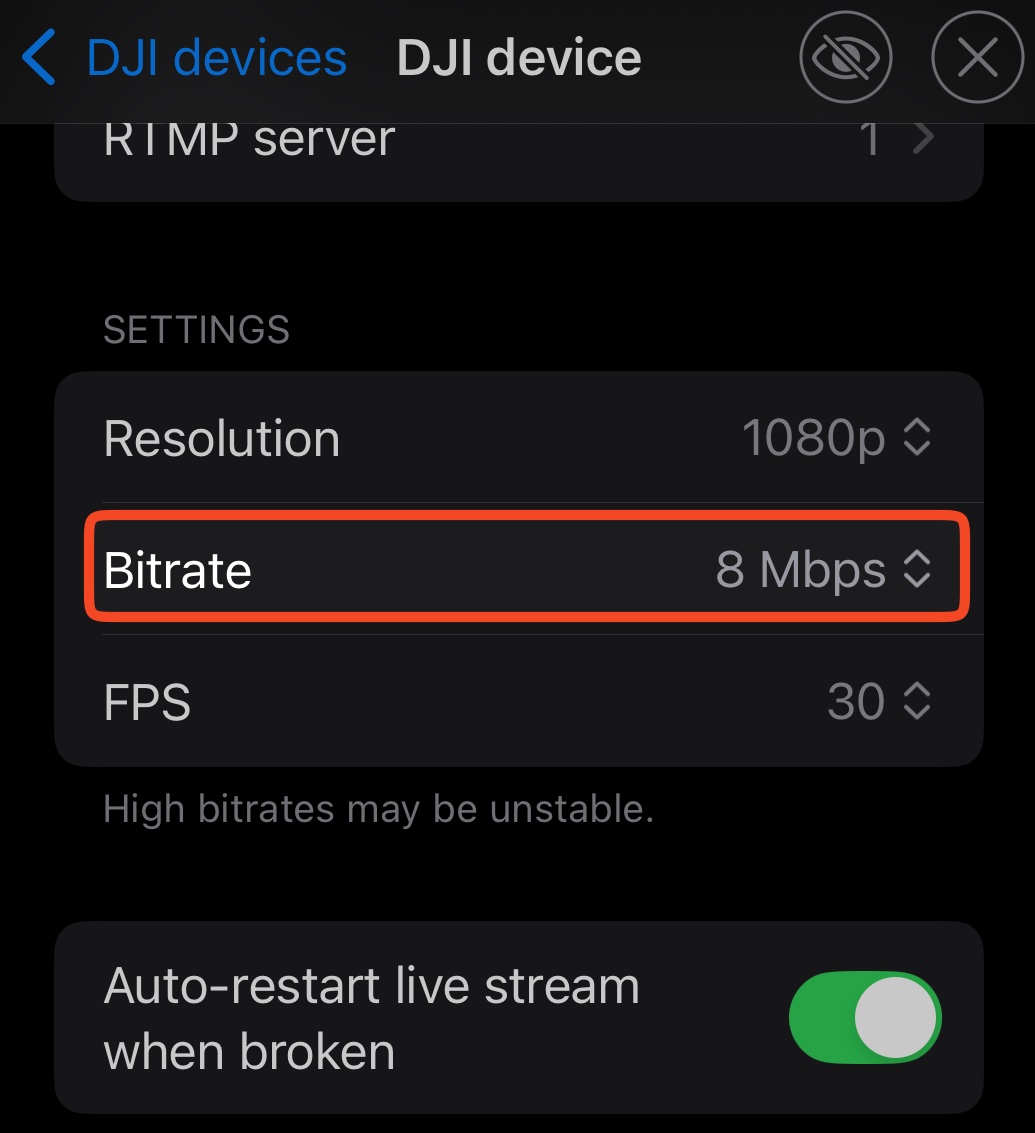
The screenshots show 4000 ms and 8 Mbps. This guide starts with Moblin’s defaults of 2000 ms and 6 Mbps. Use your own hotspot name, password and RTMP address. Menu layouts can differ by version.
Step 1:Enable the iPhone hotspot
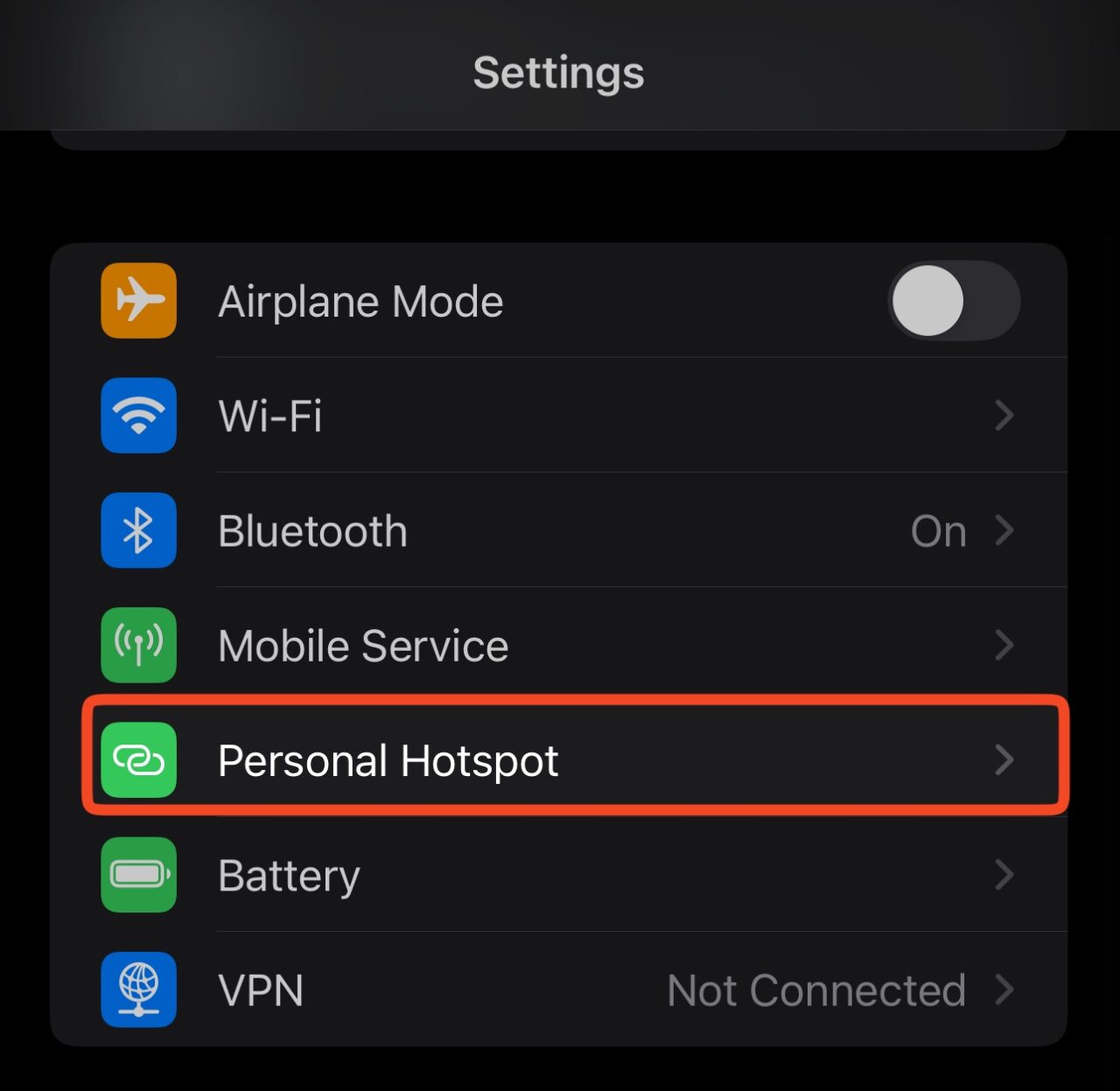
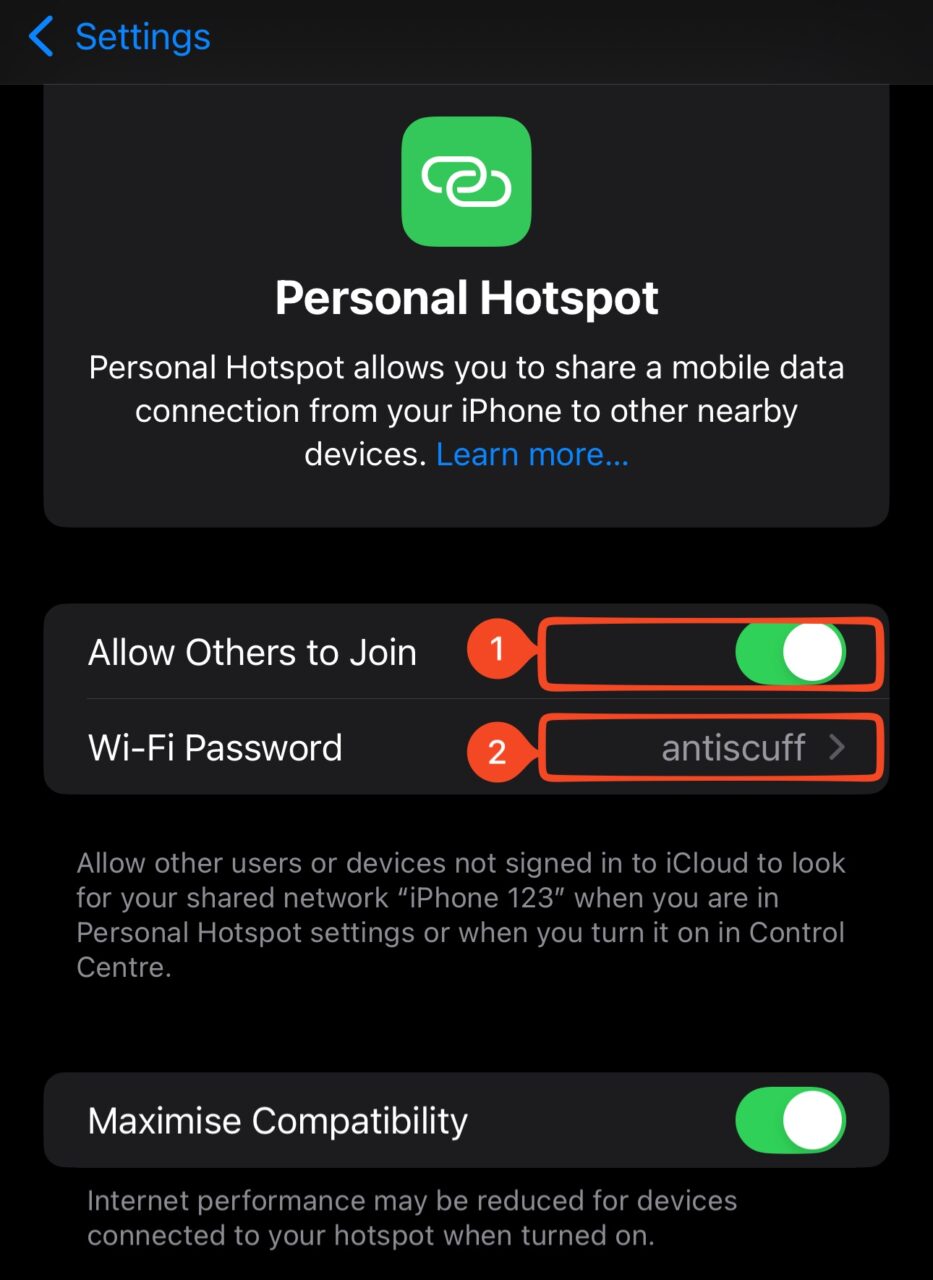
On the iPhone, open Settings → Personal Hotspot. Enable Allow Others to Join. Note the Wi-Fi Password.
Find the hotspot name under Settings → General → About → Name. The camera needs this exact name and password, including capitalization.
Step 2:Create an RTMP input in Moblin
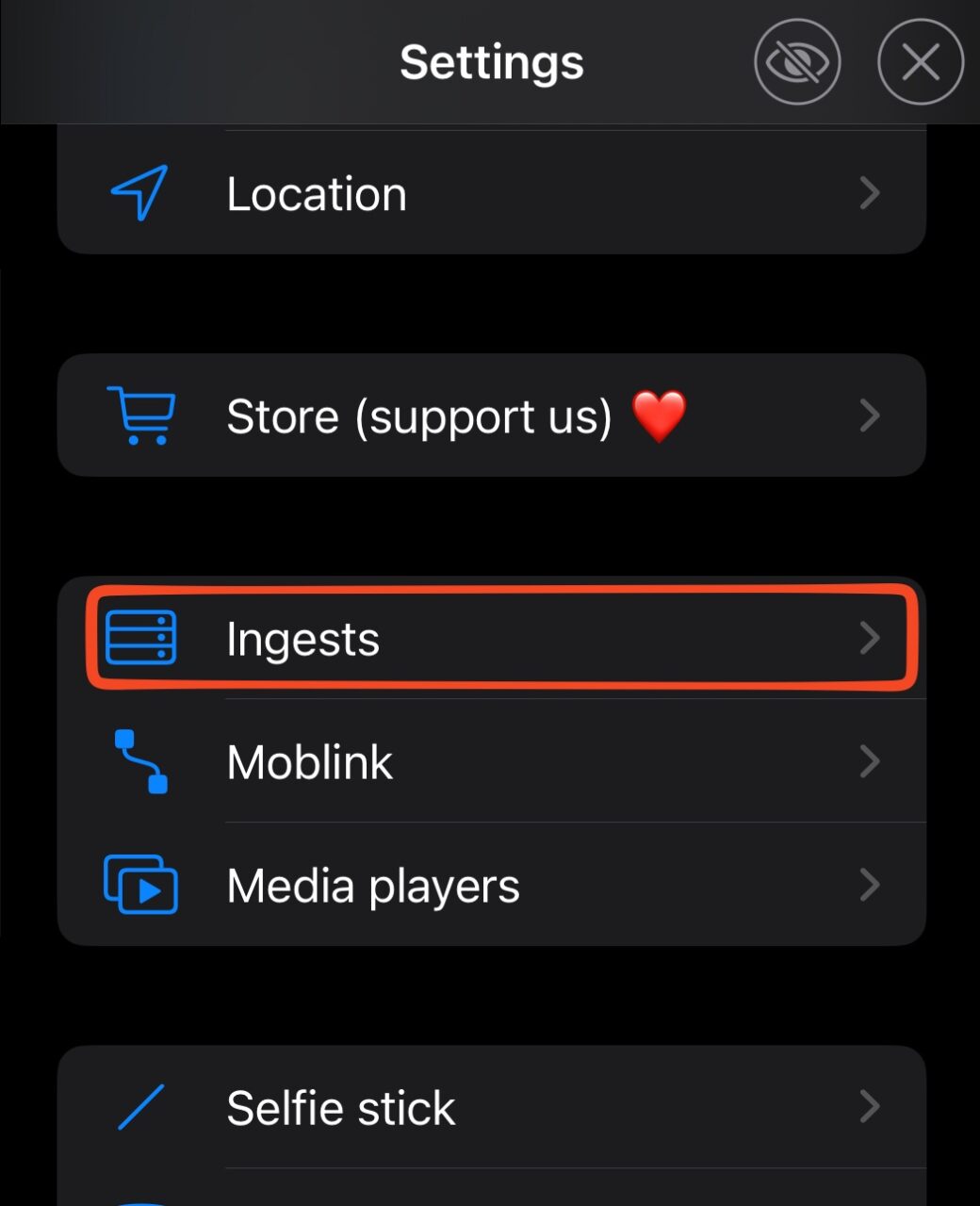
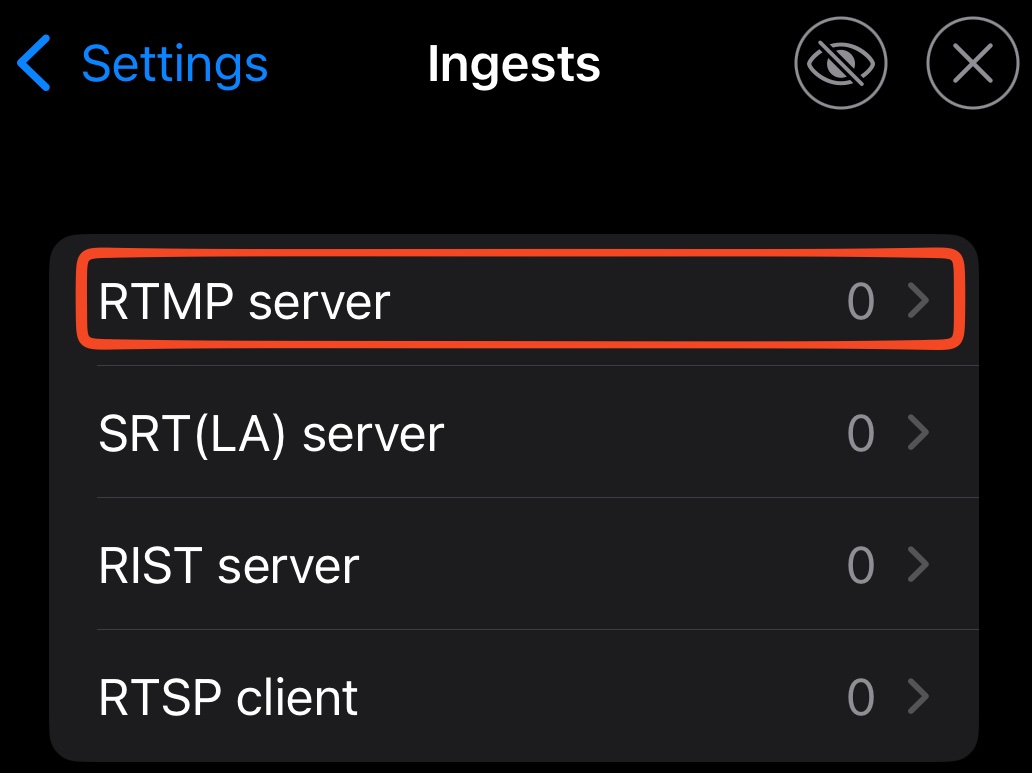
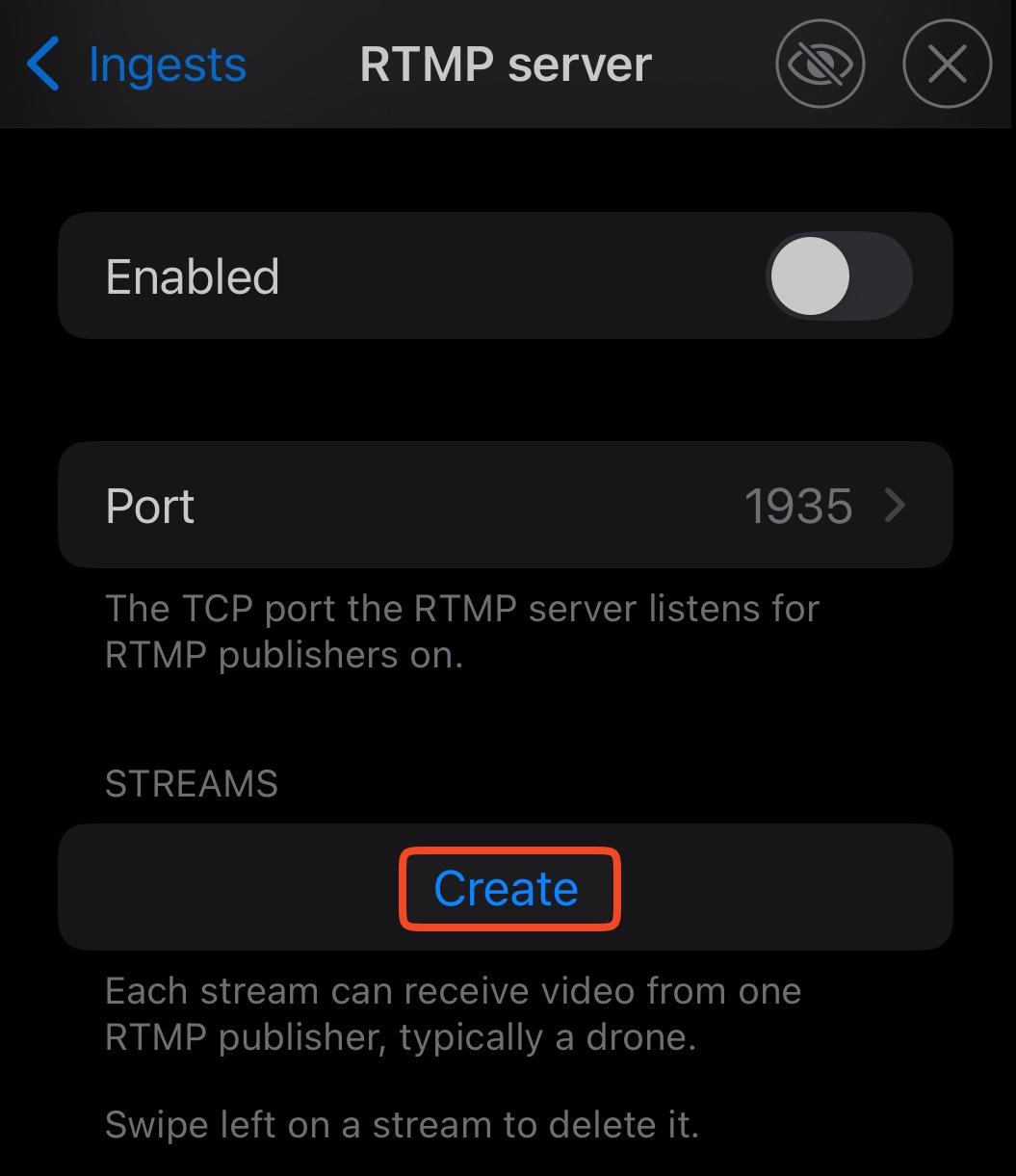
In Moblin, open Settings → Ingests → RTMP server. If Enabled is on, turn it off before editing.
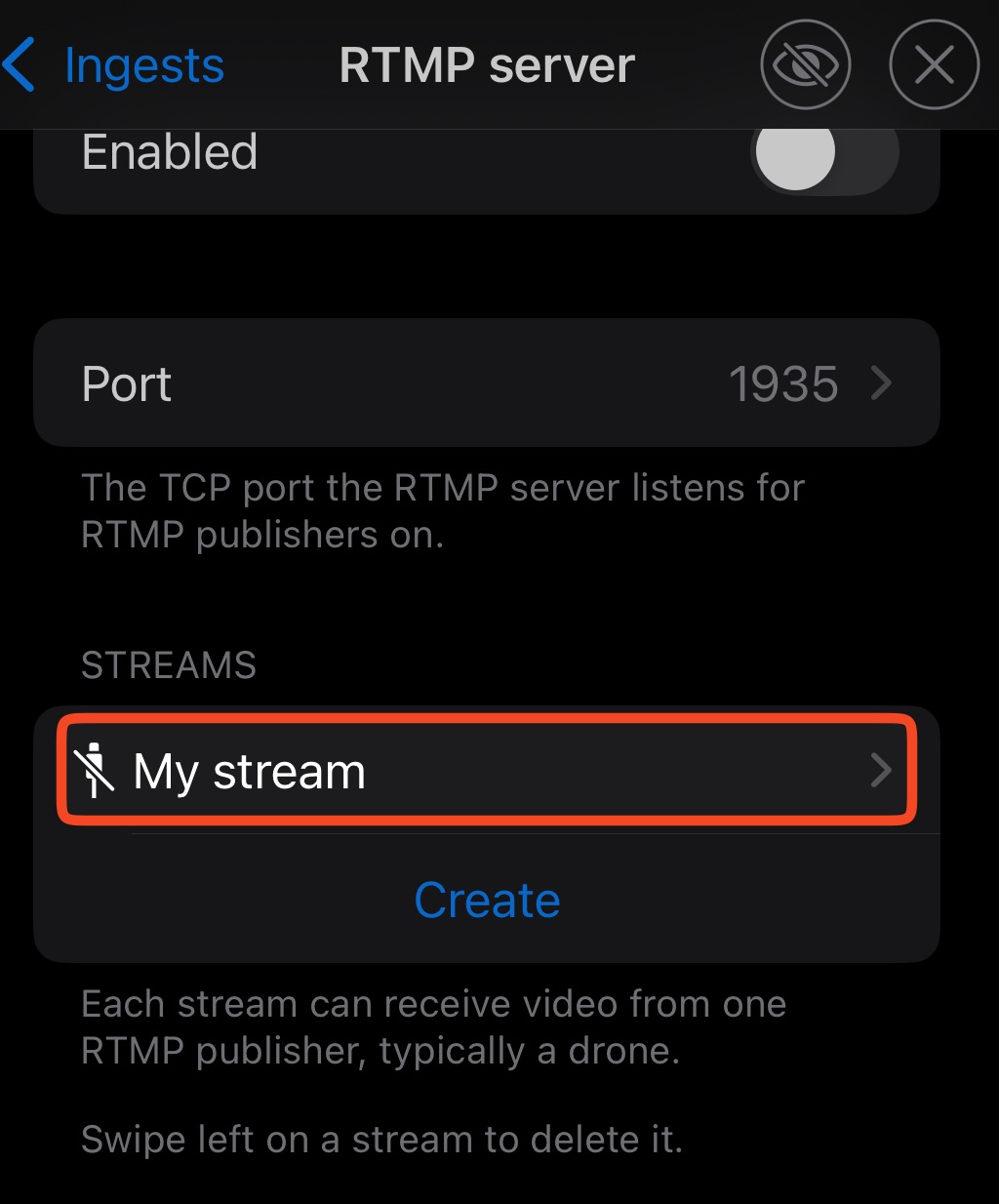
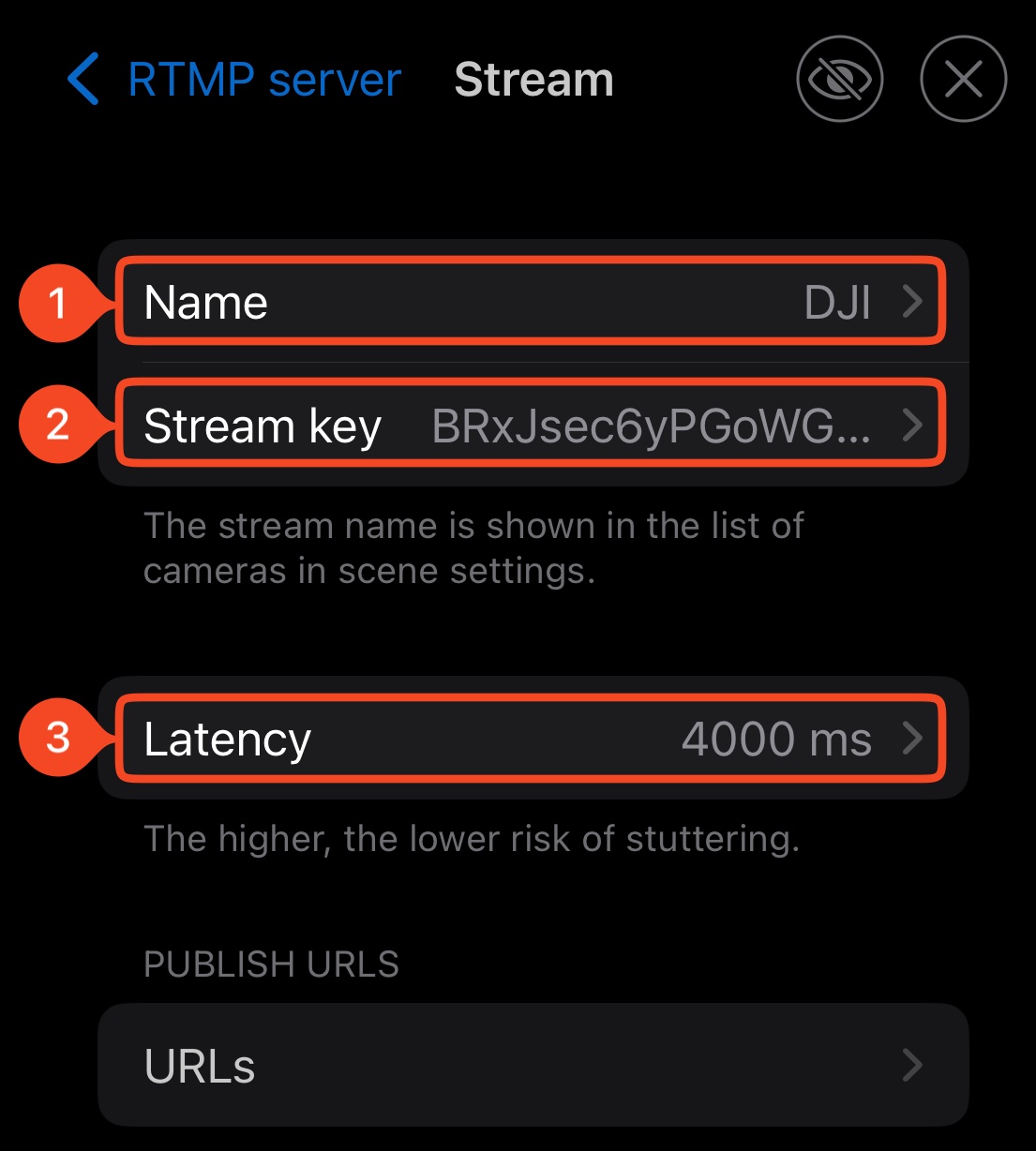
Tap Create. Open the new stream and name it DJI. Keep the generated Stream key and the default Latency of 2000 ms.
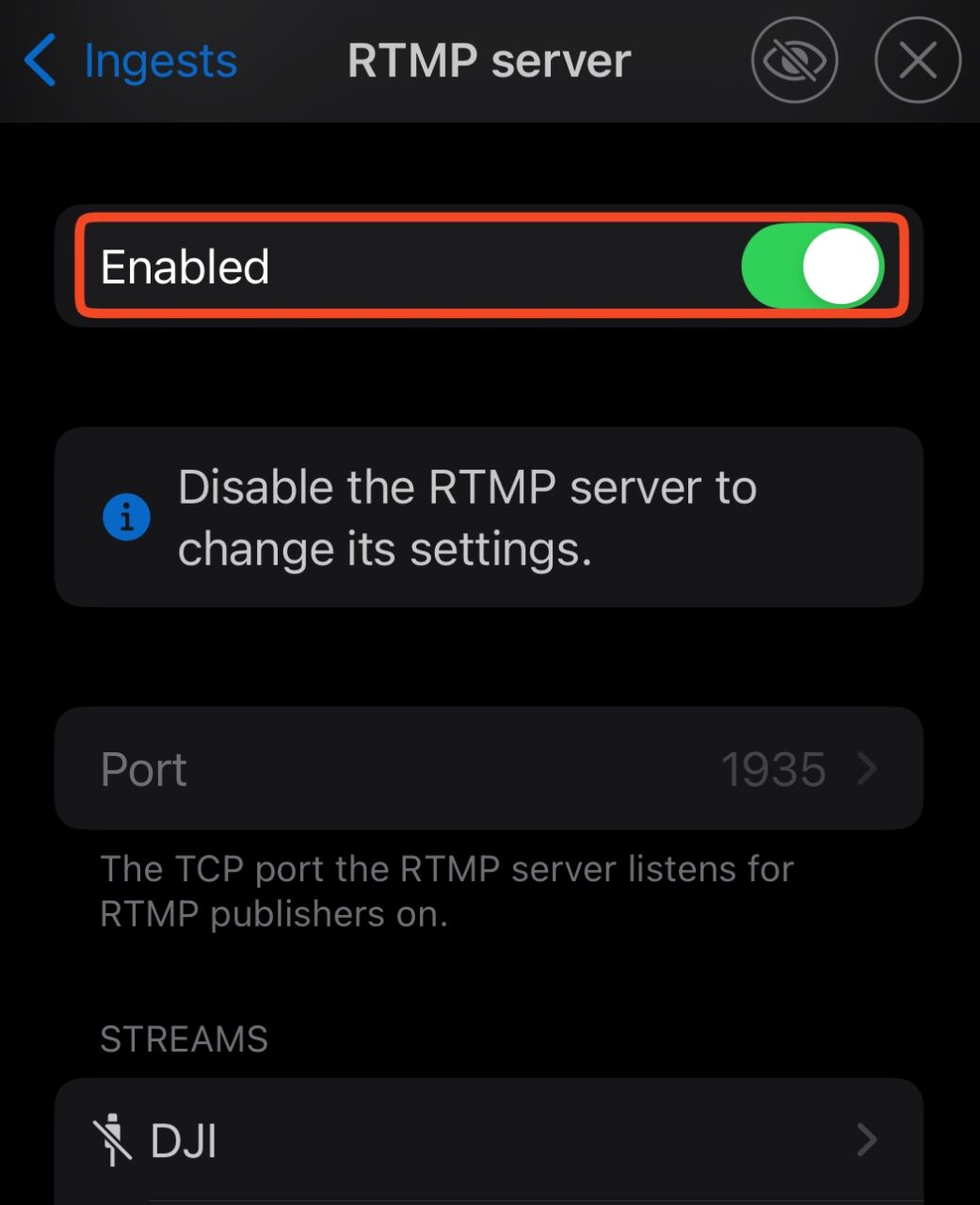
Return to RTMP server. Turn on Enabled. This input receives the camera locally. Its key is separate from your Streamable connection.
Step 3:Add the camera to a scene
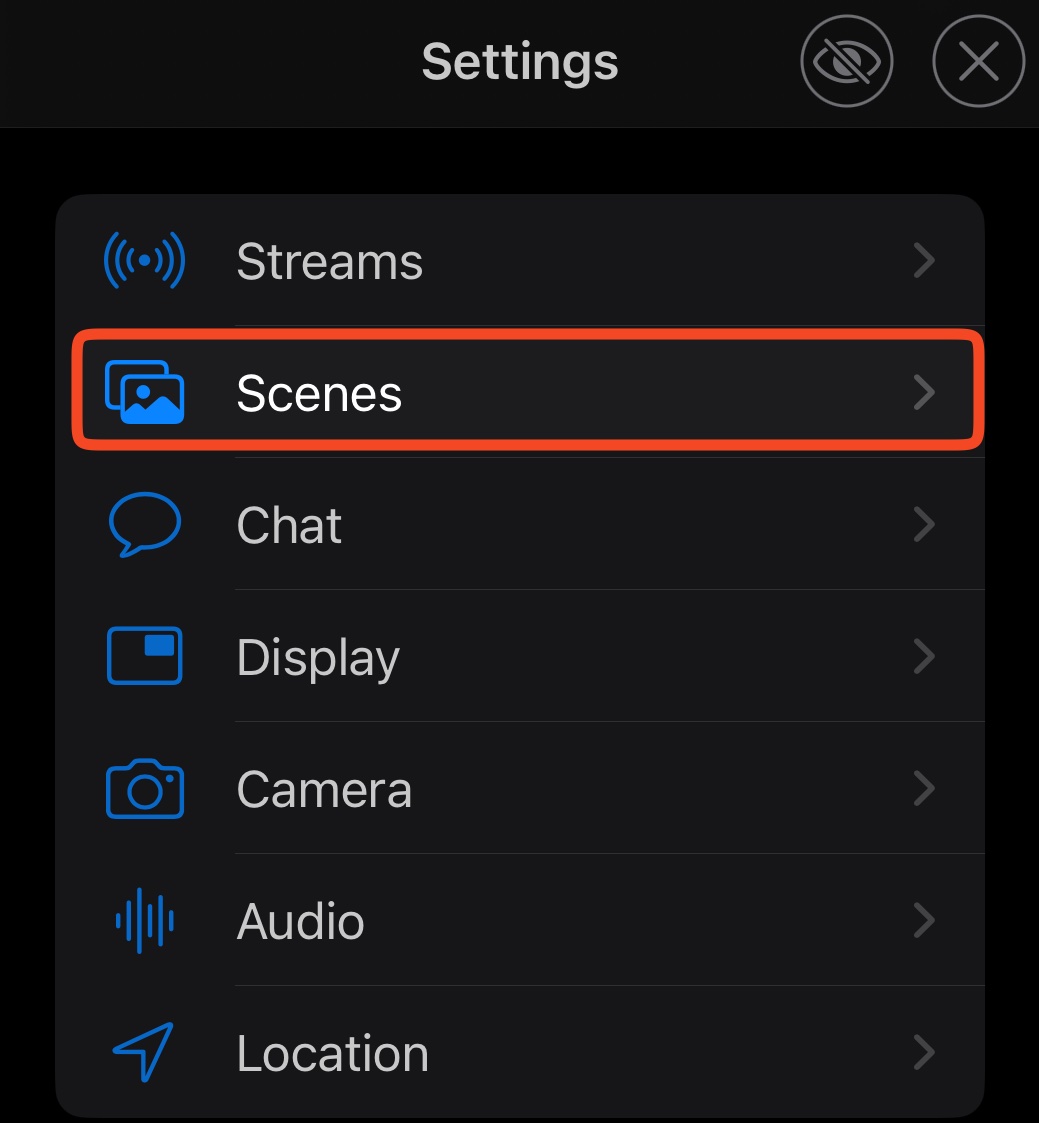
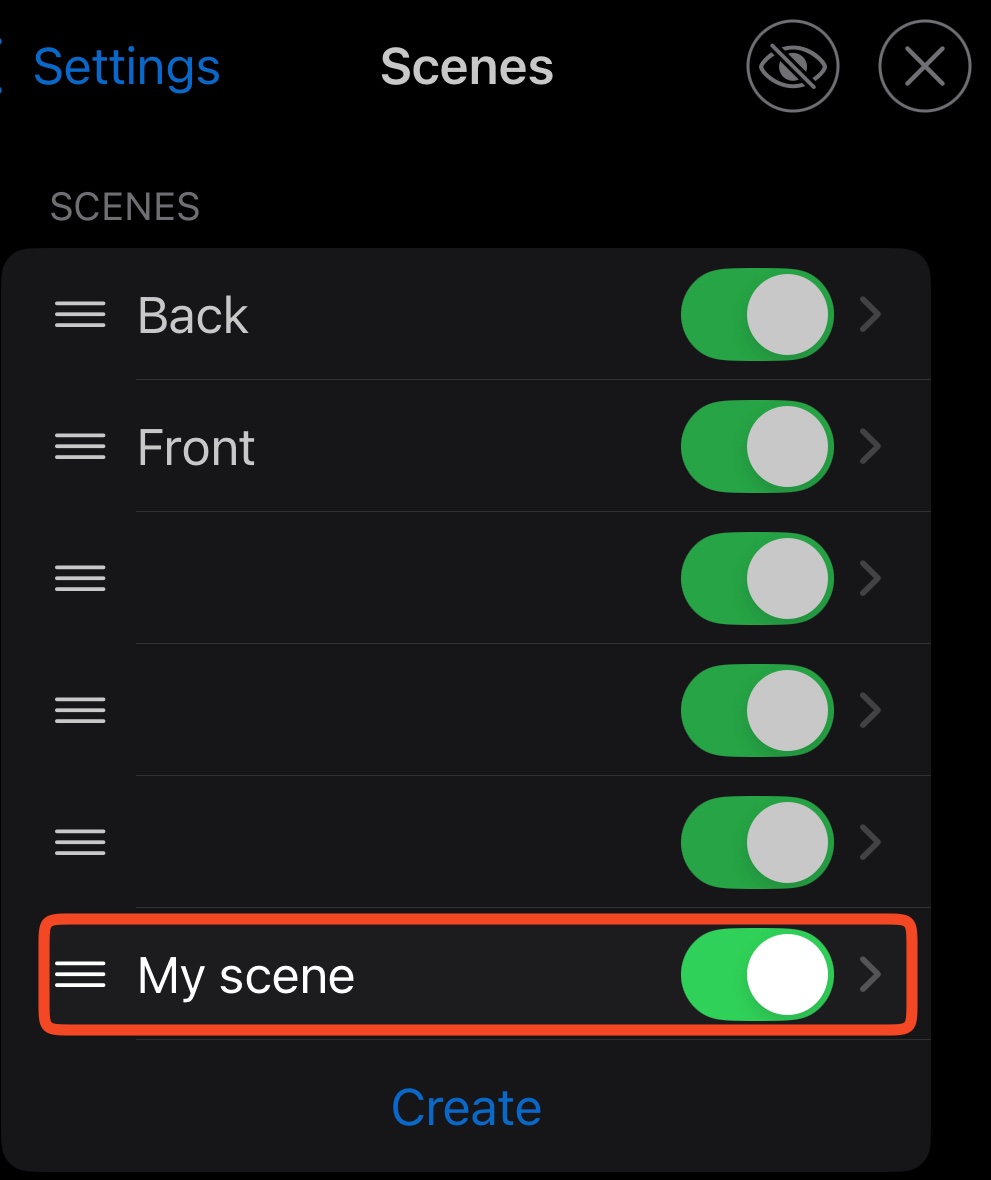
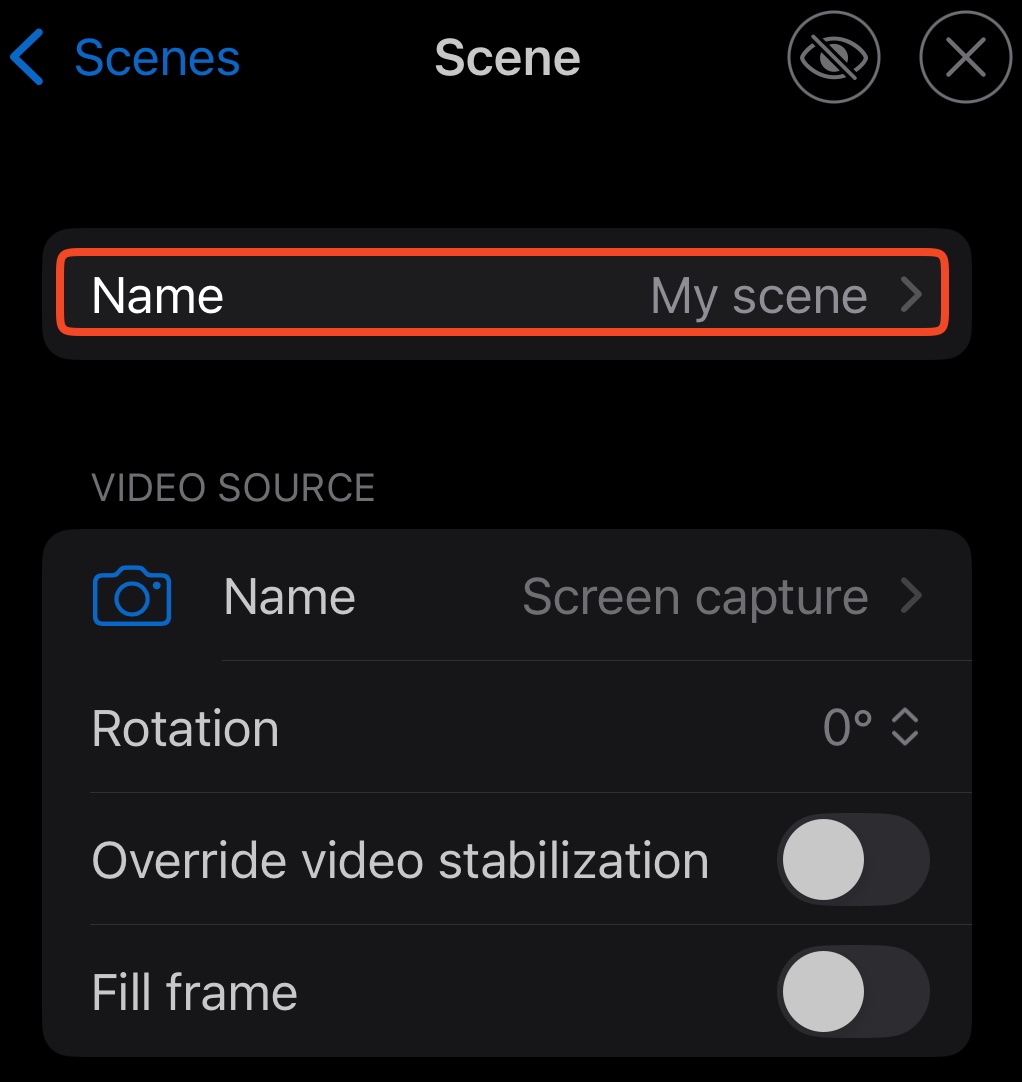
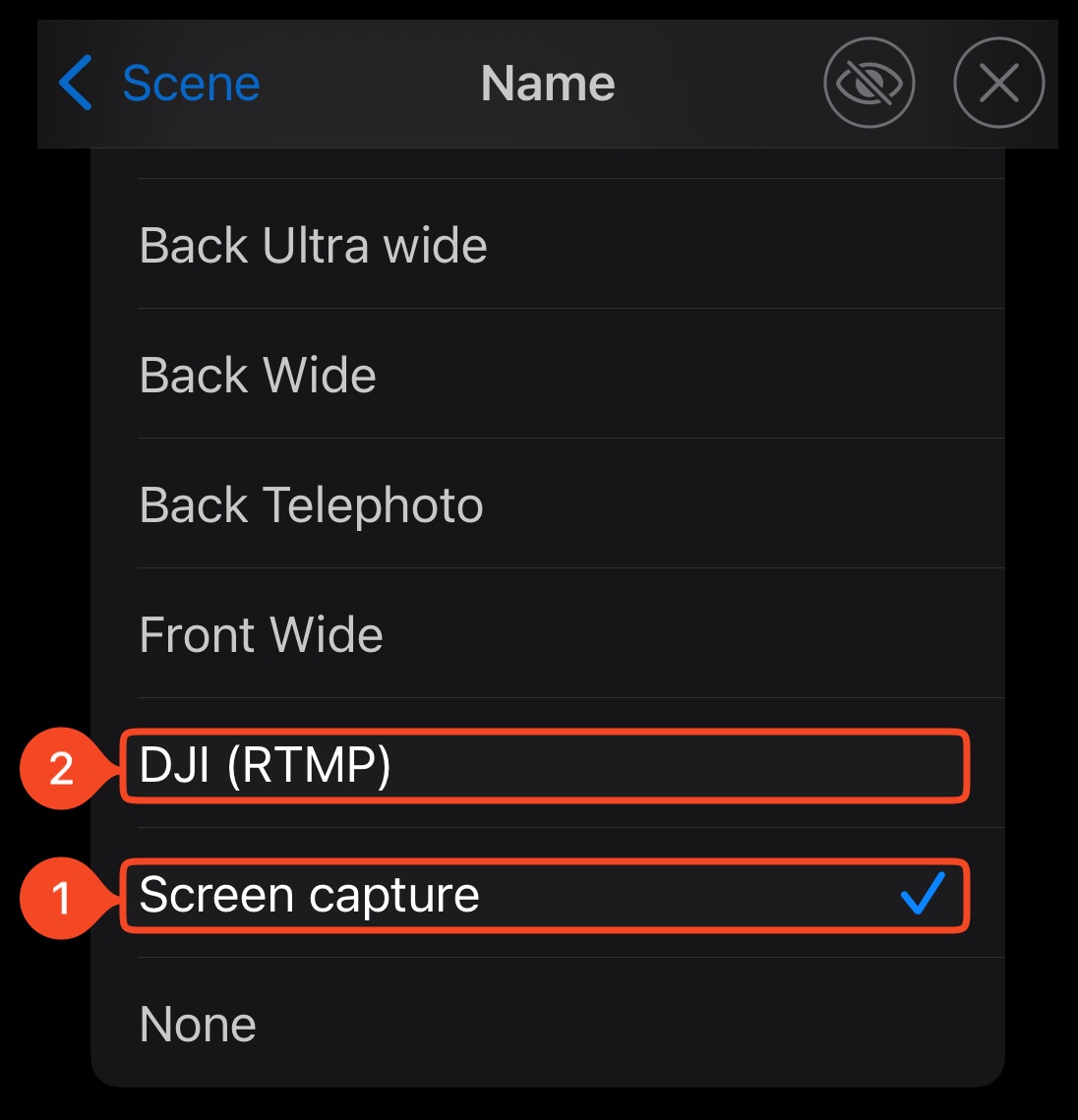
Open Settings → Scenes → Create. Open the new scene and name it DJI. Under Video source → Name, select DJI (RTMP).
If you want the camera microphone, select the DJI input as the scene microphone. Otherwise, select your intended microphone.
Step 4:Connect the DJI device
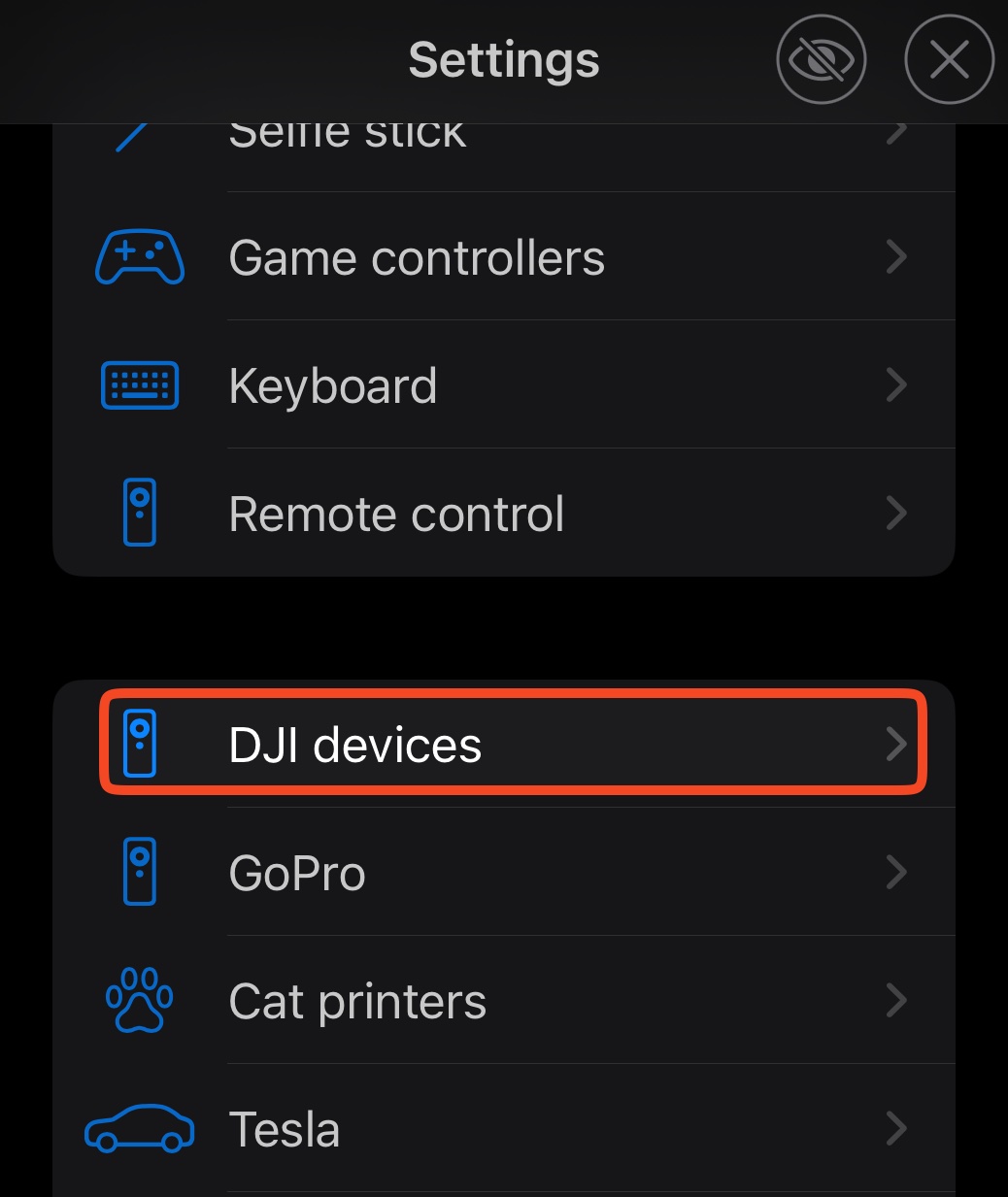
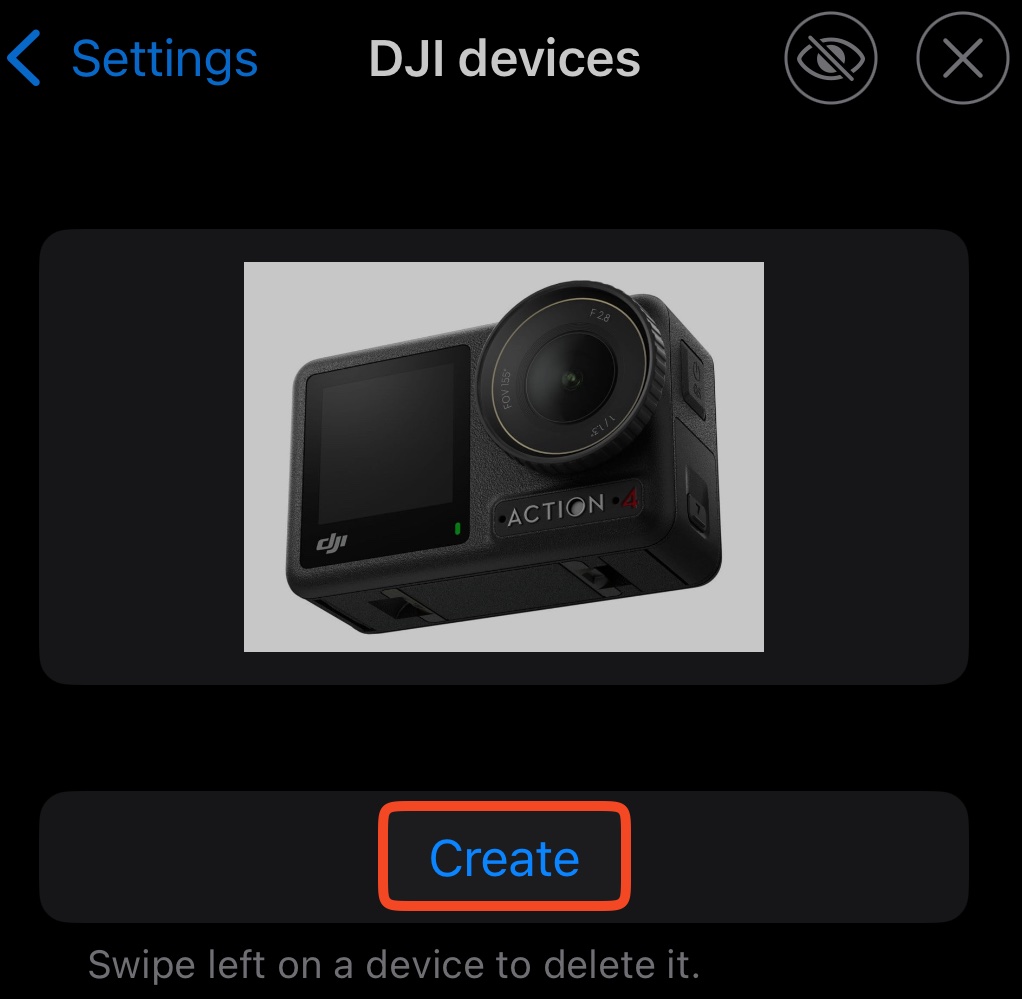
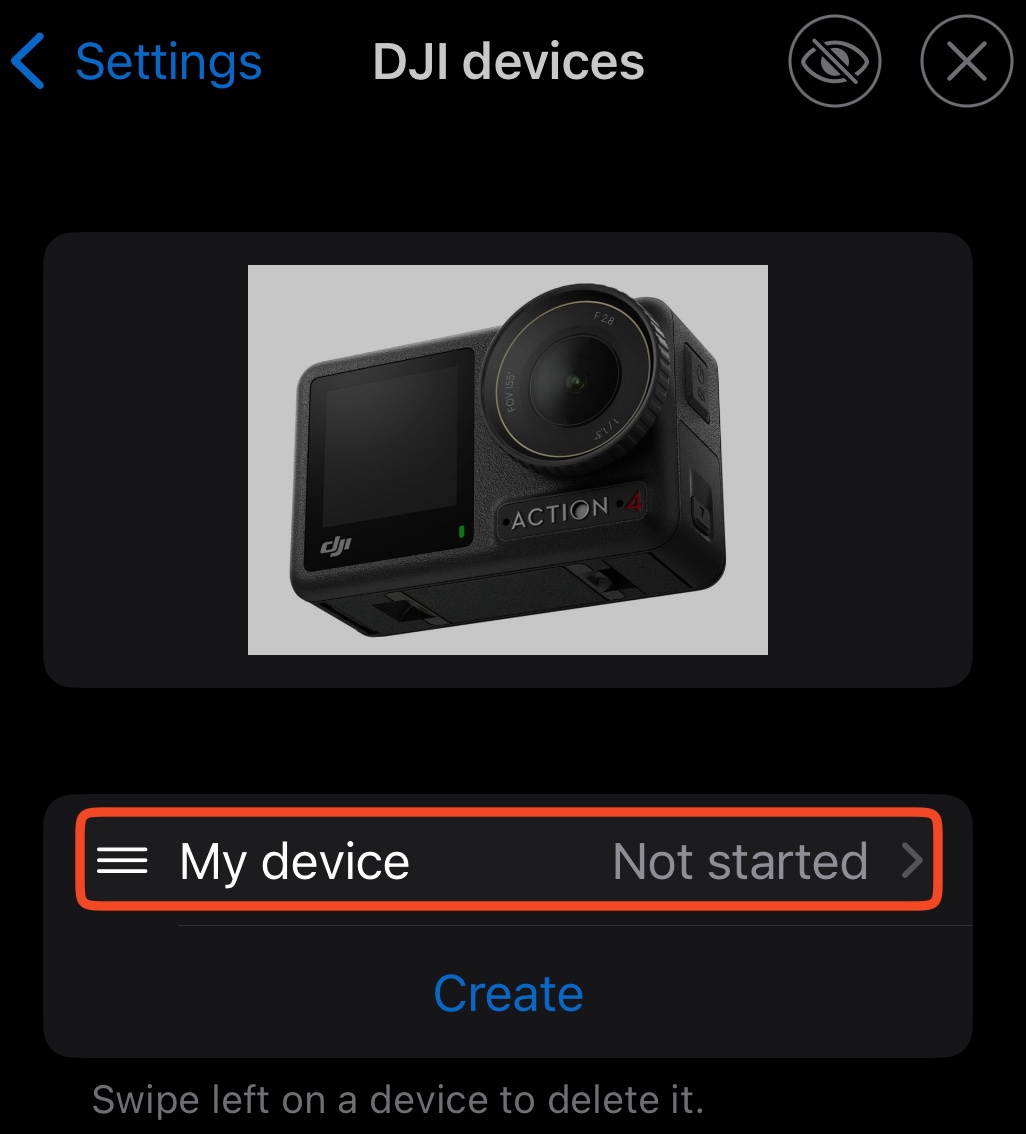
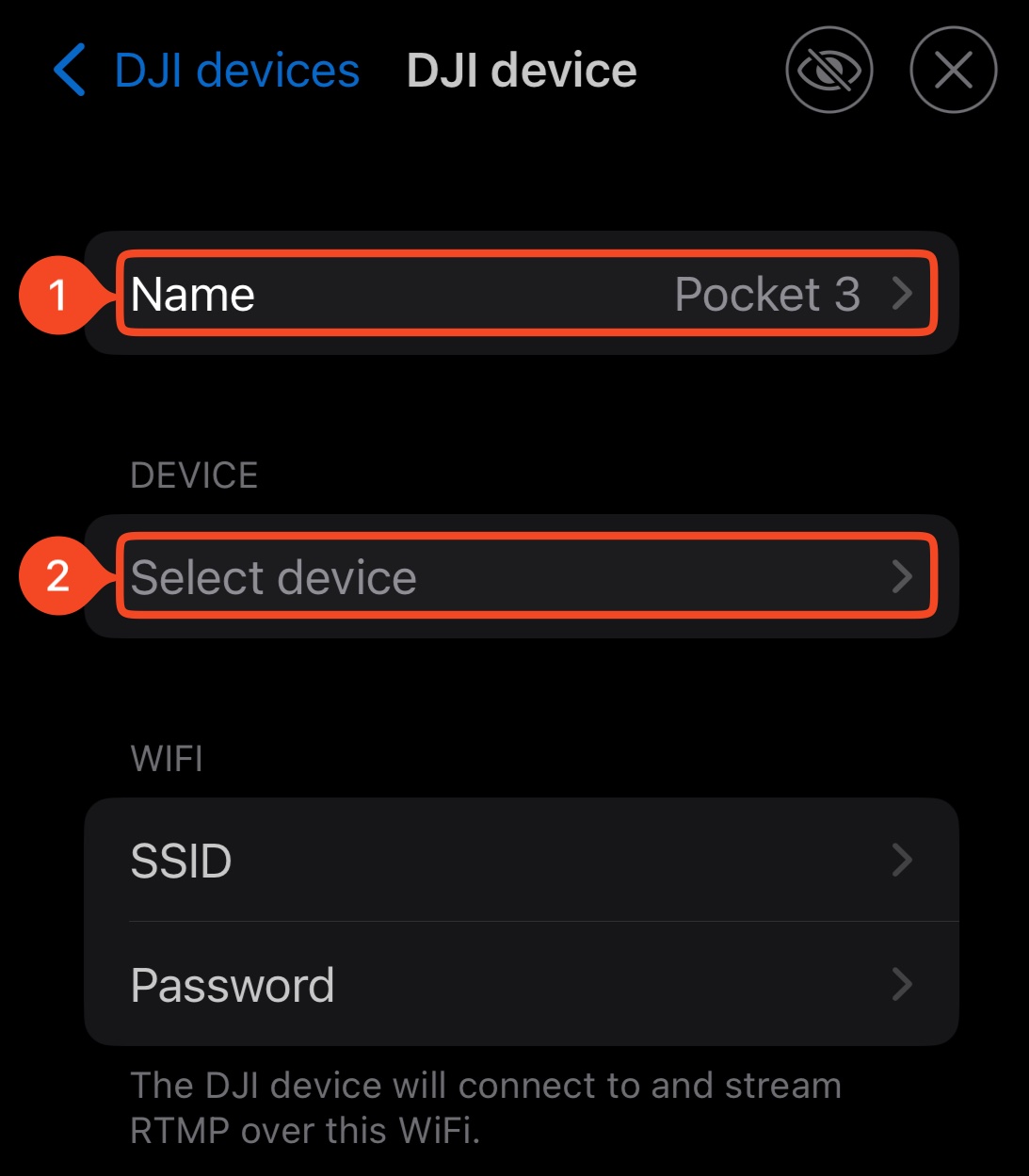
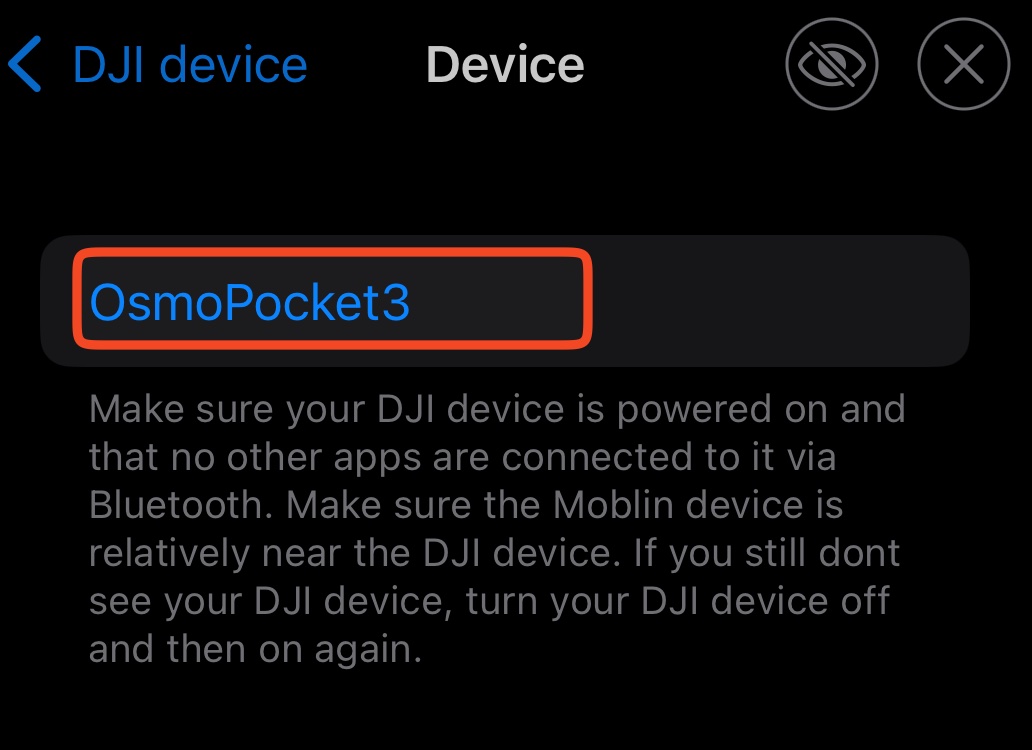
Turn on the camera. Open Settings → DJI devices → Create in Moblin. Open the new device, name it DJI, and choose your camera under Select device.
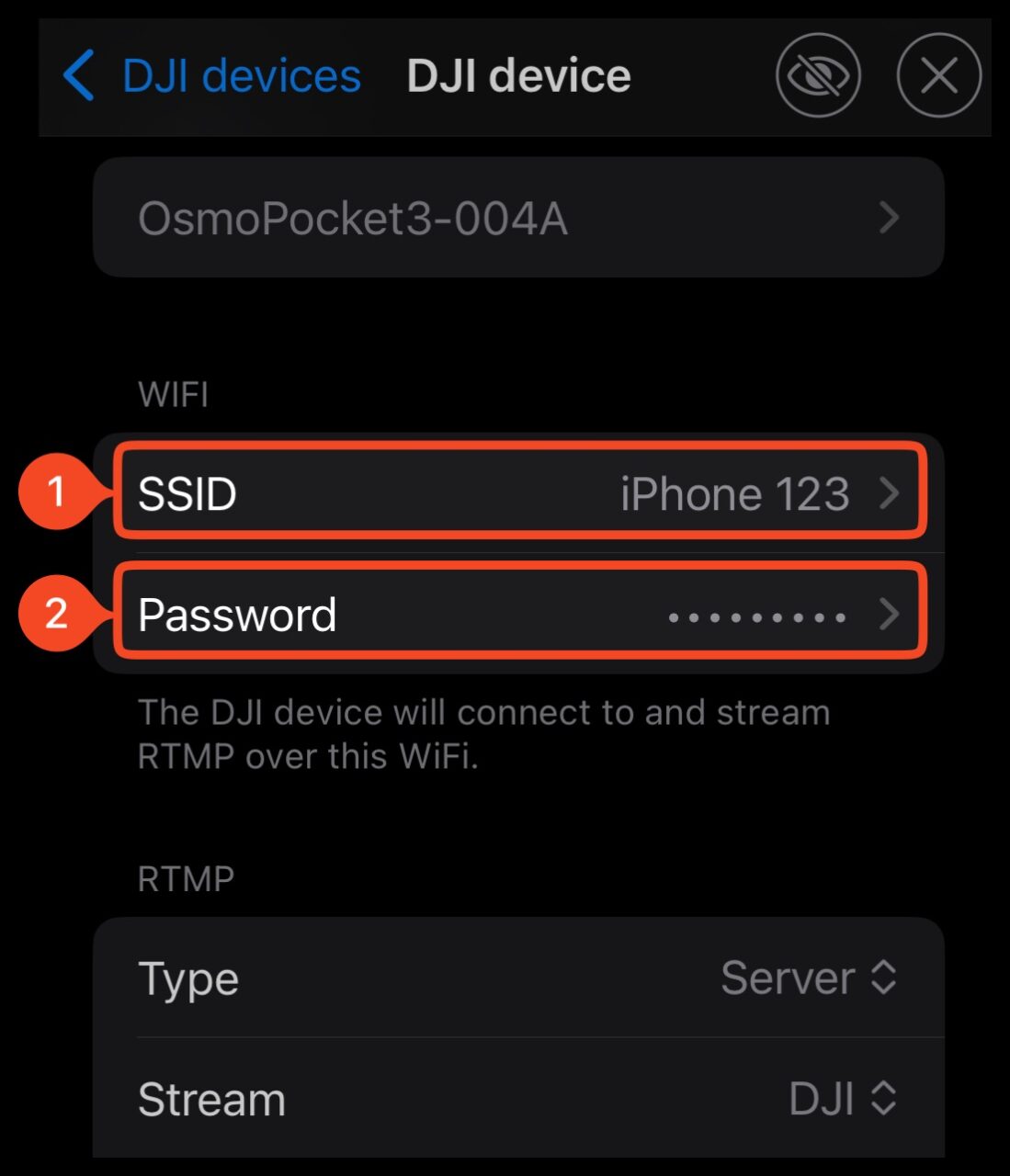
Under WiFi → Network, enter the hotspot name in SSID and its password in Password. Some versions show these fields directly under WiFi.
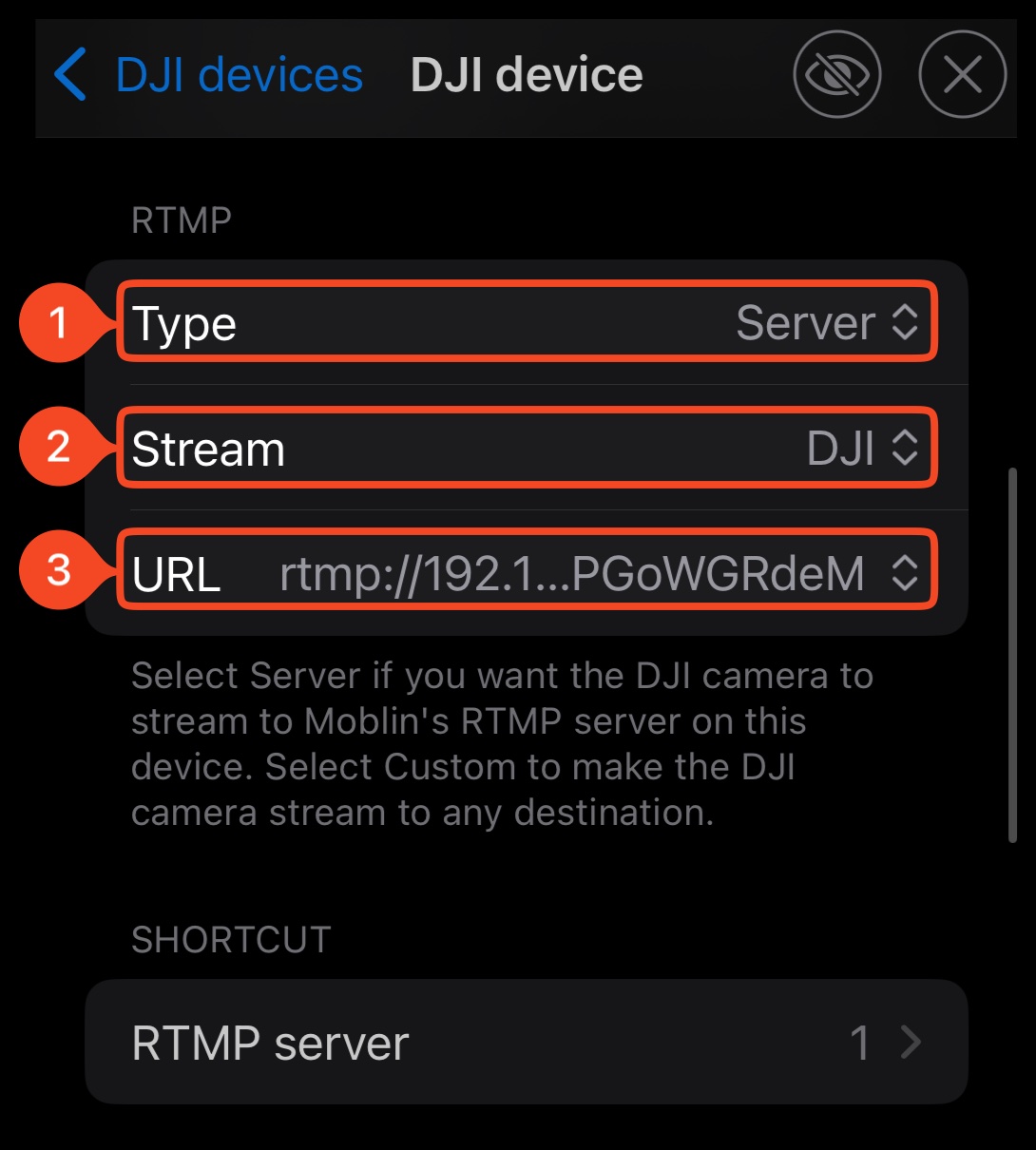
Under RTMP, set Type to Server and Stream to DJI. For URL, select the address with the Personal Hotspot icon from the fixed addresses.
This URL points to Moblin on your iPhone. Do not put the Streamable URL here. Auto IP address is for a shared Wi-Fi network, not this hotspot setup.
Step 5:Start the camera feed
For the first test, select 1080p and 6 Mbps in the DJI device settings. These are Moblin defaults, not guaranteed limits for every camera or connection.
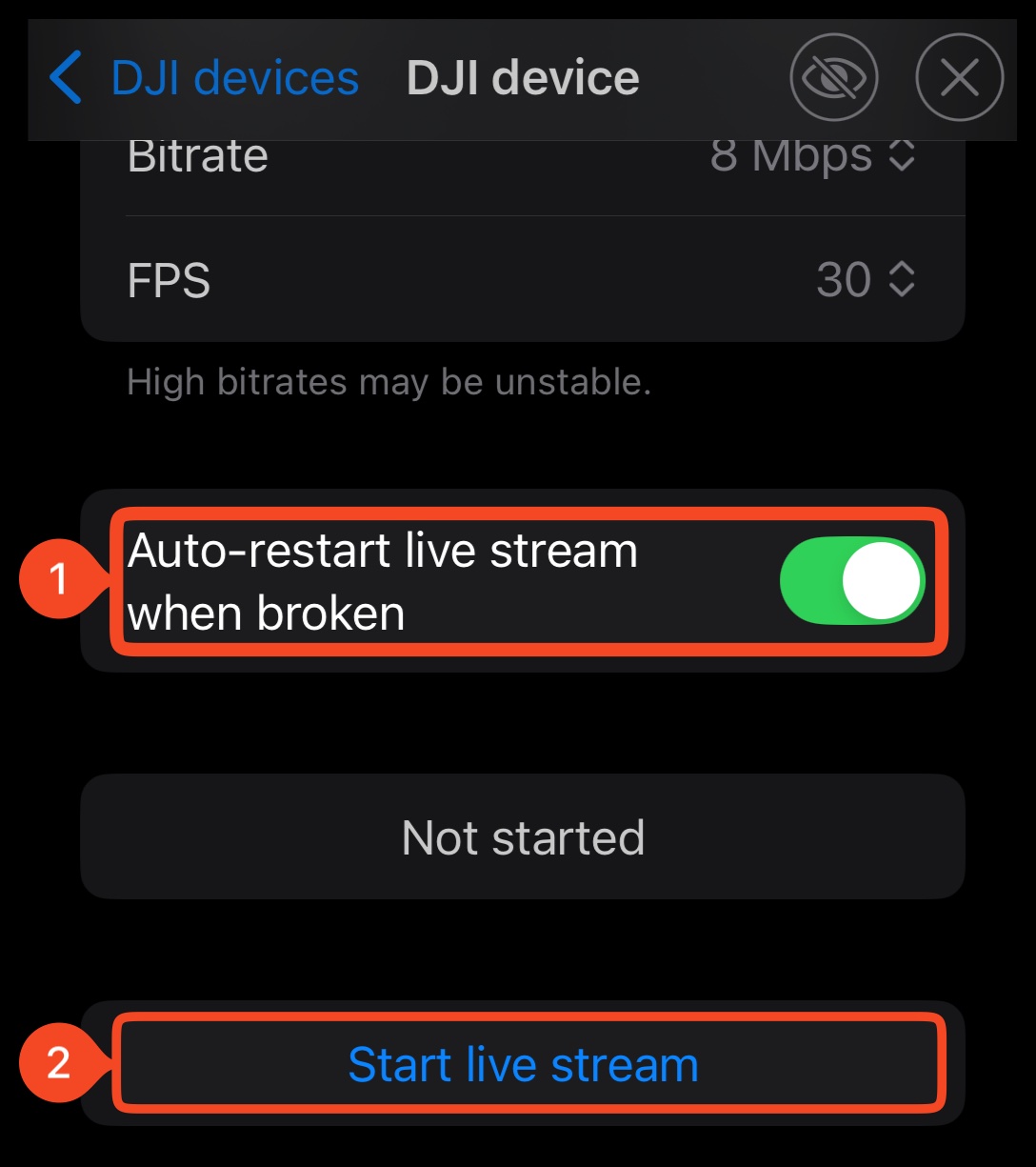
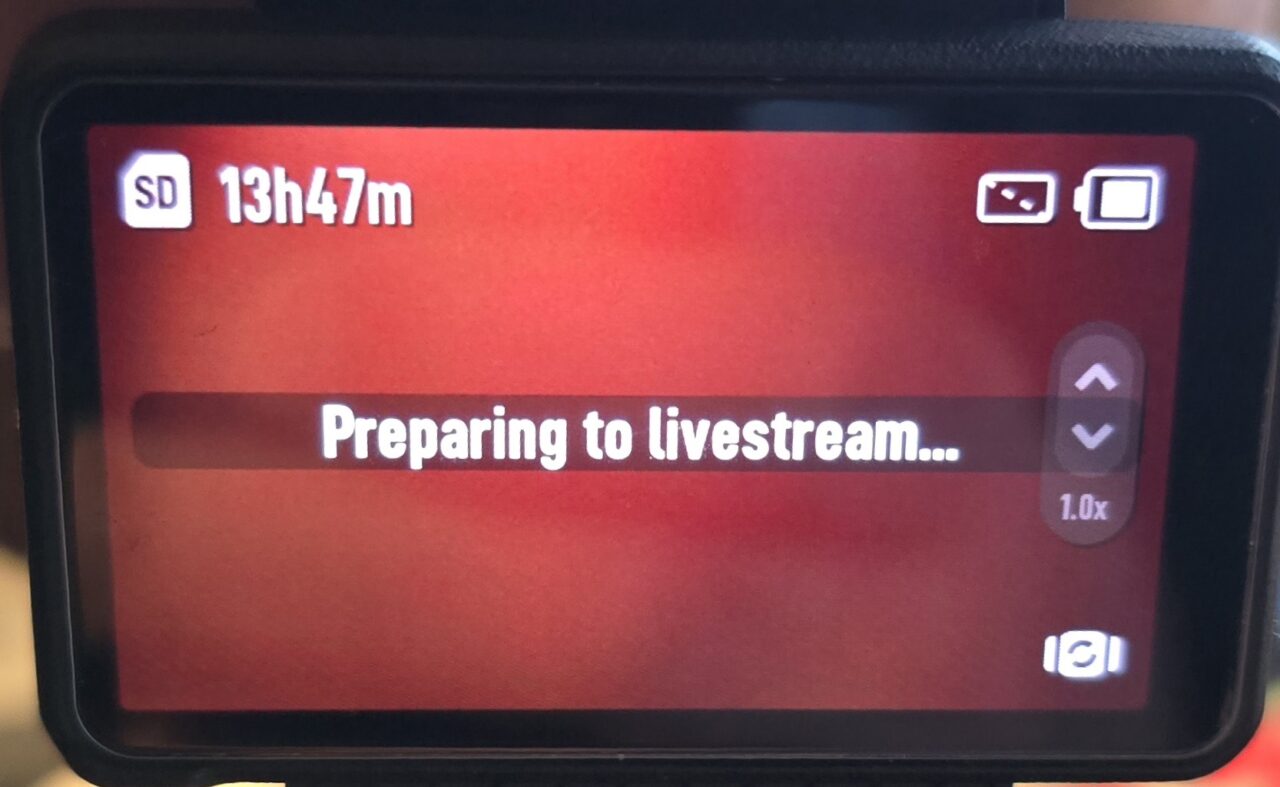
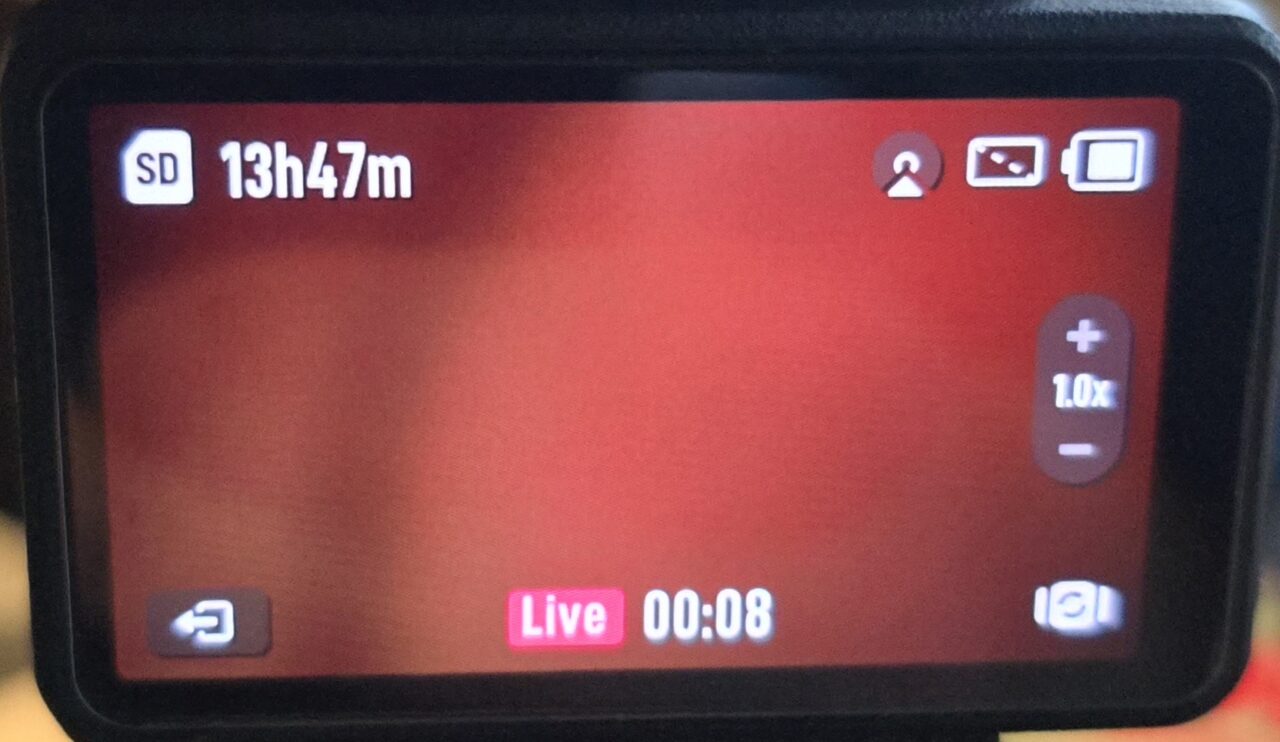
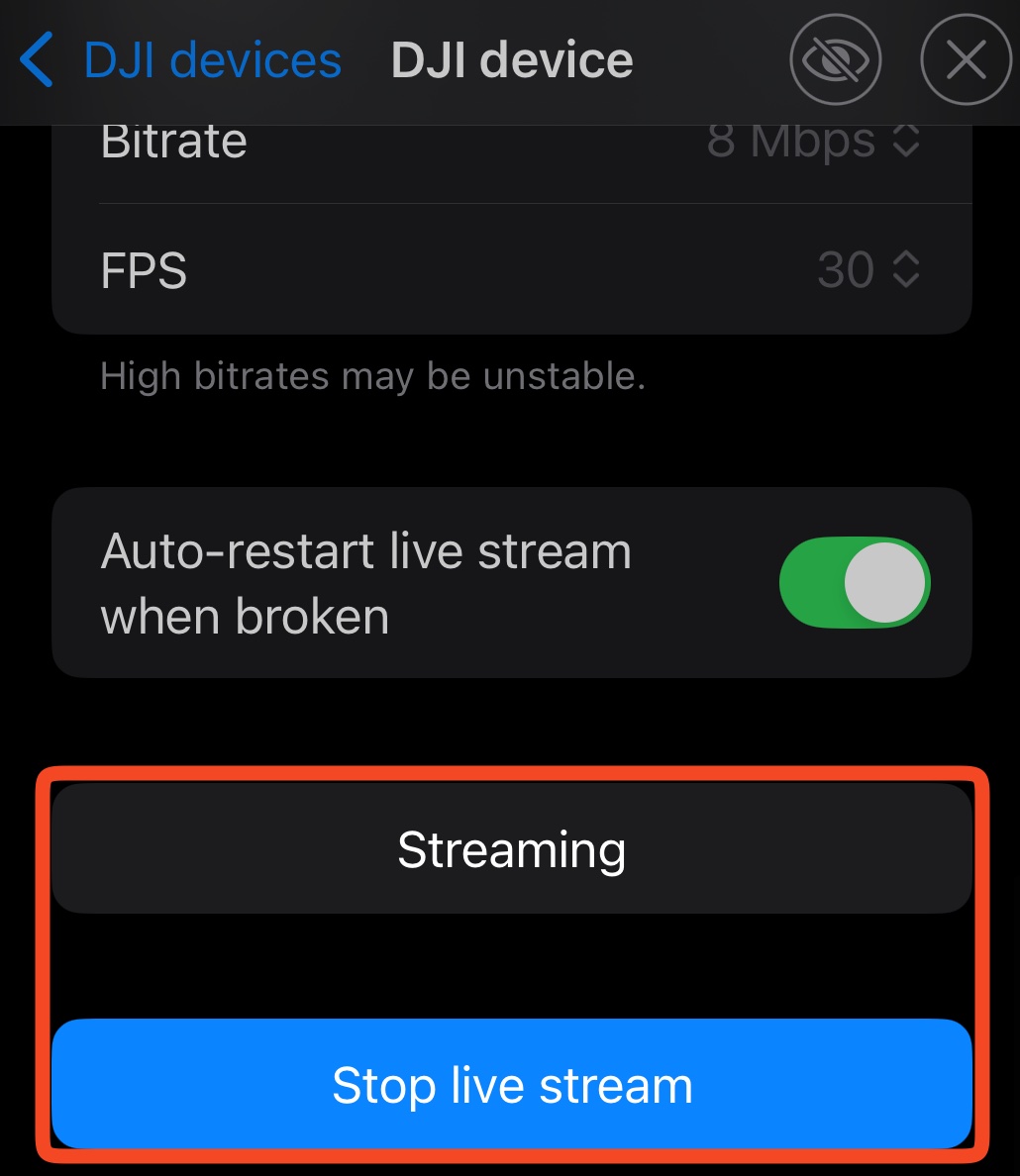
Enable Auto-restart live stream when broken. Tap Start live stream. If a pairing request appears on the camera, accept it. Wait for Streaming in Moblin.
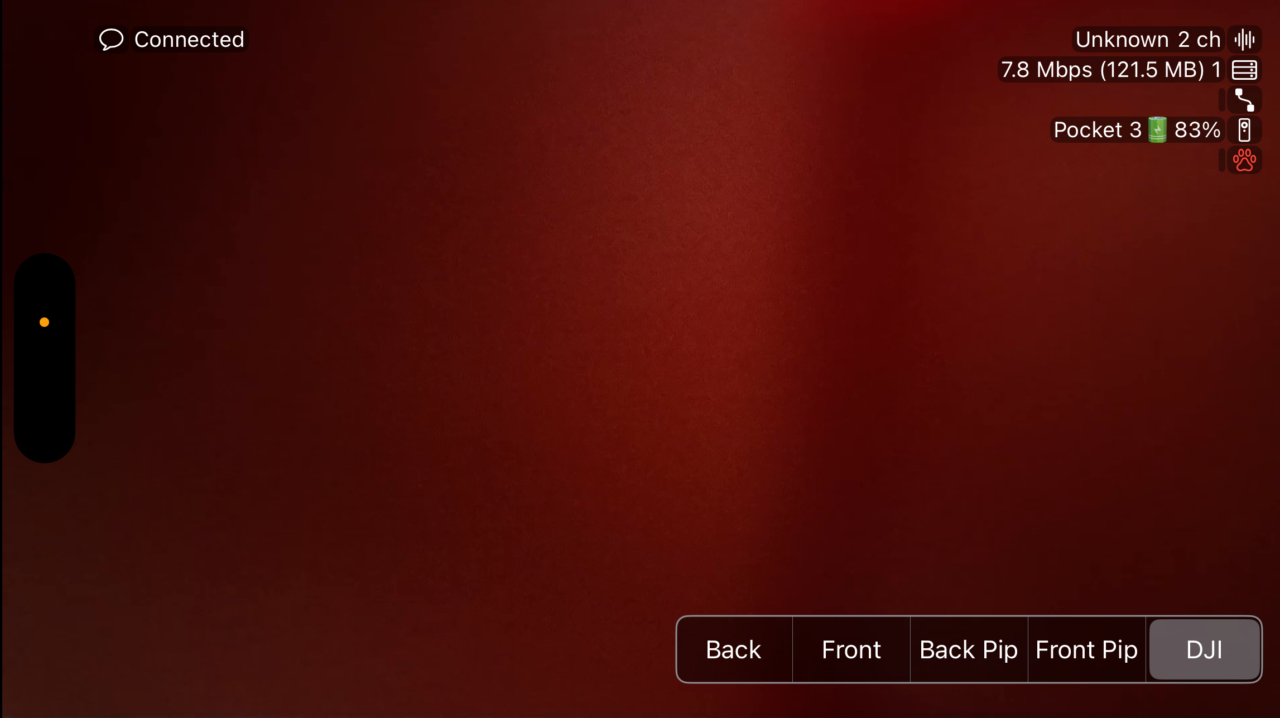
Select the DJI scene on the main screen. Confirm that video moves and the intended audio meter responds. This starts only the camera-to-Moblin feed.
Step 6:Send Moblin to Streamable
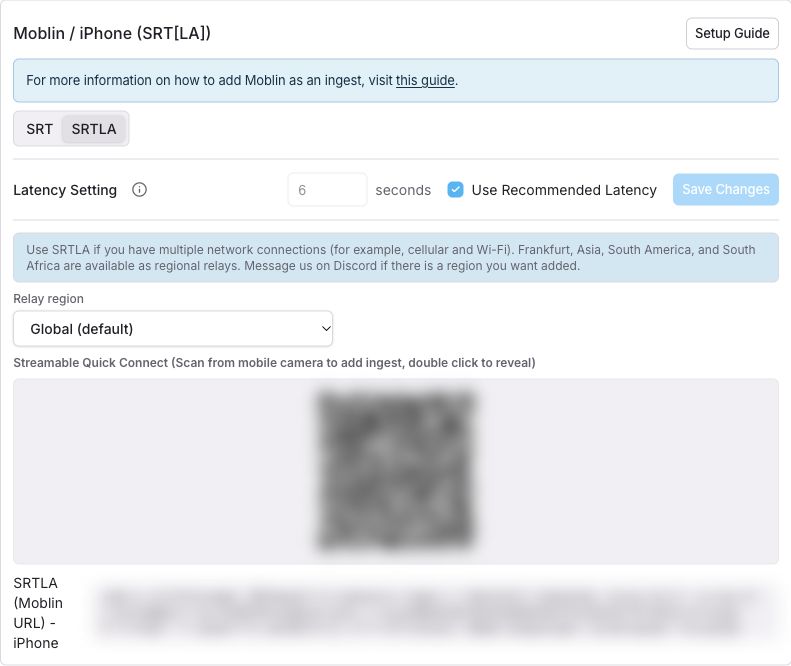
Start your server from the Streamable Dashboard. Open Ingests, select an input, and choose Moblin.
Select SRT for one internet connection or SRTLA for multiple connections. Keep the recommended Streamable latency. This is separate from the camera input latency.
Import the connection with the QR code. On the same iPhone, tap the QR code. From another screen, scan it with the iPhone Camera app. Select the imported stream and the DJI scene in Moblin. Tap Go Live.
Step 7:Confirm the feed and start your public stream
On the Streamable Dashboard, confirm that the input is Online in Ingest manager. Select its scene. Confirm video and audio in Stream preview.
Click Start Stream. Select your destinations, then confirm the start. Confirm the result on your destination platform. Moblin's Go Live alone does not start Streamable's public broadcast.
Add quick camera controls
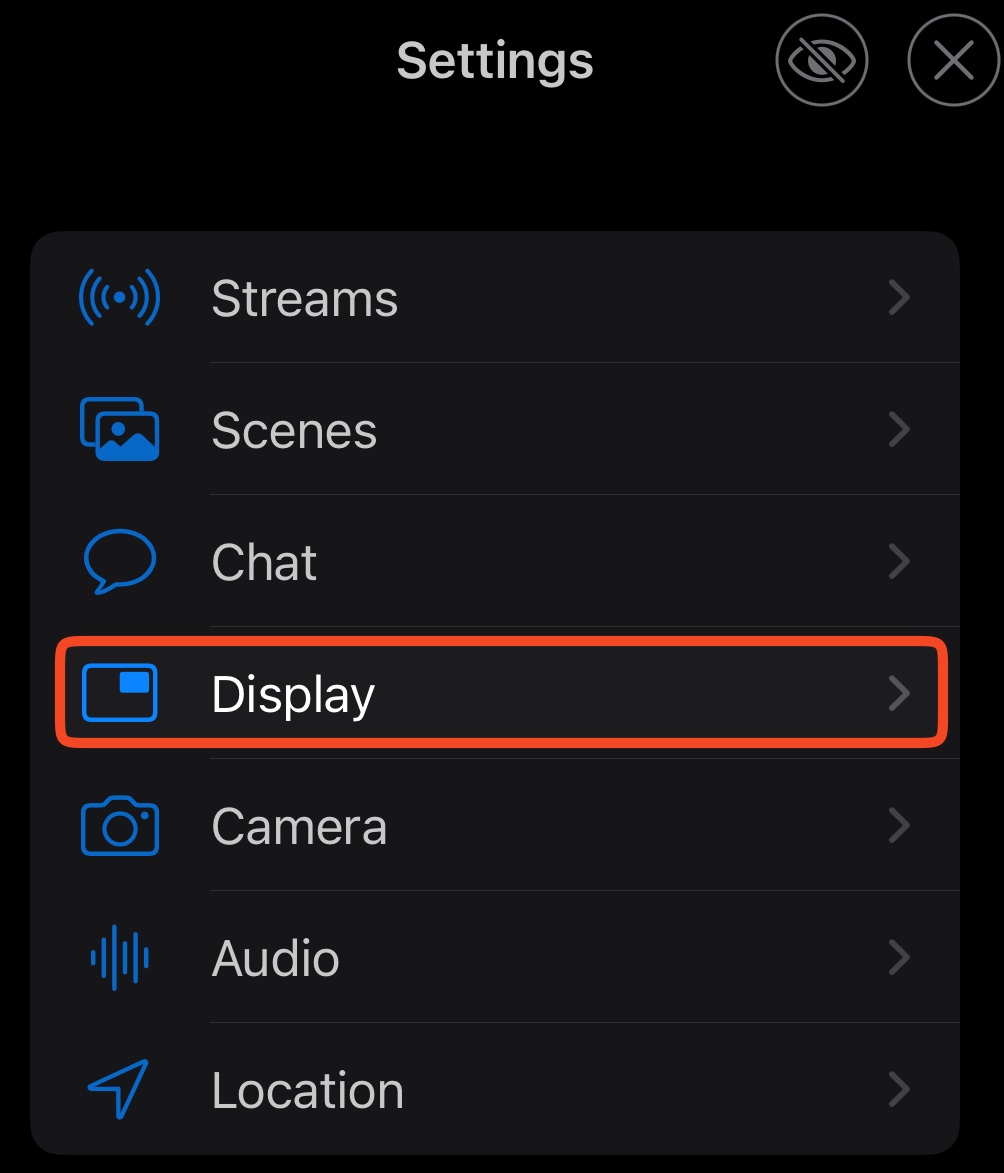
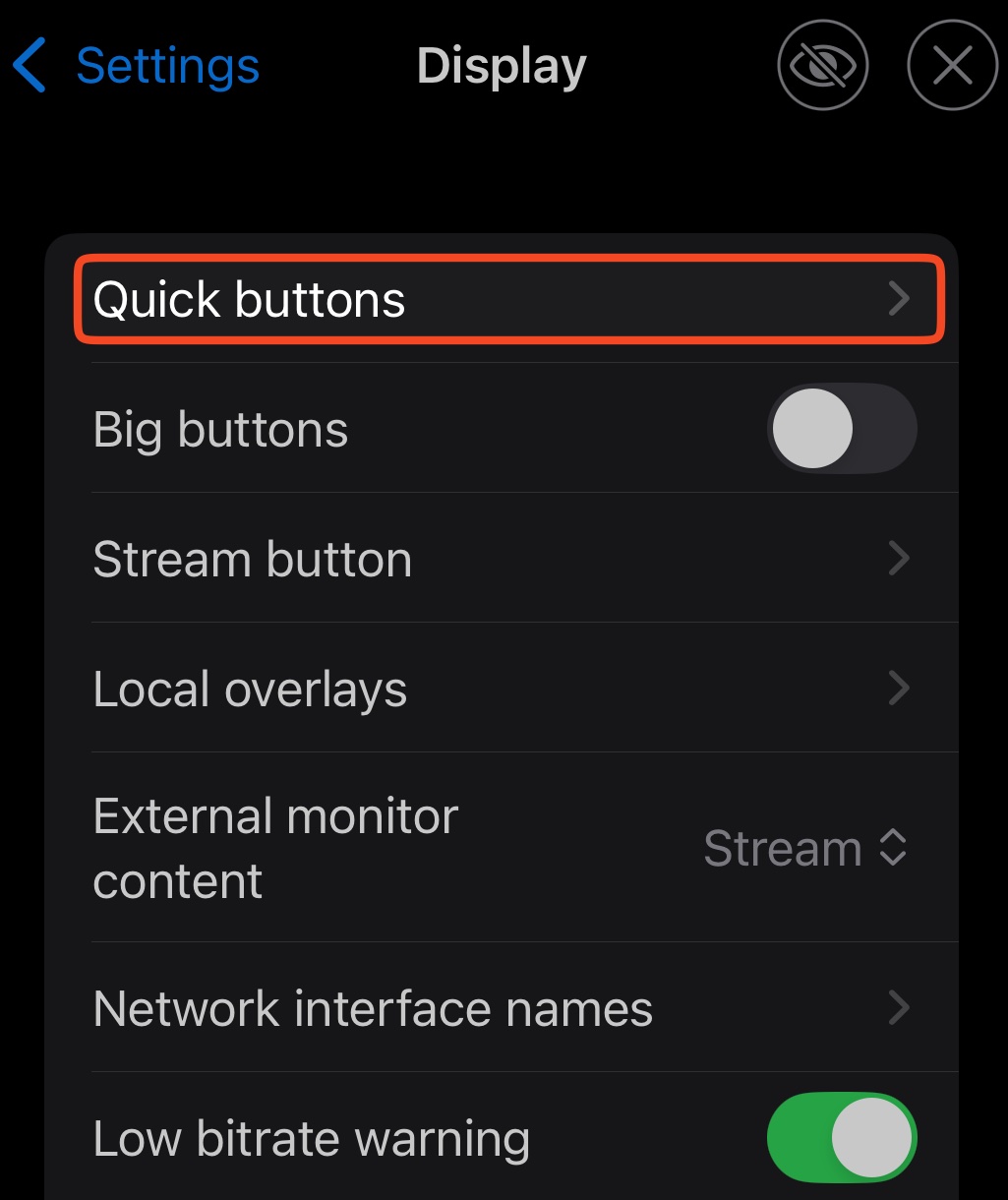
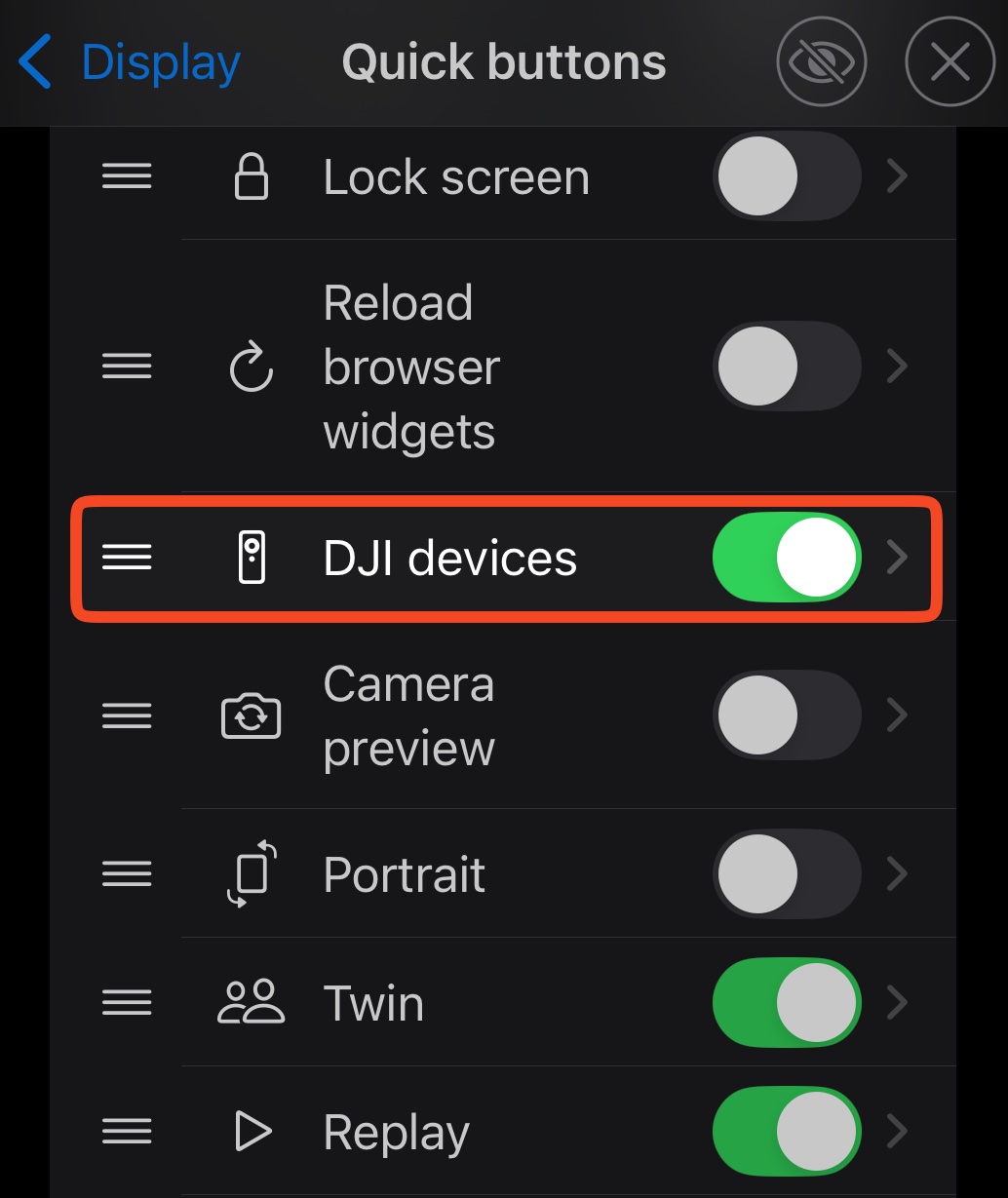
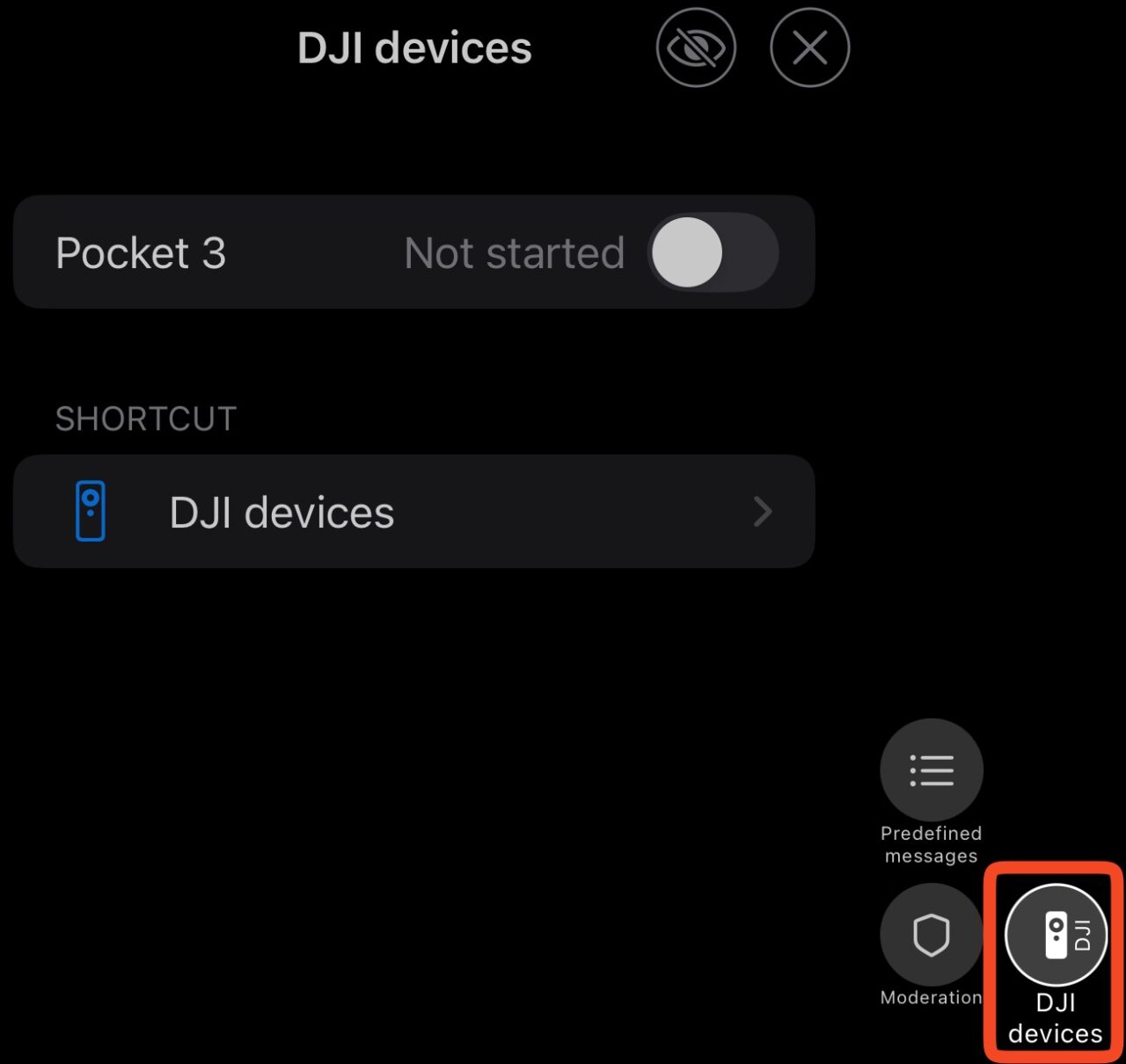
For quicker camera control, enable DJI devices under Settings → Display → Quick Buttons in Moblin. Keep Moblin in the foreground during the broadcast.
If something does not work
- Camera missing: Allow Bluetooth access for Moblin. Disconnect other apps, such as DJI Mimo, from the camera. Keep the camera nearby. If it remains missing, restart the camera.
- Wi-Fi error or disabled start button: Confirm the hotspot name and password. Confirm the Personal Hotspot RTMP URL. Toggle the hotspot off and on, then retry.
- Streaming, but no picture or sound: Confirm that the RTMP server is enabled and the DJI device uses the correct stream. Confirm the scene video source and microphone selection.
- Video stutters: Reduce the DJI bitrate first. If necessary, stop the camera feed and disable the RTMP server before increasing its latency. Then enable the server and restart the camera feed. More buffering adds delay.
- Picture in Moblin, but no Streamable input: Confirm the imported Streamable connection and tap Go Live. Follow the Moblin ingest guide for QR and connection troubleshooting.
Sources and version details
Menu paths and defaults were checked against Moblin's source on October 27, 2026. Installed versions can differ. This guide is based on documentation, not a hardware test.