How to Add Moblin as an Ingest for Live Streaming (QR Setup, SRTLA and Fixes)
Connect Moblin, the free iOS IRL streaming app, to a Streamable ingest with the Quick Connect QR code, choose SRTLA, set a safe bitrate, and fix the most common problems.
The short answer
Moblin is a free iOS app for IRL streaming. To connect it to Streamable, open the Ingests page, reveal the Moblin QR code, and scan or tap it on your phone. Moblin imports the server, port and stream ID for you. Start sending from Moblin, and your input shows Online in Ingest manager on the Dashboard.
Step 1:Start Your Streamable Server
Start your server at https://streamable.run/dashboard.
Open the Ingests page at https://streamable.run/ingests.
Step 2:Reveal the Moblin QR Code
On Ingests, select the input you want to use, then select Moblin.
Install Moblin first. On a computer, double-click the blurred QR code to reveal it. On your phone, tap the QR code.
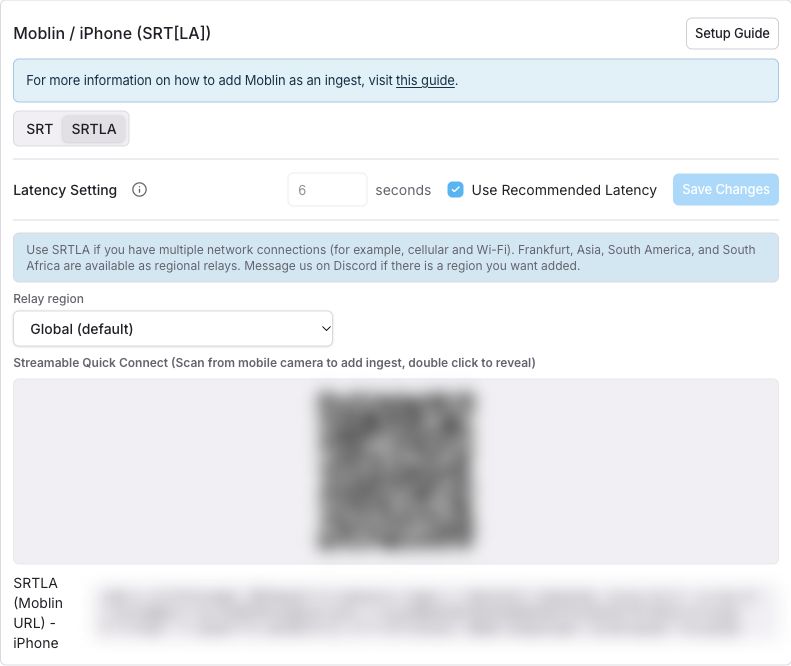
The recommended latency is 6 seconds. After a latency change, import the connection again to apply it.
Step 3:Scan or tap the QR code on your phone
QR code on your computer: Open the Camera app on your phone. Scan the QR code, then tap the notification. Moblin opens and imports your Streamable connection.
QR code on your phone: Tap the QR code. Moblin opens and imports your Streamable connection.
Choose SRT or SRTLA before you scan. SRTLA supports multiple network connections. Select the relay region you want to use.
Step 4:Go Live in Moblin
Once the URL is imported successfully, tap "Go Live" in Moblin.
Your phone is now sending video directly to Streamable as an ingest.
Step 5:Happy Streaming!
On the Dashboard, select your input in Ingest manager. Select its scene, then confirm the video in Stream preview.
On the Dashboard, click Start Stream. Select the destinations in the dialog, then confirm the start.
SRT or SRTLA?
The Quick Connect QR code sets Moblin up for you. If your phone uses more than one connection, such as cellular and Wi-Fi, choose SRTLA. Moblin's README says it can "use one cellular, one WiFi and multiple Ethernet connections simultaneously" and shows upload statistics for each connection. The Ingests page gives the same advice: use SRTLA if you have multiple network connections. With one connection, SRT works.
Two settings to know:
- Relay region. Under SRTLA, the Ingests page offers Global (default), Frankfurt (EU), Asia, South America and South Africa. Pick the one closest to where you'll be streaming. Choosing a region only shows that region's SRTLA URL. It doesn't change anything on the server, and the selector returns to Global (default) when the page reloads. Copy the new URL into Moblin, because Moblin keeps using the address you gave it.
- Latency Setting. Choose Use Recommended Latency or set a Custom latency, and you can turn on Include latency in SRTLA link. Lower latency feels more immediate but leaves less buffer when the signal drops. After you change it, reconnect Moblin to apply the new value. For the reasoning, read SRT latency settings for IRL streaming.
Bitrate: where to start
Moblin has adaptive bitrate and bitrate presets but doesn't publish preset values, so these starting points come from Streamable's own setup guidance:
720p30 or 720p60 on a difficult route
- Starting bitrate (Kbps)
- 3,000–4,500
- When to go higher
- After the route has held
1080p30 on a steady upload
- Starting bitrate (Kbps)
- 5,000–8,000
- When to go higher
- After the route has held
1080p60 on a proven route
- Starting bitrate (Kbps)
- 6,000–8,000
- When to go higher
- Only if the phone stays cool
| Video and route | Starting bitrate (Kbps) | When to go higher |
|---|---|---|
| 720p30 or 720p60 on a difficult route | 3,000–4,500 | After the route has held |
| 1080p30 on a steady upload | 5,000–8,000 | After the route has held |
| 1080p60 on a proven route | 6,000–8,000 | Only if the phone stays cool |
Don't set bitrate from a speed test. A test is a short burst on a still phone; a stream is a long run on a moving one. More in best bitrate for IRL streaming and Moblin and IRL Pro bitrate presets.
Troubleshooting
The QR code doesn't open Moblin. Install Moblin first. On a computer screen, scan the code with your phone's Camera app and tap the notification. On the phone, tap the QR code. If the code is blurred on a computer, double-click it. Treat the QR code like a password: it contains your server, port and stream ID, so don't post it or show it in a screenshot.
Moblin says it's connected, but the input isn't Online in Ingest manager. Check that you selected the same input you scanned. Each input shows Online, Offline or Connecting; give Connecting a moment to settle. If you switched relay region, make sure Moblin has that region's URL. If you changed latency, import the connection into Moblin again.
The input is Online, but the picture or sound is wrong. Online means the feed is arriving, not that the audio is right. Select the input's scene, check the video in Stream preview, and listen on the program side. If the picture is blocky, lower the bitrate preset first, then check the phone's heat, then the network.
The video freezes when you leave the app. Moblin's README says that in the background, "video will be a freezed frame as video cannot be captured." Keep Moblin open while you're live.
FAQ
Is Moblin free? Moblin describes itself as a free iOS app. There's no Android version; Android streamers use IRL Pro, covered in how to add IRL Pro as an ingest.
Does the QR code work on Android? The Moblin Quick Connect row is for Moblin on iPhone. IRL Pro has its own QR setup, explained in its guide.
Do I need SRTLA? Only if you want to combine connections. With one connection, SRT works; SRTLA adds bonding when you have more than one.
Does a working ingest mean I'm live? No. The ingest is the leg from your phone to Streamable. Viewers see your stream only after you press Start Stream with a destination turned on. See the destination dry run and the remote producer handoff.
Which bitrate should I use? Start with the ranges above, and move up only after a rehearsal where you'll actually stream.
Sources
- Moblin README, read October 18, 2026.
- Streamable Ingests page labels and help text, checked October 18, 2026.
- Streamable's bitrate and latency guides linked above.