Chat Overlay
Twitch, Kick and YouTube chat in one overlay
Streamable’s Chat Overlay shows chat from Twitch, Kick and YouTube together in one browser source for OBS. It’s free with a Streamable account, with no plan or trial needed. Connect the channels you stream to, copy your overlay link, and add it to OBS.
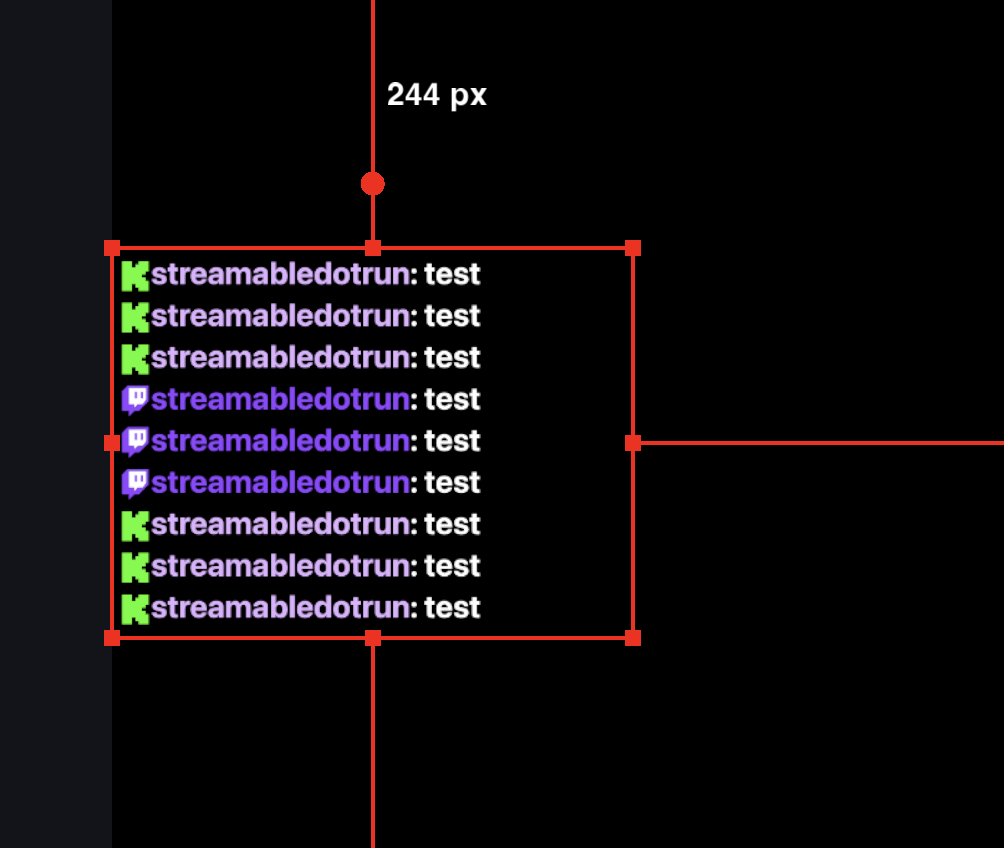
Set it up in four steps
- Create a free account. Then open Chat Overlay.
- Turn on Twitch, Kick or YouTube. The first time, you sign in to that platform to connect your channel.
- Copy your Browser Source URL. It’s the link to your overlay.
- Add it to OBS. Add a Browser source, paste the URL, and size it to fit your scene.
Streaming with Streamable’s cloud OBS? Turn on Add Browser Source to Streamable Remote OBS scenes, and the overlay is added to your scenes for you.
Make it yours
- Show any mix of Twitch, Kick and YouTube. Turn on only the platforms you want.
- Hide the platform icon beside each message with Hide Platform Badge in Chat.
- Turn chat off for a moment with Enable Chat Overlay. The overlay stays in OBS, and messages come back when you turn it on again.
Questions
Is the Chat Overlay free?
Yes. It works with a free Streamable account. You don’t need a plan or a trial.
Which platforms does it support?
Twitch, Kick and YouTube. Turn on any combination, and their messages appear together in one overlay.
Does it work with OBS on my own computer?
Yes. Add your overlay link to OBS as a browser source. It also works in other streaming apps that support browser sources.
Do I need to stream with Streamable?
No. The overlay works with any OBS setup. If you stream with Streamable’s cloud OBS, it can add the overlay to your scenes for you.
Get your overlay link
Create a free account, connect your channels, and copy your link.
Create a free account