How to Stream from Streamable to a Local OBS Studio
Use the new SRT Pulldown destination to pull your Streamable feed into a local OBS Studio install via a Media Source.
Why pull your Streamable feed into a local OBS?
Streamable's cloud-hosted OBS handles your ingest and streaming, but sometimes you want the live feed back on your own machine — to record a local high-bitrate copy, mix in scenes from local hardware (capture cards, NDI, local apps), run plugins that aren't installed in the cloud OBS, or feed the stream into editing or VFX software running locally.
The new SRT Pulldown destination makes this easy: Streamable exposes a per-stream SRT URL that any client (including a local OBS Media Source) can pull from. No port forwarding or extra infrastructure required.
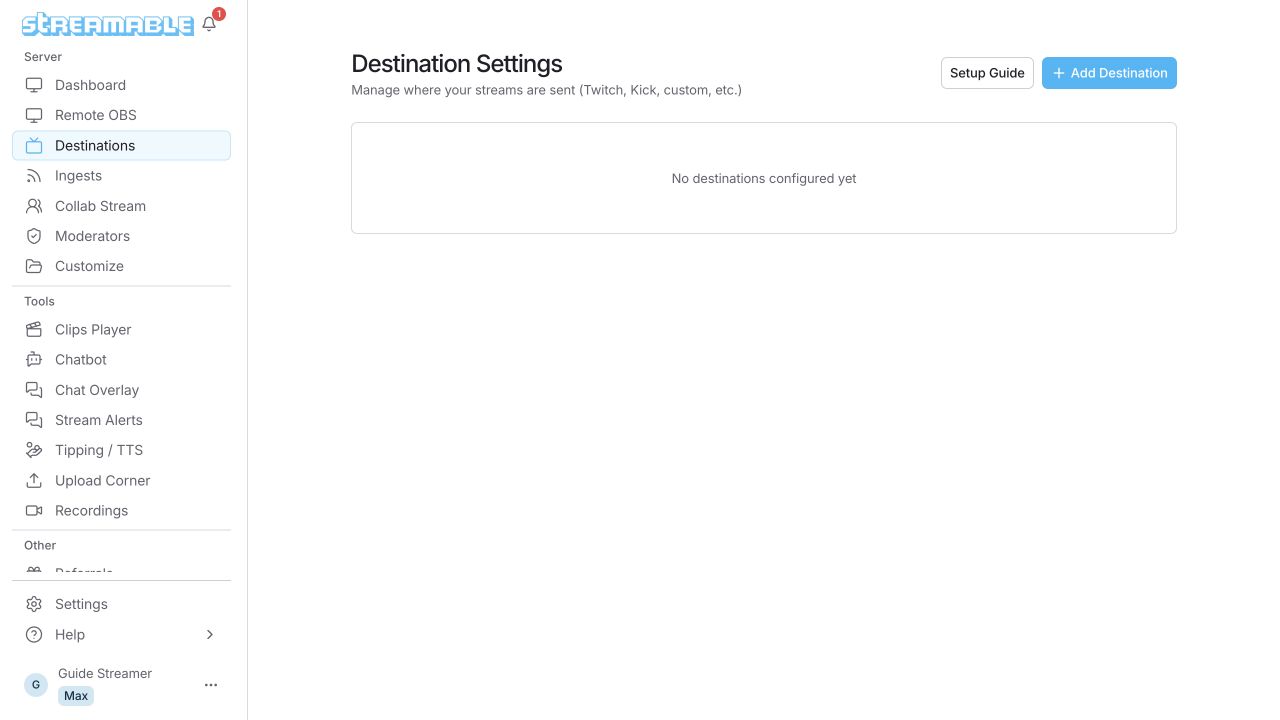
Step 1:Open the Destinations page in Streamable
Navigate to https://streamable.run/destinations.
Step 2:Add an SRT Pulldown destination
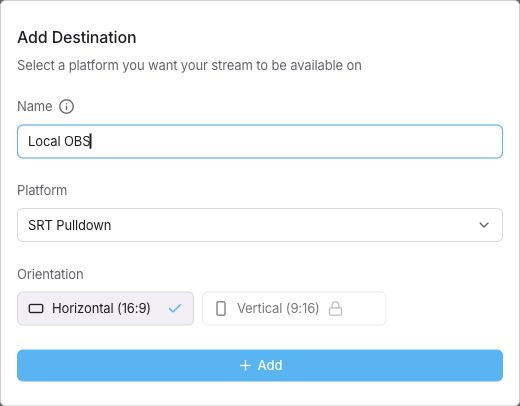
Click Add Destination. Select SRT Pulldown under Platform, enter a Name, then click Add. This destination uses horizontal output.
Step 3:Copy the SRT pull URL
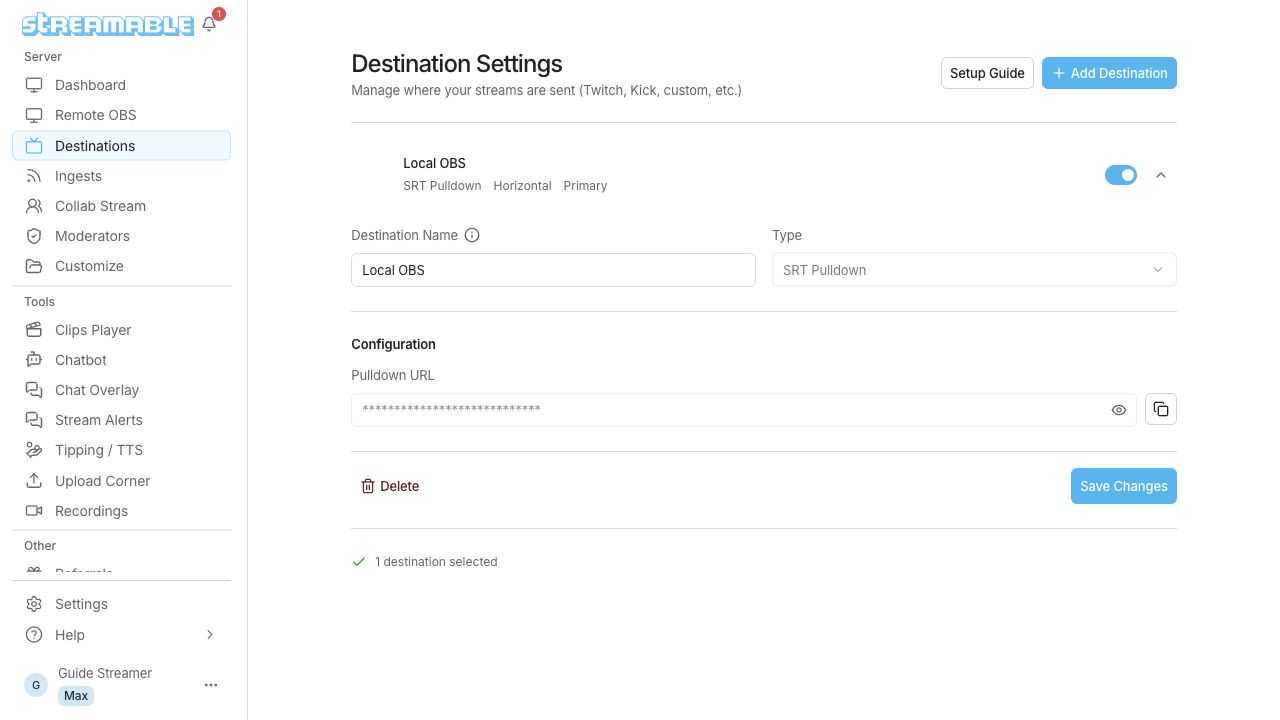
After creating the destination, your unique SRT pull URL will be shown in the destinations list.
Copy the generated Pulldown URL exactly. Its host, port, stream ID, and latency come from your destination.
Click the copy icon next to the URL to copy it to your clipboard.
Step 4:Start your stream on Streamable
Confirm the destination is enabled. Start your server, confirm the ingest preview, then start the destination from the Dashboard.
Step 5:Add a Media Source in your local OBS
Open OBS Studio on your computer.
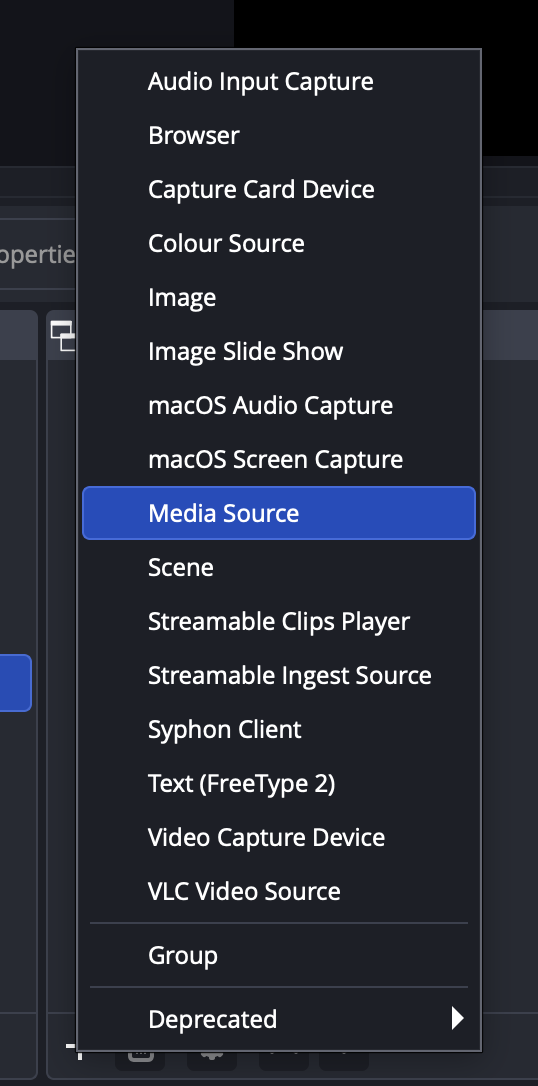
In the Sources panel, click the "+" button and choose "Media Source".
Name it something like "Streamable Pull" and click OK to open the properties dialog.
Step 6:Configure the Media Source to pull from Streamable
In the Media Source properties dialog, uncheck "Local File".
Paste your SRT URL into the "Input" field.
Enter "mpegts" into the "Input Format" field.
Click OK to save.
Use mpegts as the Input Format for this setup.
Step 7:You're live in your local OBS!
Your Streamable feed should now appear in the Media Source preview.
You can record it locally, route it into another scene, or feed it into other tools running on your machine.