How to Set Up Chat Overlay on Streamable
Combine Twitch, Kick, and YouTube chat in one overlay, add it automatically to every Streamable Remote OBS ingest scene, or use it in local OBS.
What Chat Overlay does
Chat Overlay combines messages from Twitch, Kick, and YouTube in one transparent browser source for your stream.
Use the same URL in Streamable Remote OBS or local OBS, and enable only the platforms you want to show. Using OBS on your own computer? The free chat overlay puts Twitch, Kick and YouTube chat in one browser source. Want commands and timed messages in the same chat? Add the free chatbot for Twitch and Kick.
Step 1:Open Chat Overlay
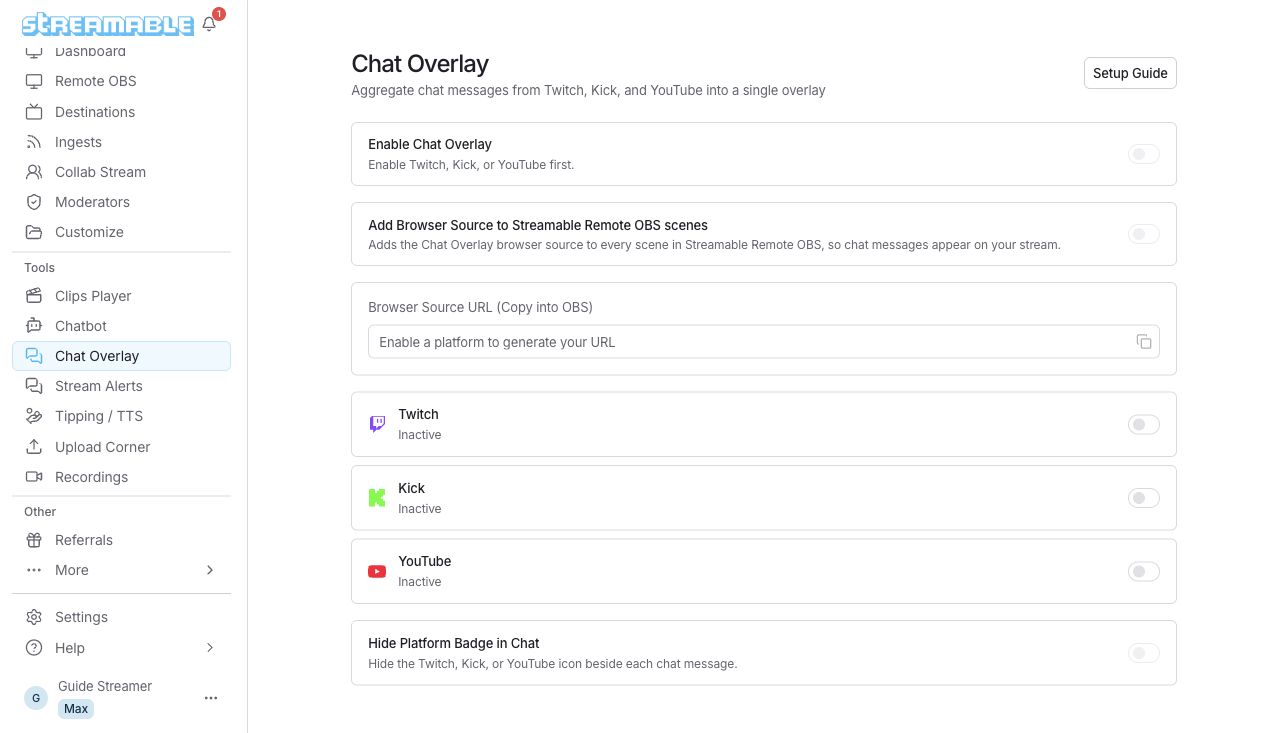
Sign in to Streamable and open Tools -> Chat Overlay, or use the link below.
Step 2:Enable your chat platforms
Turn on Twitch, Kick, or YouTube. If an account is not connected or needs updated permissions, Streamable will guide you through reconnecting it.
For YouTube, start the live broadcast and its live chat first. The status can show Waiting for active live chat until Streamable finds it.
Step 3:Enable Chat Overlay
On the Chat Overlay page, turn on Enable Chat Overlay so chat messages can appear in the browser source.
Turn on Add Browser Source to Streamable Remote OBS scenes. Streamable adds Chat Overlay to horizontal scenes in each scene collection, except the Overlays helper scene.
Changes apply while OBS is running and reachable. If synchronization fails, wait for OBS to finish starting, then try again. Turning this setting off removes the managed overlay from scenes but keeps your settings.
If you use local OBS instead, continue below to copy the URL and add the browser source manually.
Step 4:Copy the Browser Source URL
Use the copy button beside Browser Source URL. This private URL loads your combined chat overlay.
Step 5:Add a Browser Source in OBS
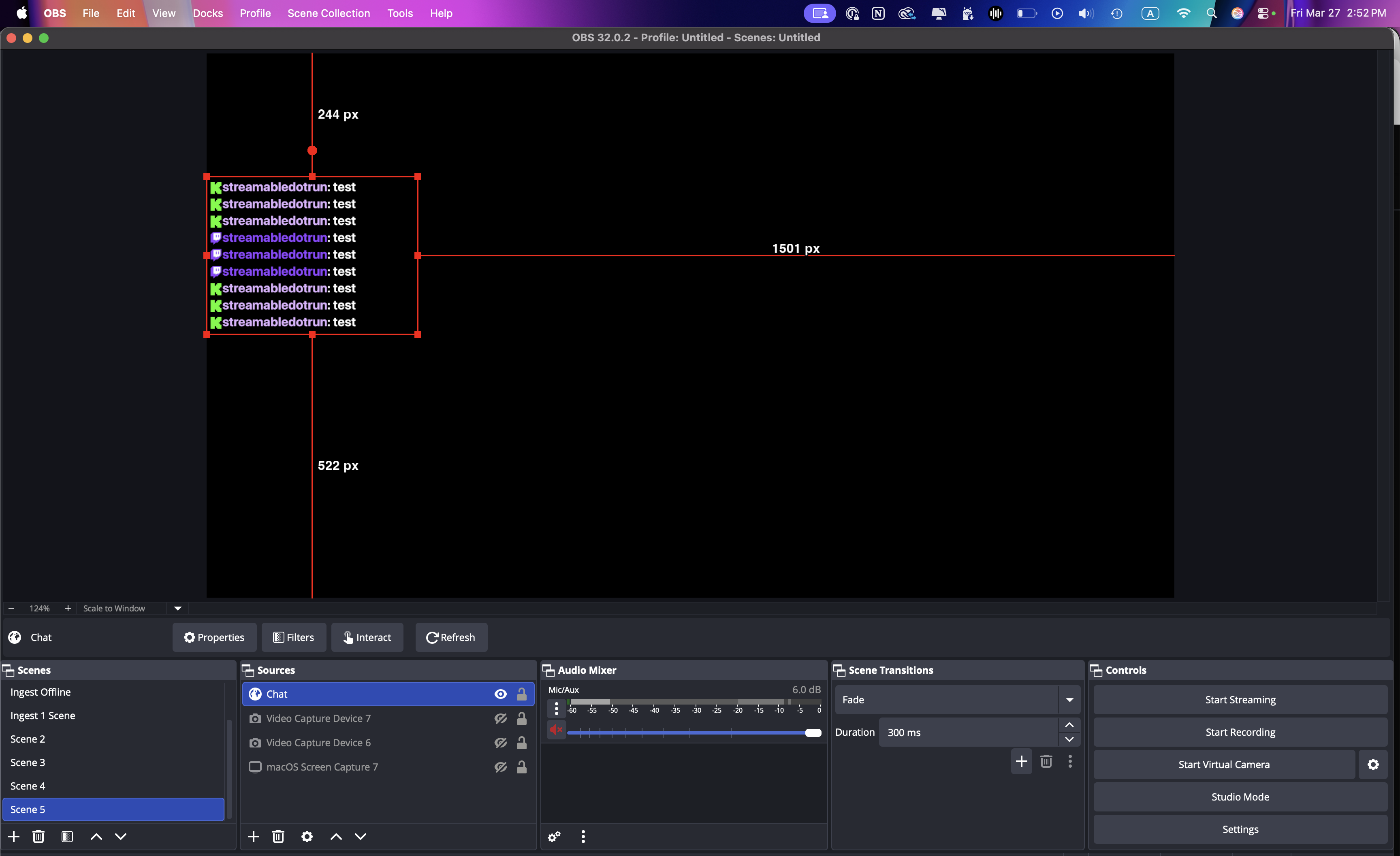
In local OBS, add a Browser Source and paste the copied URL.
Choose a width and height that fit your layout, then select OK.
Step 6:Position and test the overlay
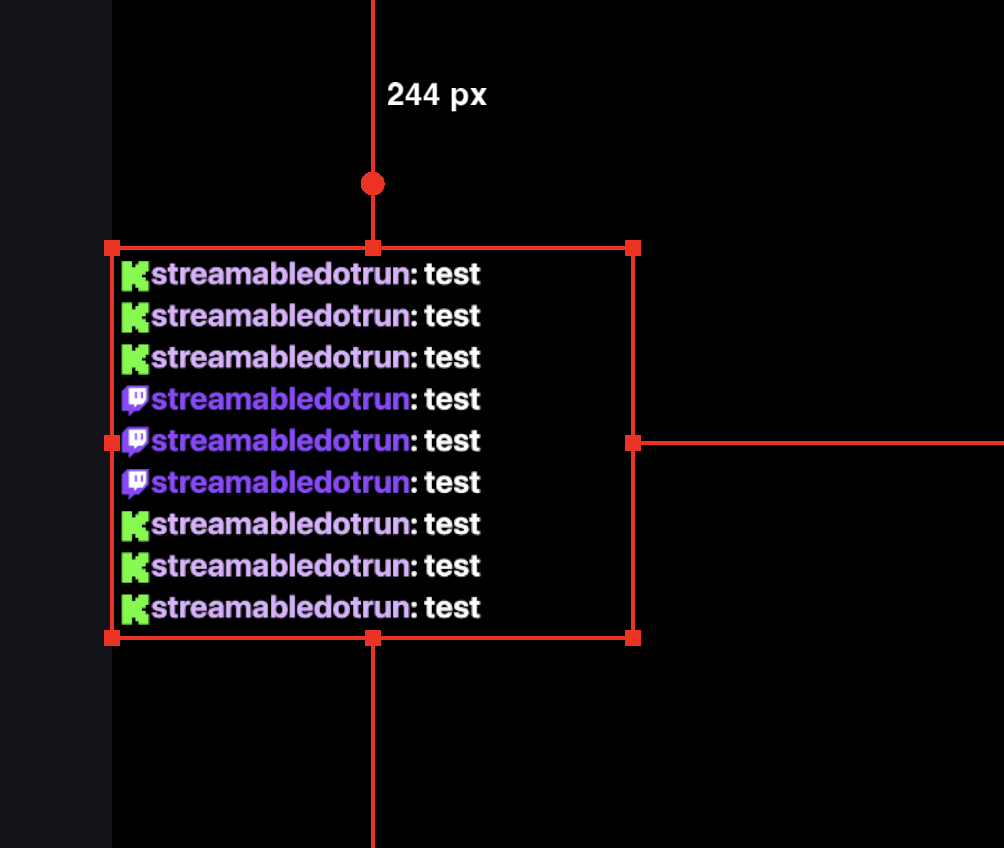
Resize and place the source where chat should appear, and keep it above the video sources it should cover.
Send a test message on every enabled platform and confirm each message appears before you go live.