How to Go Live on TikTok
Connect TikTok to Streamable with your Stream URL and Stream Key, preview your stream, and go live.
Before you start
TikTok must give your account a Stream URL and Stream Key for this setup.
If these are missing, request access from TikTok before continuing.
The TikTok option in Streamable requires a plan that includes vertical streaming.
Step 1:Get your TikTok credentials
Open your TikTok LIVE setup.
Copy the current server URL and stream key.
Keep the TikTok setup page open.
Use the latest credentials for each LIVE session.
Step 2:Add TikTok in Streamable
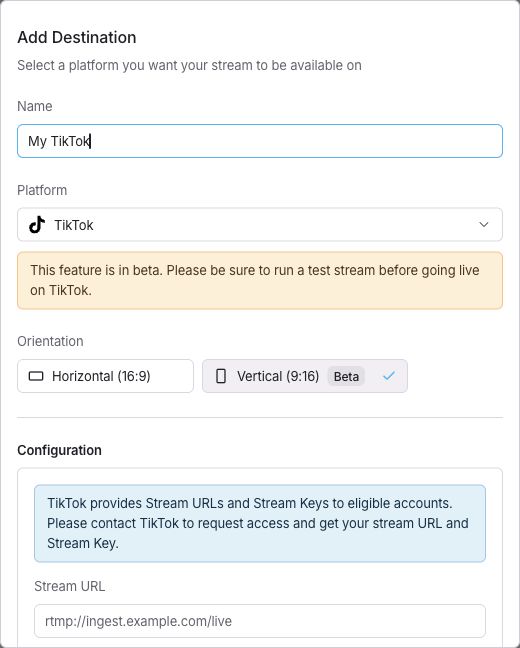
Open Destinations and click "Add Destination".
Enter a "Name" and select "TikTok" under "Platform".
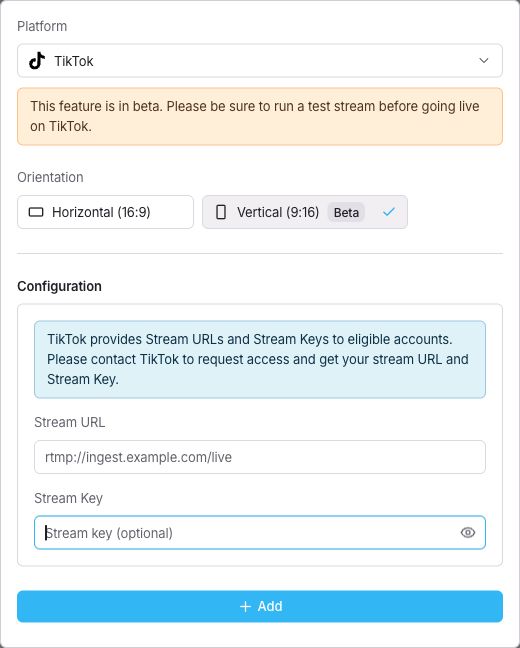
Paste the server URL into "Stream URL" and the stream key into "Stream Key".
Under "Orientation", choose "Horizontal (16:9)" or "Vertical (9:16)".
Click "Add".
Step 3:Preview and go live
Enable your TikTok destination in Streamable.
Start your server and connect your ingest.
Check the video and audio in the Streamable preview.
Click "Start Stream".
Check the TikTok preview.
If TikTok requires a separate confirmation, select "Go LIVE" there.
Step 4:End the stream in both places
End the LIVE session in TikTok.
Stop the stream in Streamable.