How to Split Twitch VOD Audio (Beta)
Live viewers hear OBS track 1. Your Twitch VOD gets track 2. Play music live and keep it out of the VOD.
How It Works
Your desktop OBS sends two audio tracks to Streamable.
- Track 1 → Live. This is what live viewers hear.
- Track 2 → VOD. This is what your saved Twitch VOD gets.
Example: put your music on track 1 only. Live viewers hear it. The VOD stays music-free.
Step 1:Ask Us to Turn It On
This feature is in beta. Message us on Discord and we will turn it on for your account.
Until then, the Streamable settings in this guide do not appear.
Step 2:Choose What Goes on Each Track
In desktop OBS, open Edit → Advanced Audio Properties.
For each audio source, check 1 if live viewers should hear it. Check 2 if the VOD should include it.
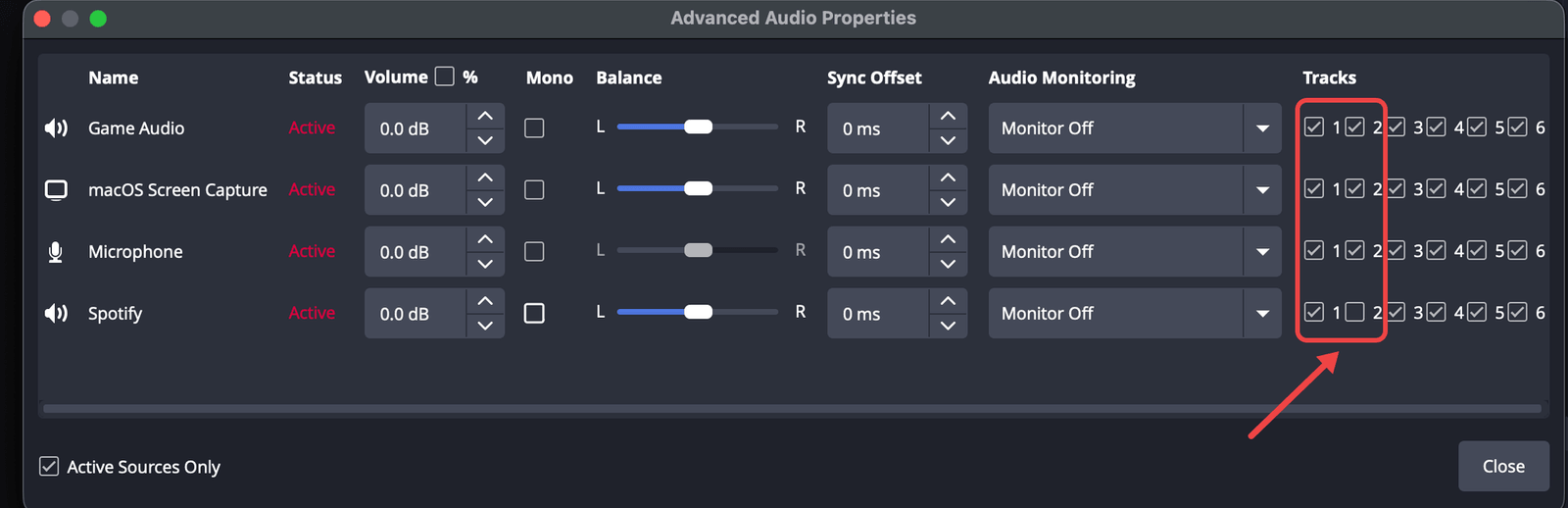
In this example, Spotify is on track 1 only. Live viewers hear the music. The VOD does not.
Step 3:Send Tracks 1 and 2 to Streamable
Open Settings → Output and set Output Mode to Advanced.
On the Streaming tab, check 1 and 2 next to Audio Track.
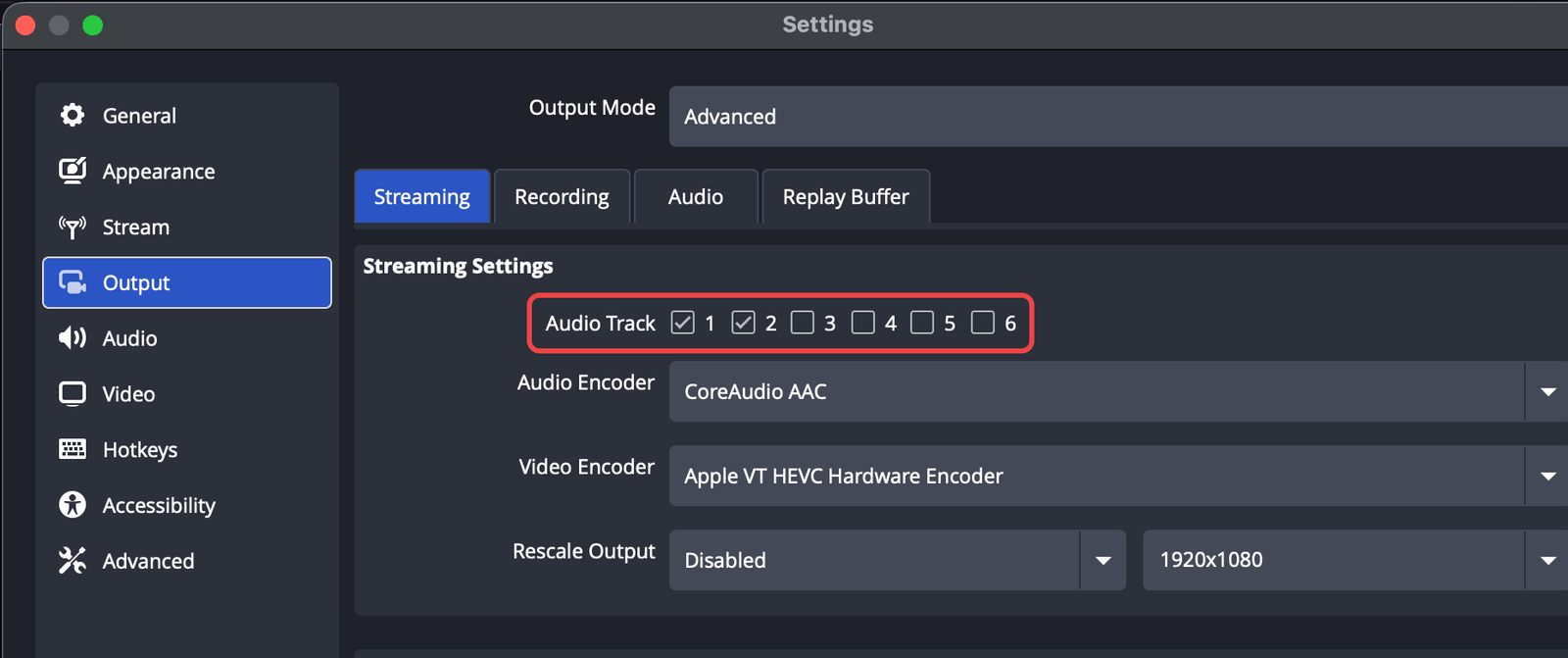
OBS must connect to Streamable over SRT. RTMP carries only one track. To connect, see How to Add OBS as an Ingest.
Step 4:Turn On Separate VOD Audio on Your Ingest
Stop your cloud server. This setting is locked while the server runs.
Open Ingests and select the ingest your OBS sends to. Turn on Separate VOD audio (SRT).
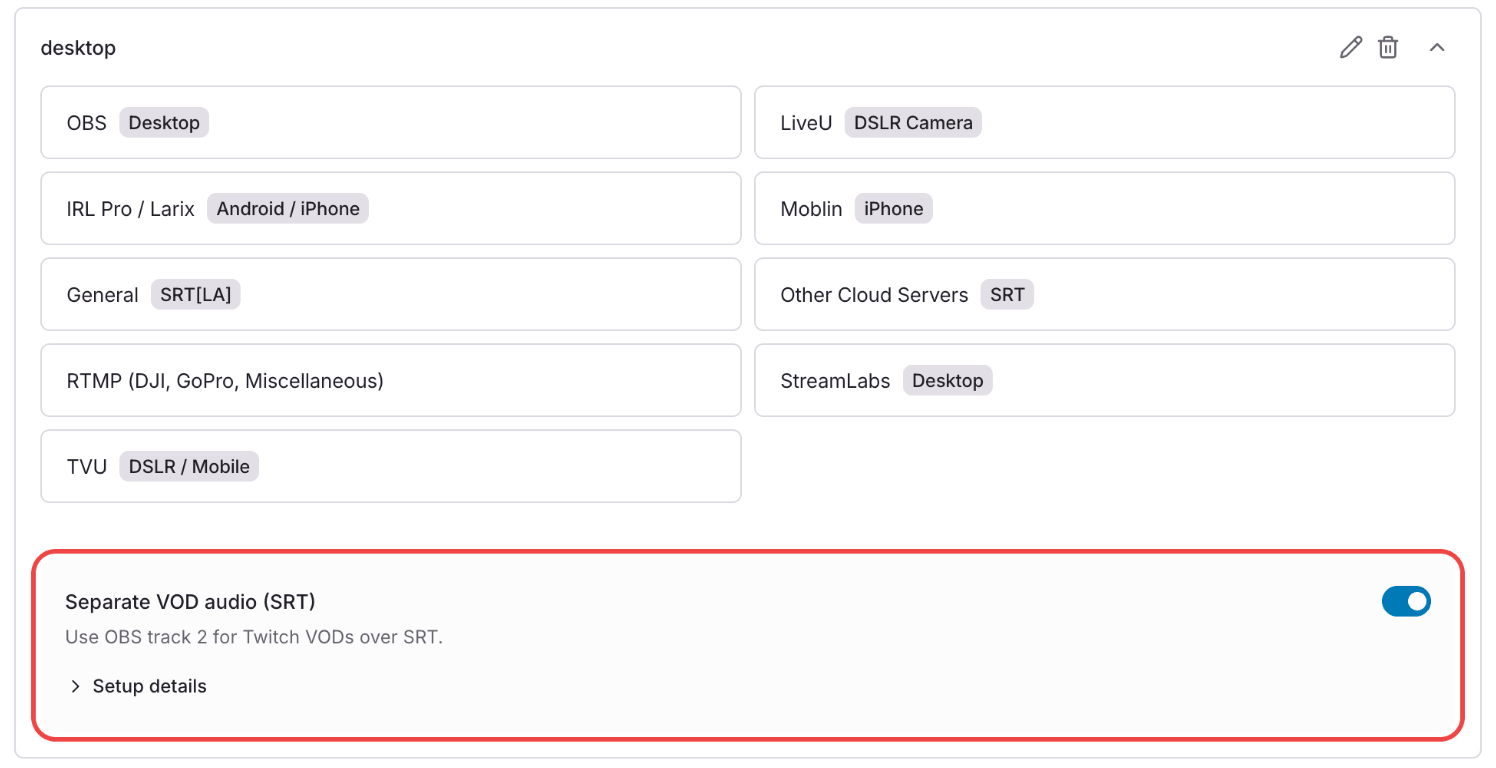
Step 5:Turn It On for Your Twitch Destination
Open Destinations and select your Twitch destination.
Turn on Use separate VOD audio, then click Save Changes.
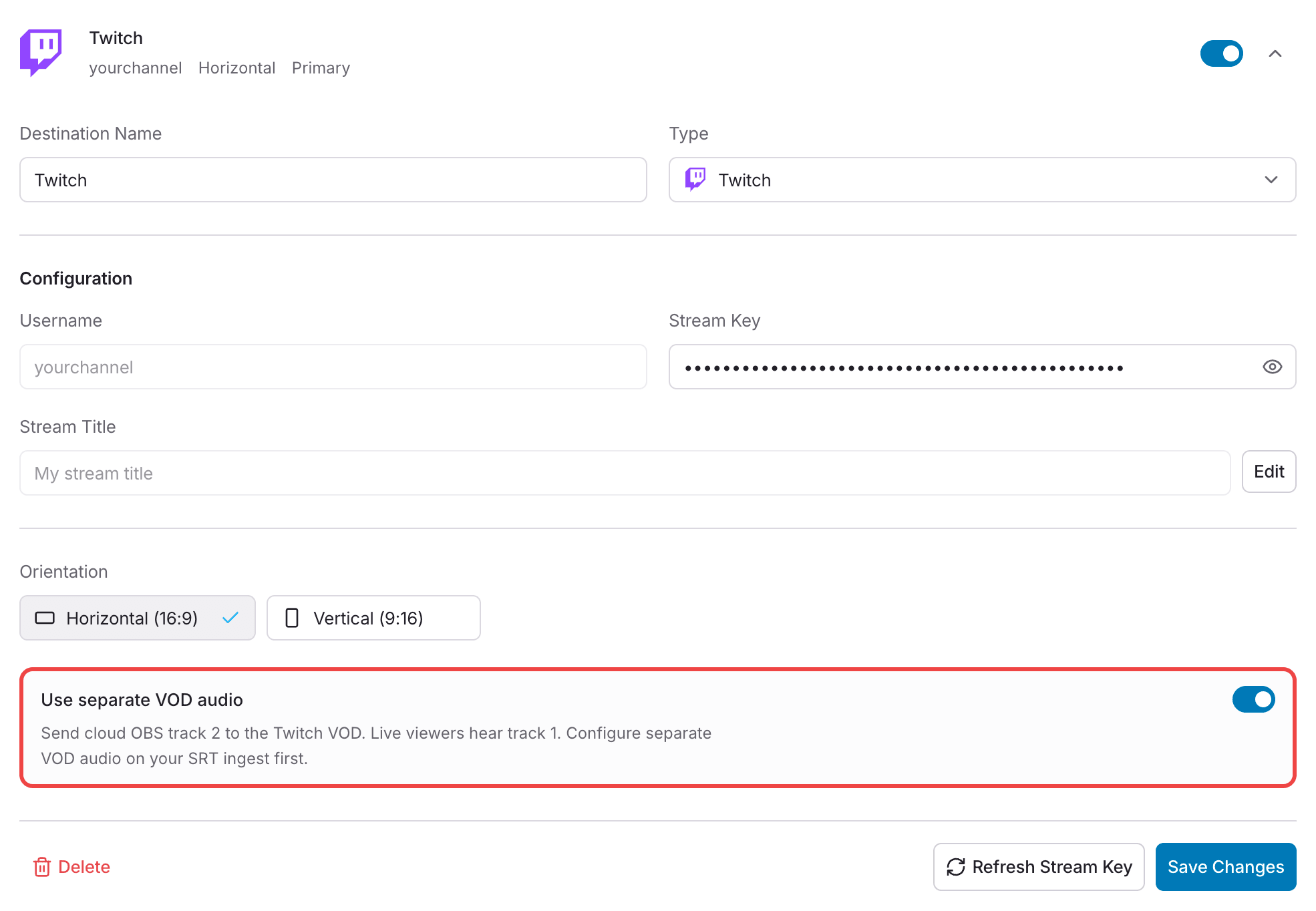
You need both switches: one on the ingest and one on the Twitch destination. If one is off, the VOD does not get track 2.
Step 6:Start Your Server and Go Live
Start your cloud server, then start streaming in desktop OBS.
On the Ingests page, your ingest shows Receiving separate VOD audio. when track 2 arrives.
- Live viewers hear track 1.
- Your Twitch VOD gets track 2.
Good to Know
- If OBS does not send track 2, this ingest is silent in the VOD.
- Keep audio filters and audio monitoring off for this ingest in your cloud OBS. They silence it in both live and VOD.
- This works for Twitch VODs only. Other destinations get track 1.
Let us help!
Contact support on Discord.