How to Add Misc. / RTMP as an Ingest for Live Streaming
Follow these steps to connect a drone, DJI camera, GoPro, or another RTMP device to your Streamable ingest.
Before You Use RTMP
SRT is recommended when possible for lower latency and better reliability. RTMP remains available as a legacy fallback for older workflows.
Use this Misc. / RTMP ingest when your device or app does not support SRT. Common examples include drones, DJI cameras using DJI Mimo, GoPro cameras, action cameras, and older hardware encoders.
Step 1:Start Your Streamable Server
Before you go live, make sure the destination you want is set up and enabled on the Destinations page. Then start your server and open the Ingests page at https://streamable.run/ingests. A running server only means your cloud production environment is available; it does not mean your camera or app is connected yet.
Step 2:Reveal the Misc. RTMP Connection Details
Select the ingest you want your device to use.
Open RTMP (DJI, GoPro, Miscellaneous) and reveal its connection details.
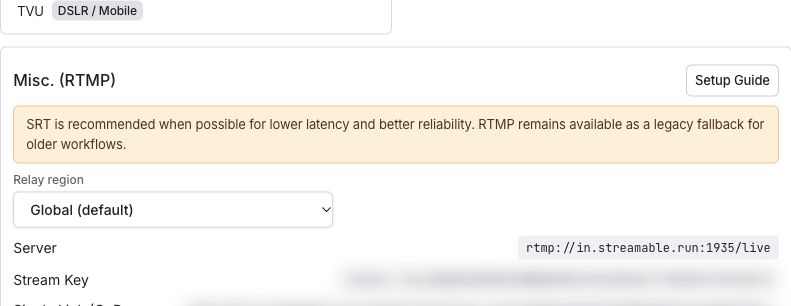
Select Global (default) or Asia. Copy the Server and Stream Key, or Single Link, from the same region.
Step 3:Choose the Format Your Device Requires
If your device has separate Server and Stream Key fields, copy each matching value from Streamable.
If your device has only one RTMP URL or code field, copy the Single Link instead. The GoPro app commonly uses this format.
Do not append the stream key yourself when using Streamable's Single Link; it already includes the key.
Step 4:Configure the Device's RTMP Stream
Open the custom RTMP or livestream settings on your camera, drone controller, companion app, or encoder.
Paste the Streamable values into the matching fields, then save the configuration.
- DJI devices: look for the custom RTMP option in DJI Mimo or the supported controller workflow.
- GoPro: use the Single Link when the app provides only one RTMP URL field.
- Other encoders: use Server plus Stream Key unless their documentation specifically asks for one combined URL.
Step 5:Start the Device Stream and Confirm the Feed
Start streaming from the device or companion app.
On the Dashboard, select your input in Ingest manager. Select its scene, then confirm the video in Stream preview.
On the Dashboard, click Start Stream. Select the destinations in the dialog, then confirm the start.
If the Feed Does Not Connect
- Confirm your Streamable server is running and you selected the intended ingest.
- Copy the Server and Stream Key again, or use the Single Link if the device exposes only one field.
- Make sure there are no spaces before or after a pasted value.
- Stop and restart the device stream after correcting its settings.
- Test with a conservative bitrate if the device connects but the feed is unstable.
Optional: Deep-Dive FAQ
Open only if you still need extra troubleshooting context.
Which devices should use the Misc. RTMP ingest?
Use it for devices and apps that can publish RTMP but do not have a more specific Streamable workflow, including many drones, DJI and GoPro cameras, action cameras, and older encoders.
Should I use SRT or RTMP?
Use SRT when your device supports it because it generally provides lower latency and better reliability. Use RTMP as a compatibility fallback for devices and older workflows that do not support SRT.
Should I enter the Server and Stream Key or the Single Link?
Use Server and Stream Key when your device provides separate fields. Use the Single Link when it provides only one RTMP URL or code field, as the GoPro app commonly does.