Guide: Uploading Files from Customize to Your Streamable Remote OBS
Customize your stream with images and videos by uploading files to Customize in your Streamable Dashboard and adding them to your OBS scene.
Enhance your stream with custom images and videos
In this guide, we'll walk you through the simple process of adding images, videos, and other files to your Cloud OBS stream using Customize in the Streamable Dashboard.
Step 1:Open Customize
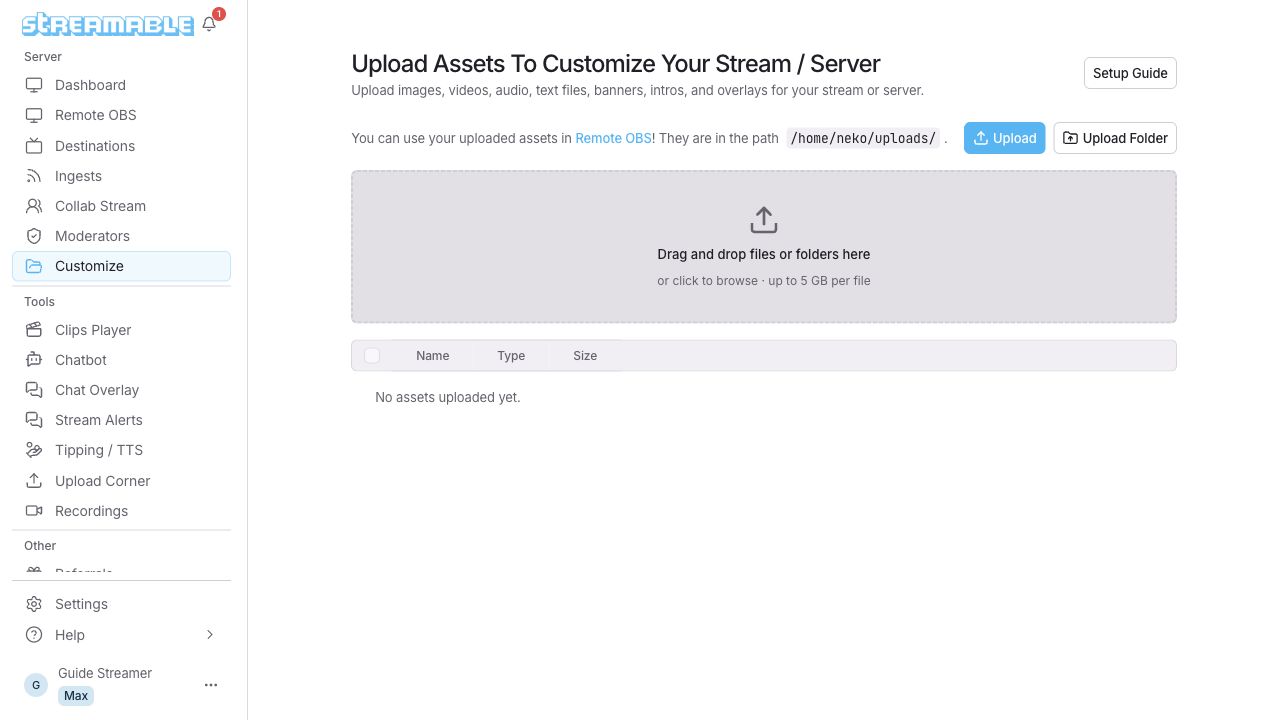
Open Customize at https://streamable.run/customize. This feature requires an active subscription or account access.
Step 2:Upload Your Files
Click Upload to select files, or Upload Folder to select a folder. You can also drag files or folders into the upload area.
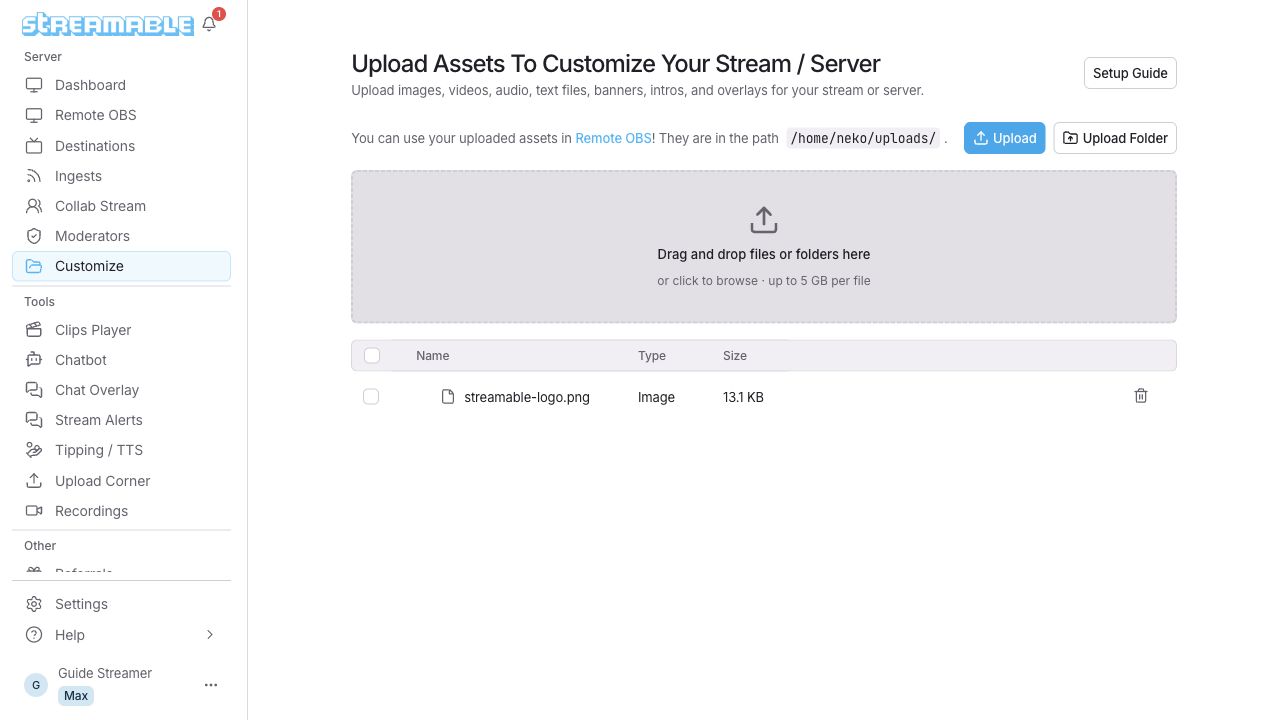
Each file can be up to 5 GB. Folder uploads preserve nested paths under /home/neko/uploads/. Expand a folder to see its files.
Step 3:Open Remote OBS
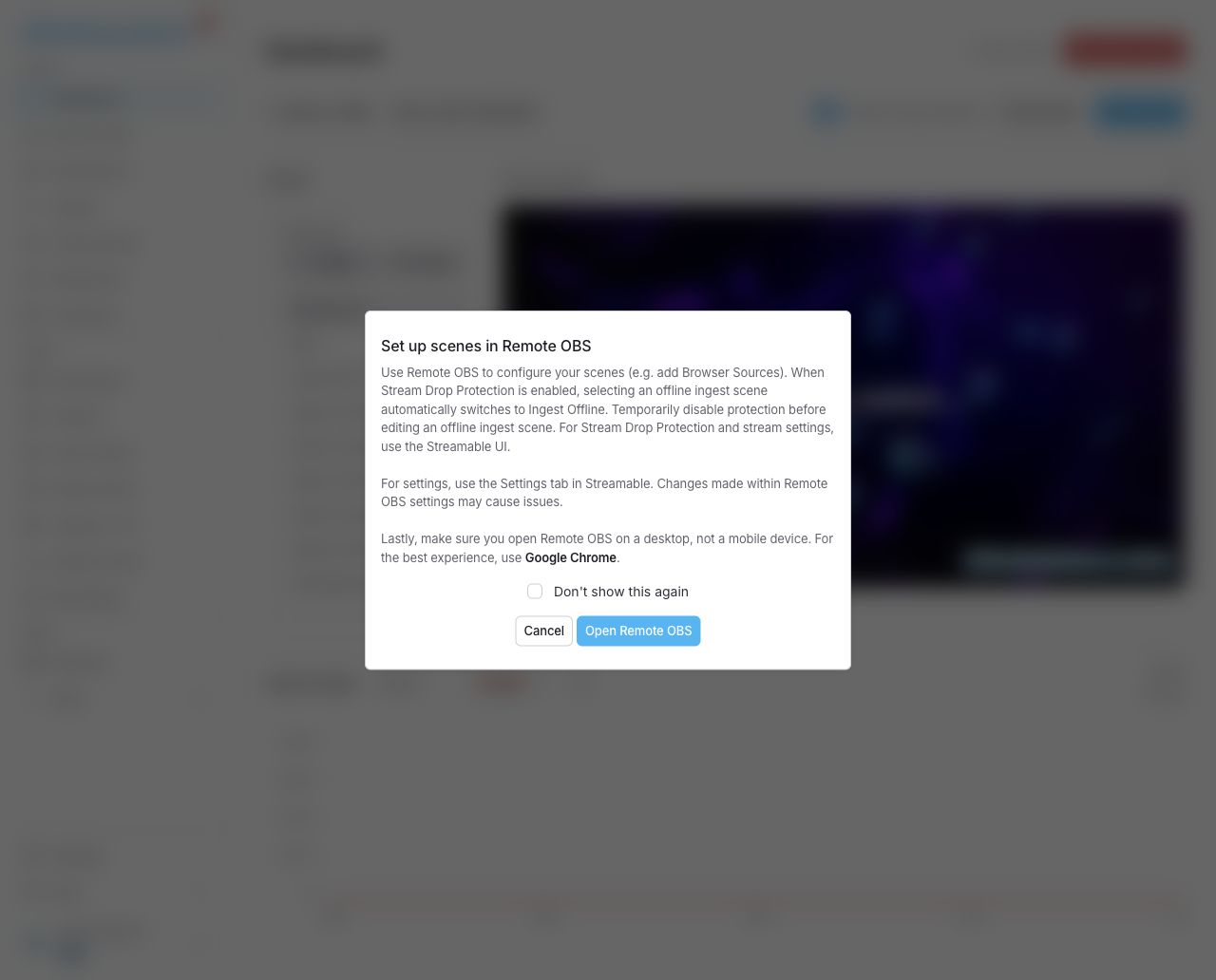
Wait for the upload to finish. Start your server, then open Remote OBS from the Dashboard. Allow time for files to sync.
If a confirmation appears, click Open Remote OBS. The OBS interface opens in a new tab.
Step 4:Add Your Files as Sources in OBS
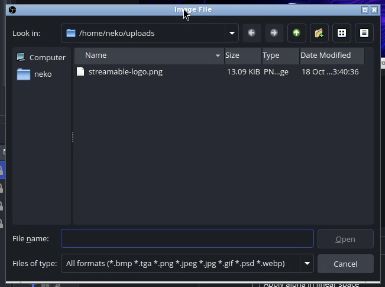
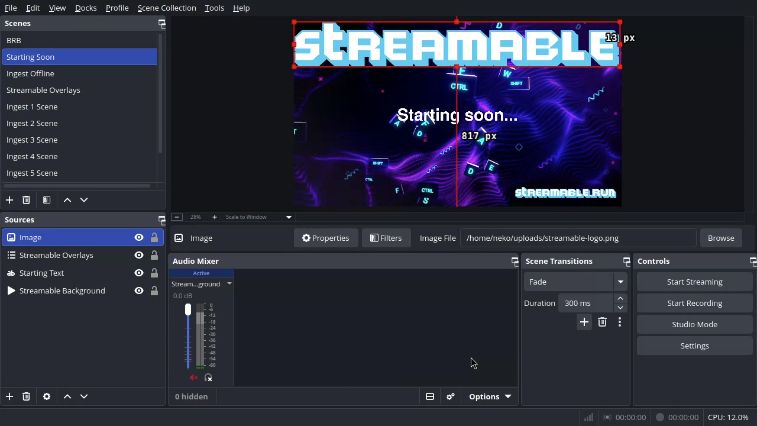
In Sources, click +, then Image, and add a new image source. Name it if prompted. In Properties, click Browse and select your image from /home/neko/uploads.
For a video, add a Media Source. Open its Properties, enable Local File, and click Browse. Select your video from /home/neko/uploads, then confirm the properties.
Step 5:Adjust Your Sources
You can now resize and reposition your new image and video sources within your OBS scene to get the perfect look for your stream!
Optional: Deep-Dive FAQ
Open only if you still need extra troubleshooting context.
What file types can I upload?
Supported formats: PNG, JPEG, GIF, WebP, MP4, MOV, WebM, MP3, WAV, TXT, HTML, JSON, CUBE, WIDGET, and OVERLAY. Each file can be up to 5 GB.
Where are my uploaded files stored?
Streamable stores your uploaded files and syncs them to the running server. In Remote OBS, browse /home/neko/uploads/ and its subfolders.
Can I drag and drop files to upload?
Click **Upload** to select files, or **Upload Folder** to select a folder. You can also drag files or folders into the upload area.