如何将 Streamlabs Desktop 添加为直播 Ingest
按照以下步骤将 Streamlabs Desktop 连接到你的 Ingest 并开始直播。
第 1 步:启动服务器并打开 Ingests 页面
启动你的服务器,然后在 https://streamable.run/ingests 打开 Ingests 页面。
第 2 步:选择 StreamLabs (Desktop) 并复制连接信息
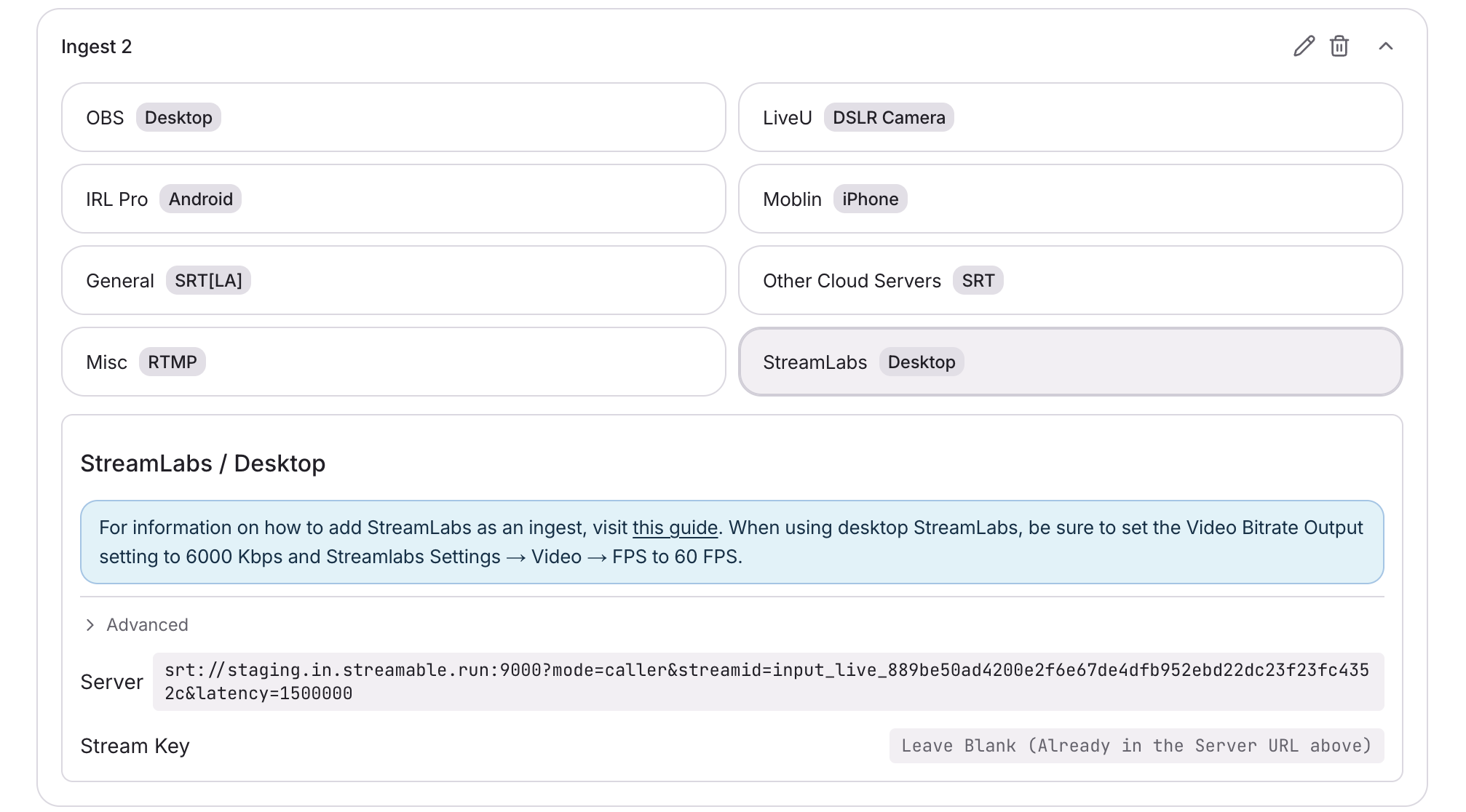
在 Ingests 页面选择你的 Ingest。然后选择 StreamLabs (Desktop)。
复制 Streamable 中的完整 Stream URL。Stream URL 已包含 stream key。
第 3 步:配置 Streamlabs Desktop Stream 设置
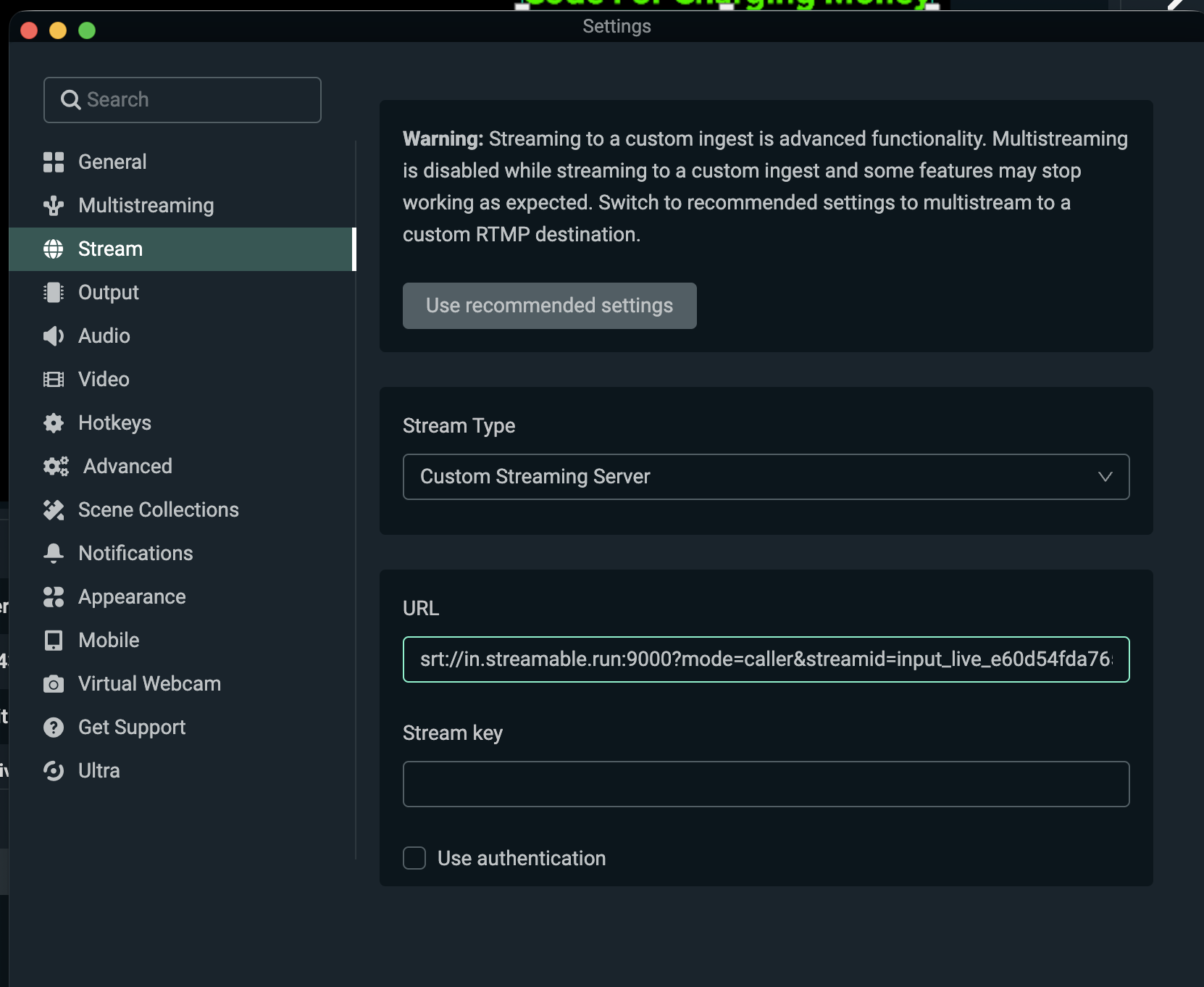
- 在 Streamlabs Desktop → Settings → Stream 中,将 Stream Type 设置为 Custom Streaming Server
- 将 Streamable 的完整 Stream URL 粘贴到 URL
- 将 Stream key 留空。Stream key 已包含在 Stream URL 中
- 不要勾选 Use authentication
- 在 Streamlabs Desktop → Settings → Output → Video Bitrate 中设置为 6000 Kbps
- 在 Streamlabs Desktop → Settings → Video → FPS 中设置为 60 FPS
不同的 bitrate 或 frame rate 可能导致直播问题。
第 4 步:在 Streamlabs Desktop 中点击 Go Live
在桌面 Streamlabs Desktop 中开始串流。现在你可以在 Streamable Dashboard 中选择 Ingest,并在 Ingest Bitrate Monitor 中预览视频。
第 5 步:祝你直播顺利!
在 Streamable Dashboard 中点击 "Start Stream",你就会开始直播!