Jak dodać Streamlabs Desktop jako ingest do transmisji na żywo
Wykonaj te kroki, aby połączyć Streamlabs Desktop z Ingest i rozpocząć stream.
Krok 1:Uruchom serwer i otwórz stronę Ingests
Uruchom serwer, a następnie otwórz stronę Ingests pod adresem https://streamable.run/ingests.
Krok 2:Wybierz StreamLabs (Desktop) i skopiuj dane połączenia
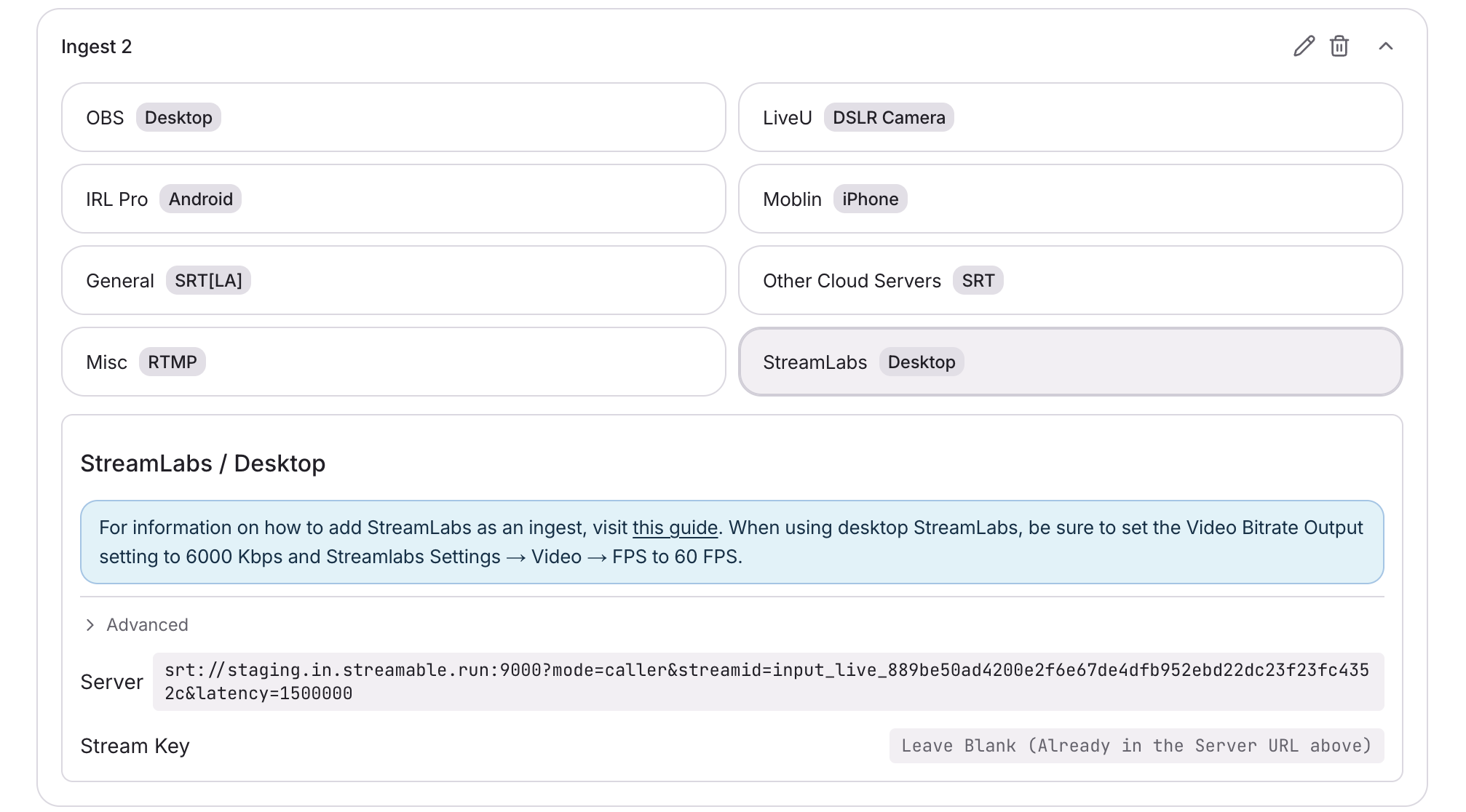
Na stronie Ingests wybierz swój ingest. Następnie wybierz StreamLabs (Desktop).
Skopiuj pełny Stream URL ze Streamable. Stream URL zawiera już stream key.
Krok 3:Skonfiguruj ustawienia Stream w Streamlabs Desktop
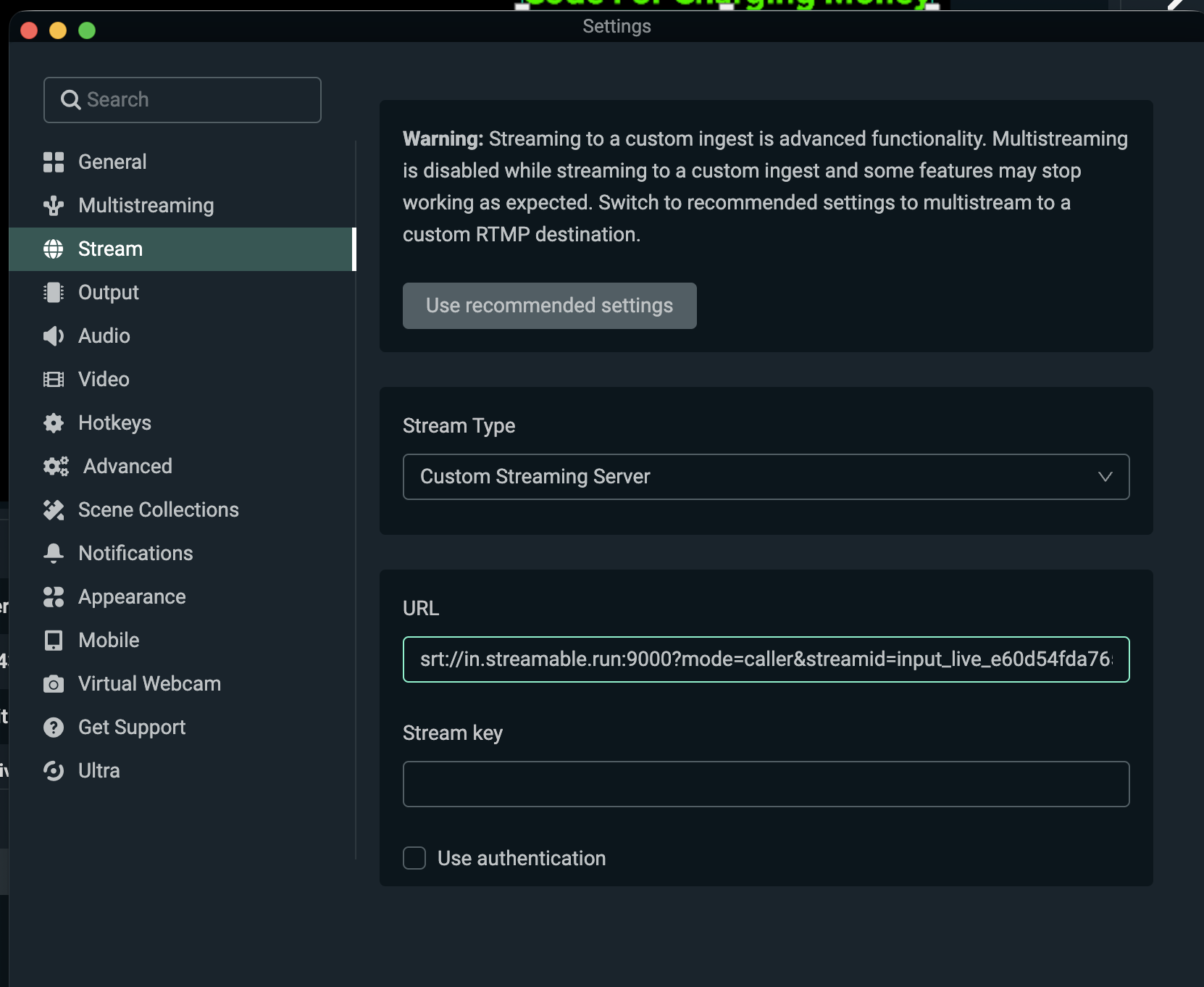
- W Streamlabs Desktop → Settings → Stream ustaw Stream Type na Custom Streaming Server
- Wklej pełny Stream URL ze Streamable do pola URL
- Pozostaw pole Stream key puste. Stream key jest już zawarty w Stream URL
- Pozostaw Use authentication odznaczone
- W Streamlabs Desktop → Settings → Output → Video Bitrate ustaw 6000 Kbps
- W Streamlabs Desktop → Settings → Video → FPS ustaw 60 FPS
Inny bitrate lub frame rate może powodować problemy ze streamem.
Krok 4:Kliknij Go Live w Streamlabs Desktop
Rozpocznij stream w Streamlabs Desktop na swoim komputerze. W Streamable Dashboard możesz teraz wybrać Ingest i podejrzeć wideo w Ingest Bitrate Monitor.
Krok 5:Udanego streamowania!
Kliknij "Start Stream" w Streamable Dashboard, a będziesz live!