Cómo agregar Streamlabs Desktop como ingest para hacer streaming en vivo
Sigue estos pasos para conectar Streamlabs Desktop a tu ingest y empezar a transmitir.
Paso 1:Inicia el servidor y abre la página de Ingests
Inicia tu servidor y luego abre la página de Ingests en https://streamable.run/ingests.
Paso 2:Selecciona StreamLabs (Desktop) y copia los datos de conexión
En la página de Ingests, selecciona tu ingest. Después, selecciona StreamLabs (Desktop).
Copia la Stream URL completa desde Streamable. La Stream URL ya incluye la stream key.
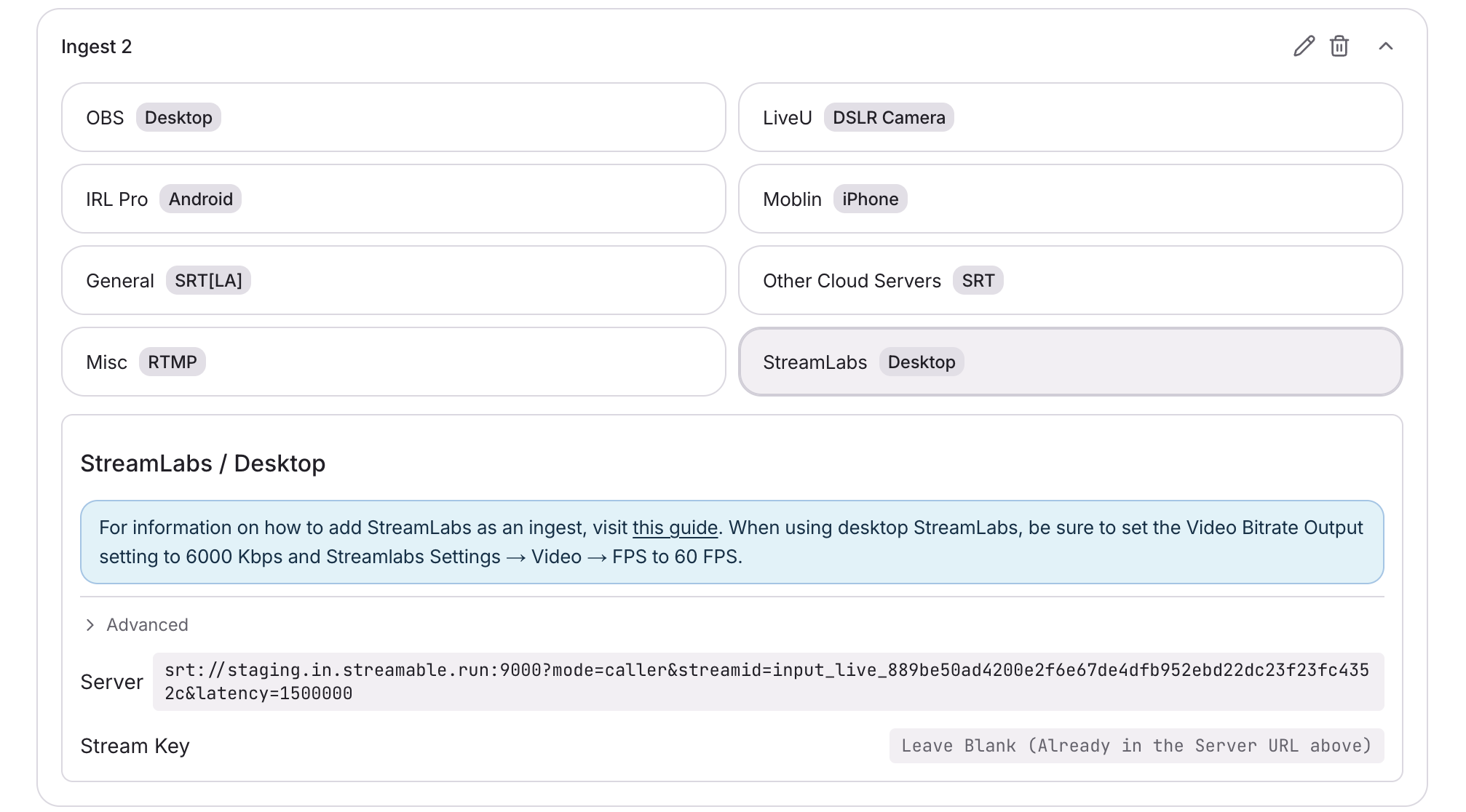
Paso 3:Configura los ajustes de Stream de Streamlabs Desktop
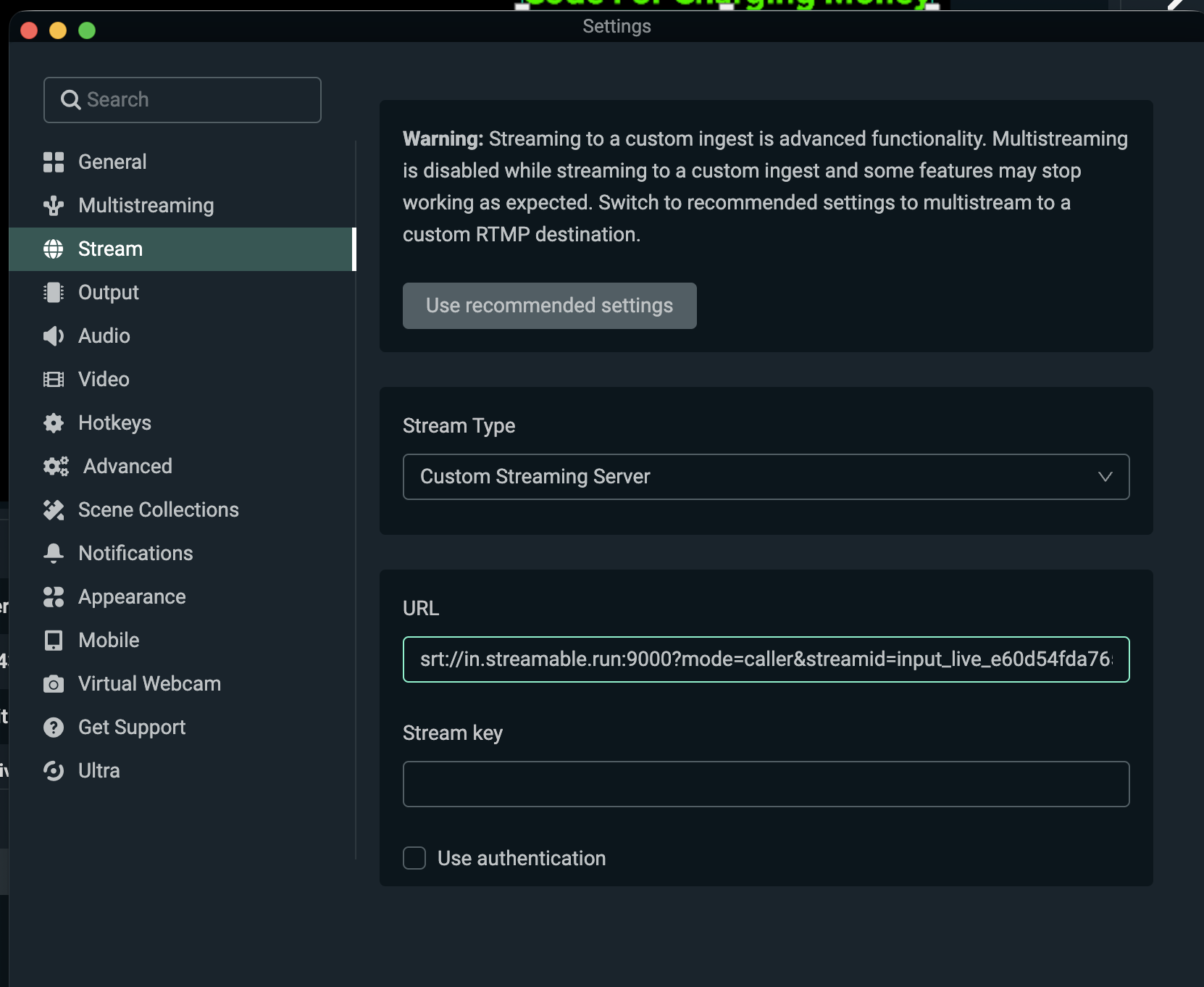
- En Streamlabs Desktop → Settings → Stream, configura Stream Type como Custom Streaming Server
- Pega la Stream URL completa de Streamable en URL
- Deja Stream key vacío. La stream key ya está incluida en la Stream URL
- Deja Use authentication desmarcado
- En Streamlabs Desktop → Ajustes → Salida → Video Bitrate → ajústalo a 6000 Kbps
- En Streamlabs Desktop → Ajustes → Video → FPS → ajústalo a 60 FPS
Un bitrate o frame rate diferente puede causar problemas en el stream.
Paso 4:Haz clic en Go Live en Streamlabs Desktop
Inicia el stream en el Streamlabs Desktop de tu escritorio. En Streamable Dashboard, ahora puedes seleccionar el ingest y previsualizar el video en Ingest Bitrate Monitor.
Paso 5:¡Feliz streaming!
Pulsa "Start Stream" en Streamable Dashboard y estarás en vivo.