Free Twitch and Kick clips player for OBS
Streamable’s Clips Player plays your Twitch or Kick clips in OBS, including on your Ingest Offline and BRB scenes while your connection reconnects. It’s free with a Streamable account; hiding the Streamable.run branding needs an active subscription. Connect your channel to start.
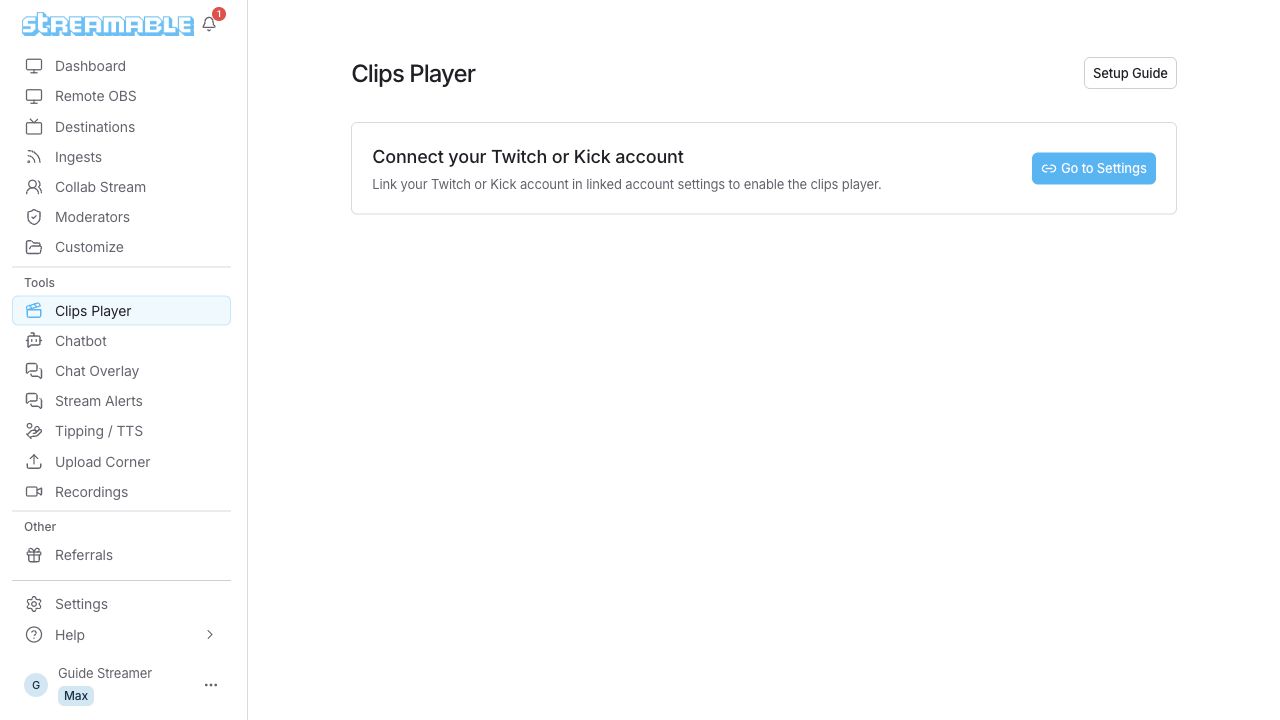
Set it up in three steps
- Connect Twitch or Kick. Choose the account that has the clips you want, then open Clips Player from the Streamable sidebar.
- Pick your clips and save. On Twitch, filter and select clips. On Kick, choose Automatic (new clips from your date range) or Selected clips (only your saved playlist). Select Save Clips Player.
- Turn on Enable Clips. Your clips now play on your Ingest Offline and BRB scenes. Turn it off to keep those scenes clip-free.
What you can do
- Play Twitch or Kick clips as a browser source.
- Fill your Ingest Offline and BRB scenes with your own best moments while your ingest reconnects.
- Switch the clip provider between Twitch and Kick. Both saved selections are kept.
- Use the Custom Browser Source URL in local OBS or your own layouts.
Free, with one condition. Clips Player is free with a Streamable account. Hiding the Streamable.run branding needs an active subscription.
Questions
Is the Streamable Clips Player free?
Yes, with a Streamable account. Hiding the Streamable.run branding needs an active subscription.
Does it work with Kick?
Yes. Connect Kick, then choose Automatic clips or a saved Selected clips playlist.
Can it play clips when I’m offline?
It adds the player to your Ingest Offline and BRB scenes, so clips can play while your ingest reconnects. Turn on Enable Clips to use them.
More free tools
- SRT link builder: Make the two links you need to send video from your phone to OBS over SRT on the same Wi-Fi.
- IRL bitrate calculator: See the bitrate, keyframe and audio settings Twitch, Kick and YouTube ask for, with the source for every number.
- Free Chat Overlay: Show Twitch, Kick and YouTube chat together in one browser source for OBS.