Blog
How to Go Live on YouTube
Connect your YouTube channel once, choose or schedule the exact broadcast, and let Streamable take it live.
Written by Brenton Nguyen
Step 1:Connect your YouTube channel
In Streamable, open Destinations, choose "Add Destination > YouTube," and select "Connect YouTube."
Choose the channel you want to use and approve access. Streamable creates a dedicated reusable ingestion stream for this destination; you do not need to copy or rotate its stream key.
Step 2:Choose what should happen on YouTube
From the Dashboard, start your YouTube destination and choose "Go live now," "Use scheduled stream," or "Schedule new."
Scheduled broadcasts are shown with their title, time, visibility, thumbnail, and binding status so you can select the exact event.
Step 3:Confirm the broadcast details
For a new broadcast, set the title, optional description and thumbnail, visibility, audience, and latency. Private or unlisted is a good choice for a first test.
Turn on private preview if you want Streamable to enter YouTube's testing state and wait for your final confirmation before the broadcast becomes public.
Step 4:Let Streamable verify YouTube
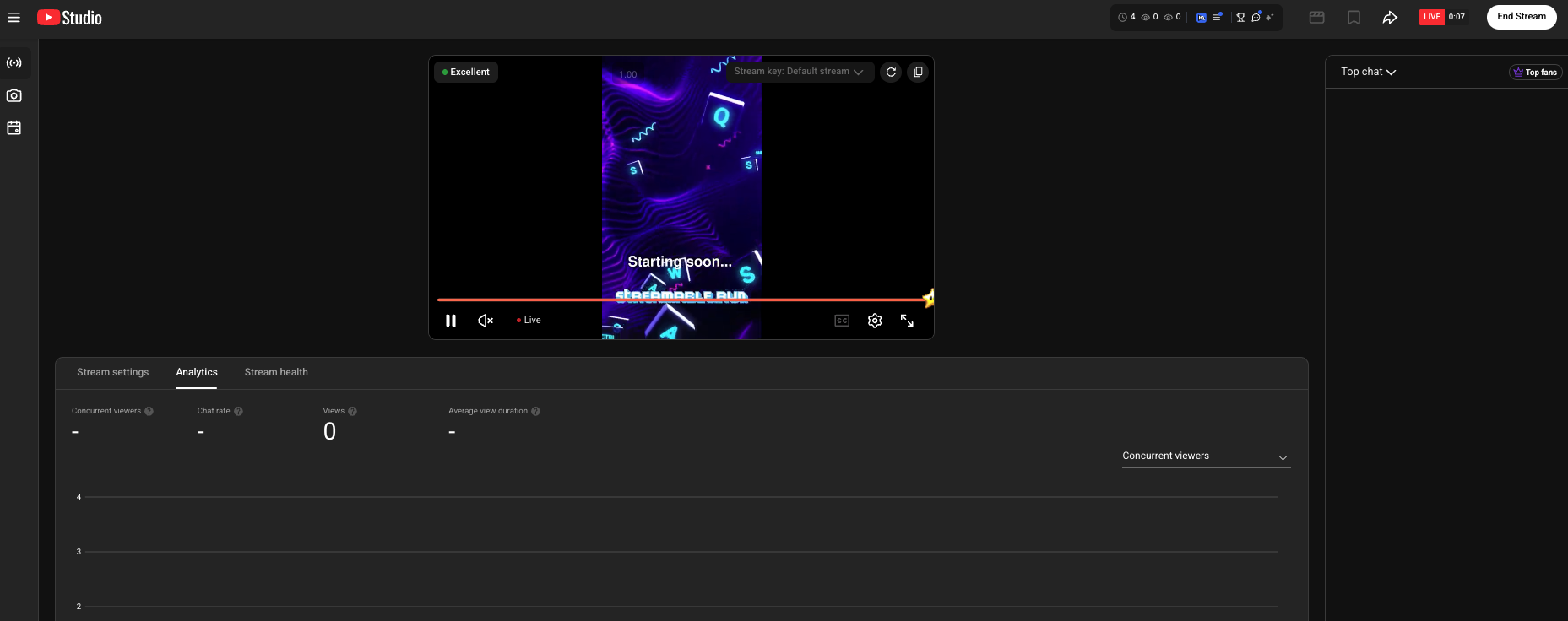
Streamable binds the exact ingestion stream, starts OBS, waits until YouTube reports that video is active, checks stream health, and only then takes the selected broadcast live.
If the attempt fails, retrying resumes the same prepared event instead of creating a duplicate broadcast or notification.
Step 5:End the same event cleanly
When you end the YouTube destination, Streamable stops its output and completes that exact YouTube broadcast. You can then open the archive from the confirmation.
Follow us on Social Media
Follow along for updates and tips:


Optional: Deep-Dive FAQ
Open only if you still need extra troubleshooting context.
Do I need a new YouTube stream key for every broadcast?
No. YouTube supports reusable ingestion streams. A connected Streamable destination keeps a dedicated managed stream and binds it to the event you select. Reset a key only if it may have been exposed.
Do I need to click Go Live in YouTube Studio?
No for a connected destination. Streamable waits for healthy video and performs the user-requested YouTube transition. If private preview is enabled, click Go live on YouTube in Streamable after reviewing the preview.
Can I still paste a YouTube stream URL and key manually?
Yes. In Add Destination, enable "Advanced: use stream URL and key." This is useful when a producer gives you credentials for a channel you cannot connect. Streamable cannot select or manage that channel's YouTube broadcast, so confirm the event in YouTube Studio.