Blog
How to Go Live from Moblin
Follow these steps to connect Moblin to Streamable and go live from your phone.
Written by Nang Ang
Hey there! Streamable enables the most popular streamers to IRL stream without issues. Features include Premium Cloud Streaming Servers, 100% Stream Drop Protection, Clips Players, Remote OBS, Multiple Ingests, Collaborative Streaming, DDoS protection, and much more! If you're a streamer, let us help you out!
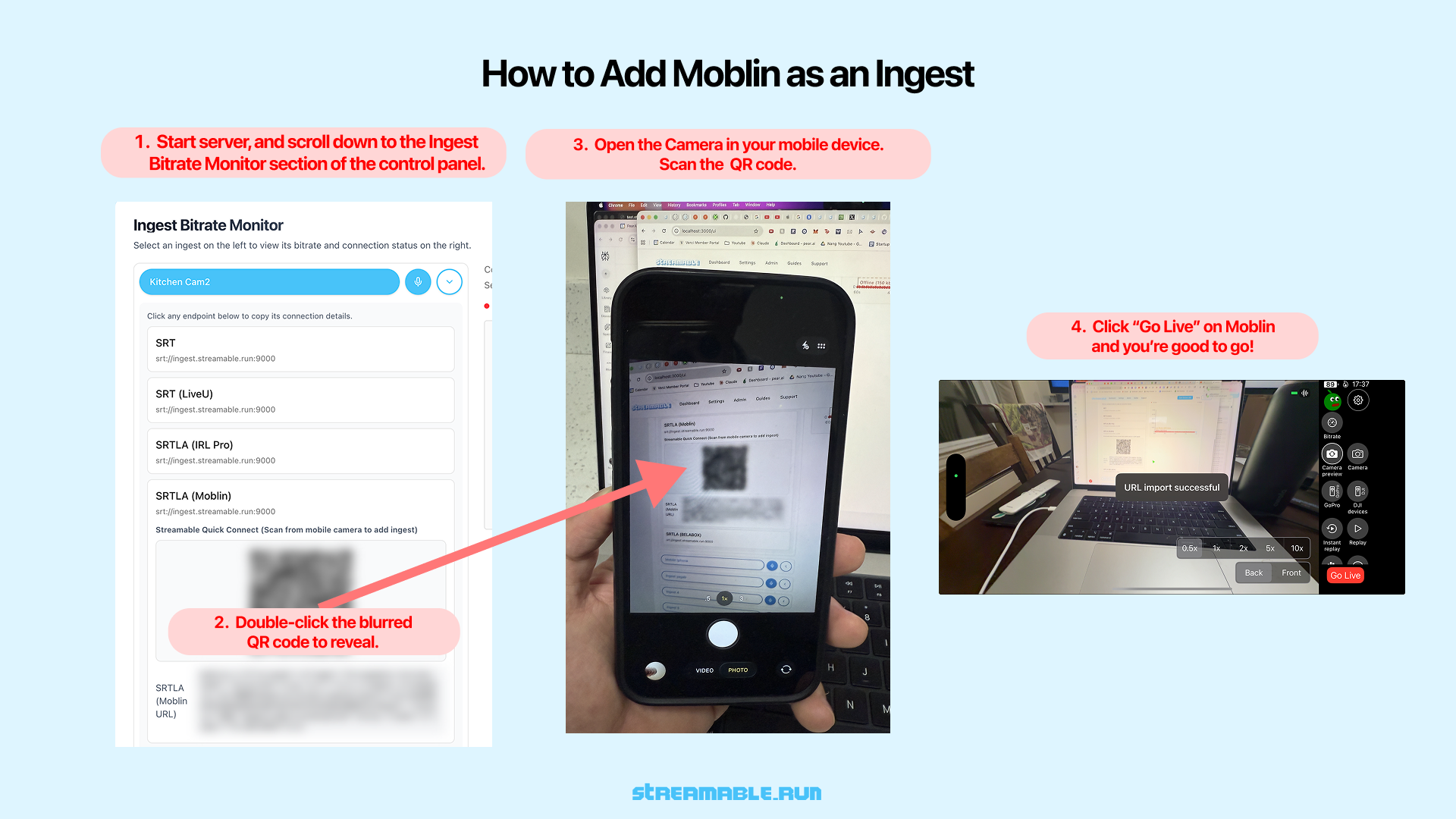
Step 1:Start Your Streamable Server
Start your server at https://streamable.run/dashboard.
Open the Ingests page at https://streamable.run/ingests.
Step 2:Reveal the Moblin QR Code
On the Ingests page, select the ingest you want to use.
Under the Moblin (iPhone) section, double-click the blurred QR code to reveal it.
This QR code contains all connection details Moblin needs, including server, port, and stream ID.
Step 3:Scan or tap the QR code on your phone
QR code on your computer: Open the Camera app on your phone. Scan the QR code, then tap the notification. Moblin opens and imports your Streamable connection.
QR code on your phone: Tap the QR code. Moblin opens and imports your Streamable connection.
Step 4:Go Live in Moblin
Once the URL is imported successfully, tap "Go Live" in Moblin.
Your phone is now sending video directly to Streamable as an ingest.
Step 5:Start Your Stream
In Streamable Dashboard, select the ingest and preview the Moblin feed in Ingest Bitrate Monitor. Press "Start Stream" and you are live. Happy streaming!
Are you an IRL streamer? Give Streamable a try!
Let Streamable help you never IRL stream with issues again! Here's how we can help:
- Premium Cloud Streaming Servers
- 100% Stream Drop Protection with Clips Player
- Multiple Ingests, Switch scenes without pausing stream
- Collaborative Streaming / Share Ingests with Friend Requests
- Remote OBS
- DDoS protection
- much, much more!
Follow us on Social Media
Follow along for updates and tips: